


Quick answer: Update an NVR’s firmware when the release notes fix a security issue or a fault the site actually has, or when Anabon technical support advises it for your model and camera combination; otherwise leave a working recorder alone. Take the file only from the Anabon download center for the exact model, export the configuration first, update inside an agreed window with someone at the site, verify recording and remote access afterwards, and keep the previous firmware file and the configuration export so you can go back. Steps and menu labels vary per model and firmware; confirm the sequence with support for a model you have not updated before.
When to update, and when to leave it alone
Firmware is the recorder’s operating system, and a recorder that records is doing its job. The question is never “is there a newer version?” but “does this version change something on this site?” Read the release notes for the exact model, then apply the table.
| Update when | Hold when |
|---|---|
| The release notes list a security fix for the recorder or its web interface | No release notes exist for the exact model, or you cannot tell which hardware version the file is for |
| The site has a fault the notes say is fixed (a channel dropping, a search error, a time-sync problem) | The site has no fault and the notes list only features the customer does not use |
| A function the project requires is listed as added or corrected for that model | It is the day before handover, or an incident investigation is open on the recorder |
| New cameras need a recorder version that supports them, confirmed by Anabon technical support | You have no configuration export, no previous firmware file and nobody at the site |
| Anabon technical support advises it for your model and firmware combination | The file came from a search result or a forum rather than the official download center |
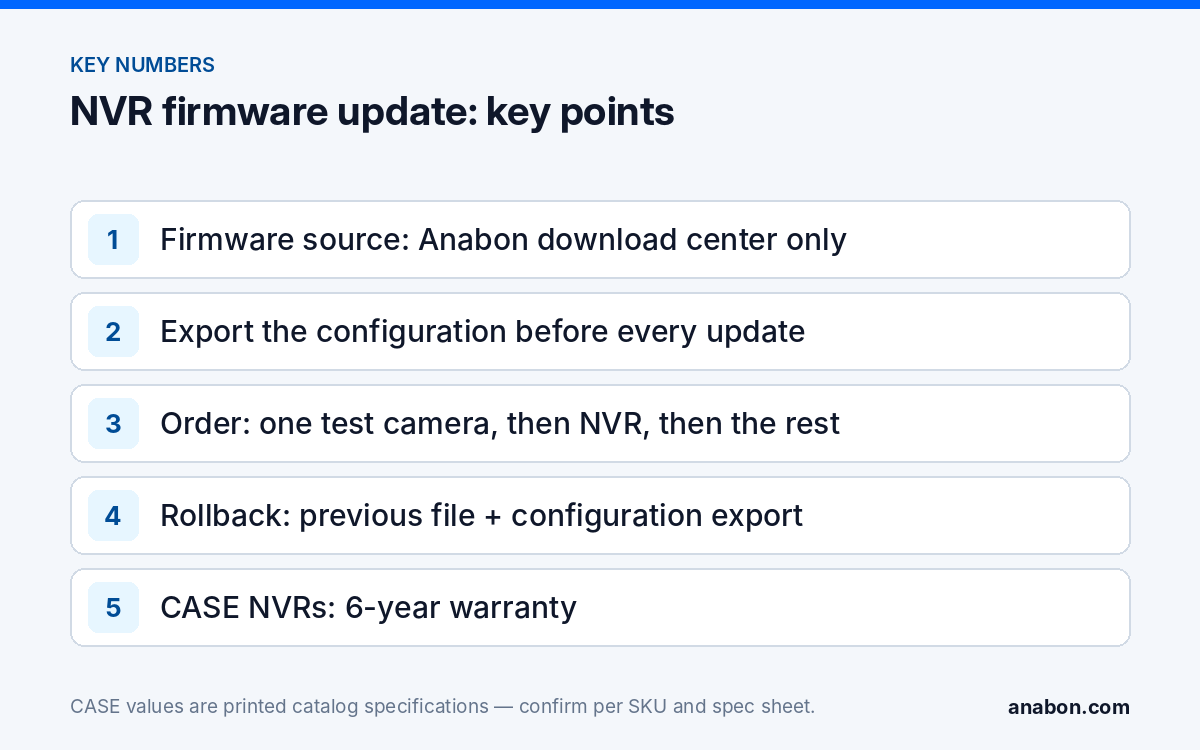
Two rules carry the whole procedure. First, the source: firmware comes from the Anabon download center for the exact SKU, and from nowhere else; a file for the wrong model or hardware version is the fastest way to a recorder that will not boot. Second, the schedule: firmware belongs in your maintenance calendar as a reviewed decision, not as a reflex on every visit; the cadence is laid out in Firmware lifecycle: a maintenance calendar for cameras and NVRs.
Before you start: the pre-update checklist
Most firmware failures are preparation failures. Run this list first:
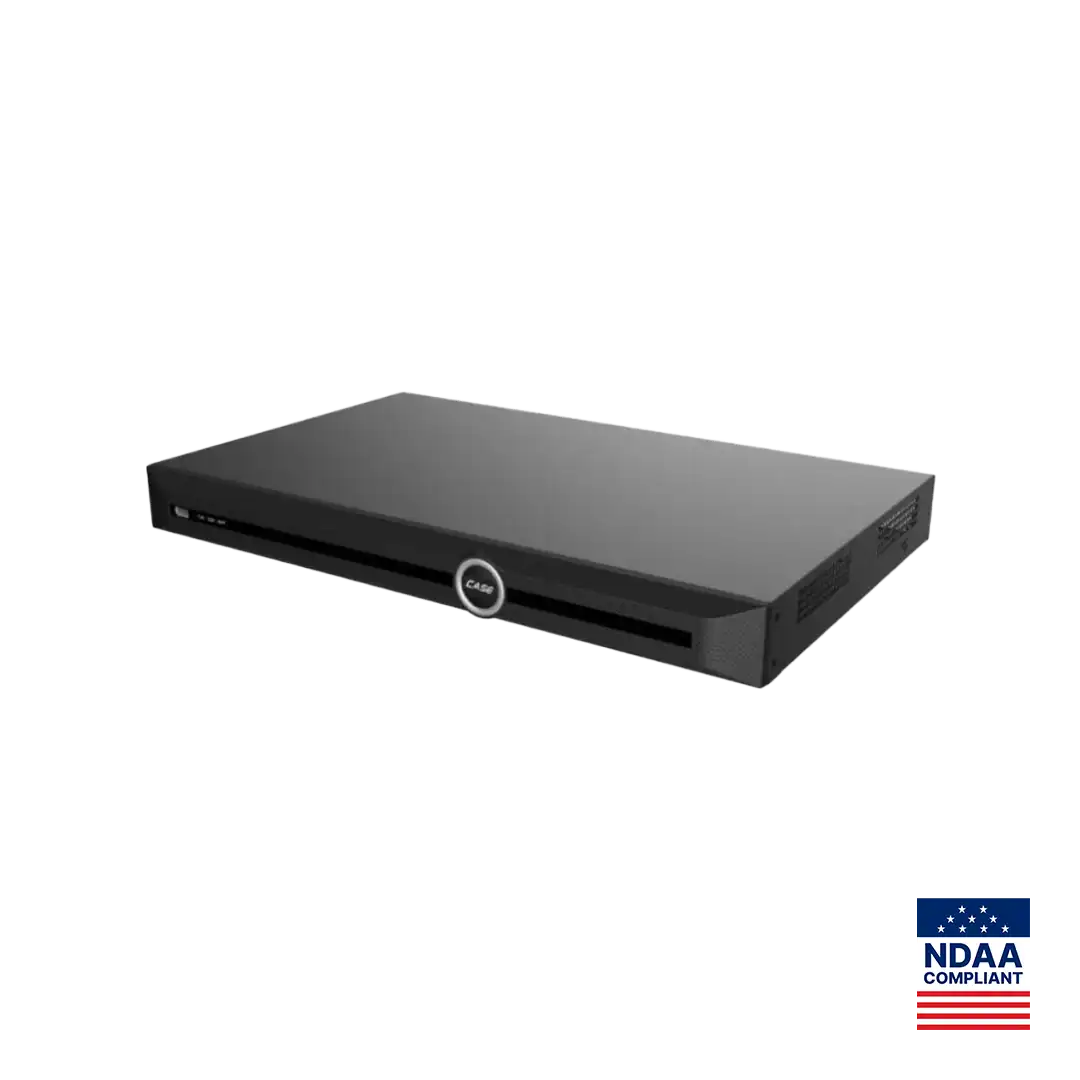
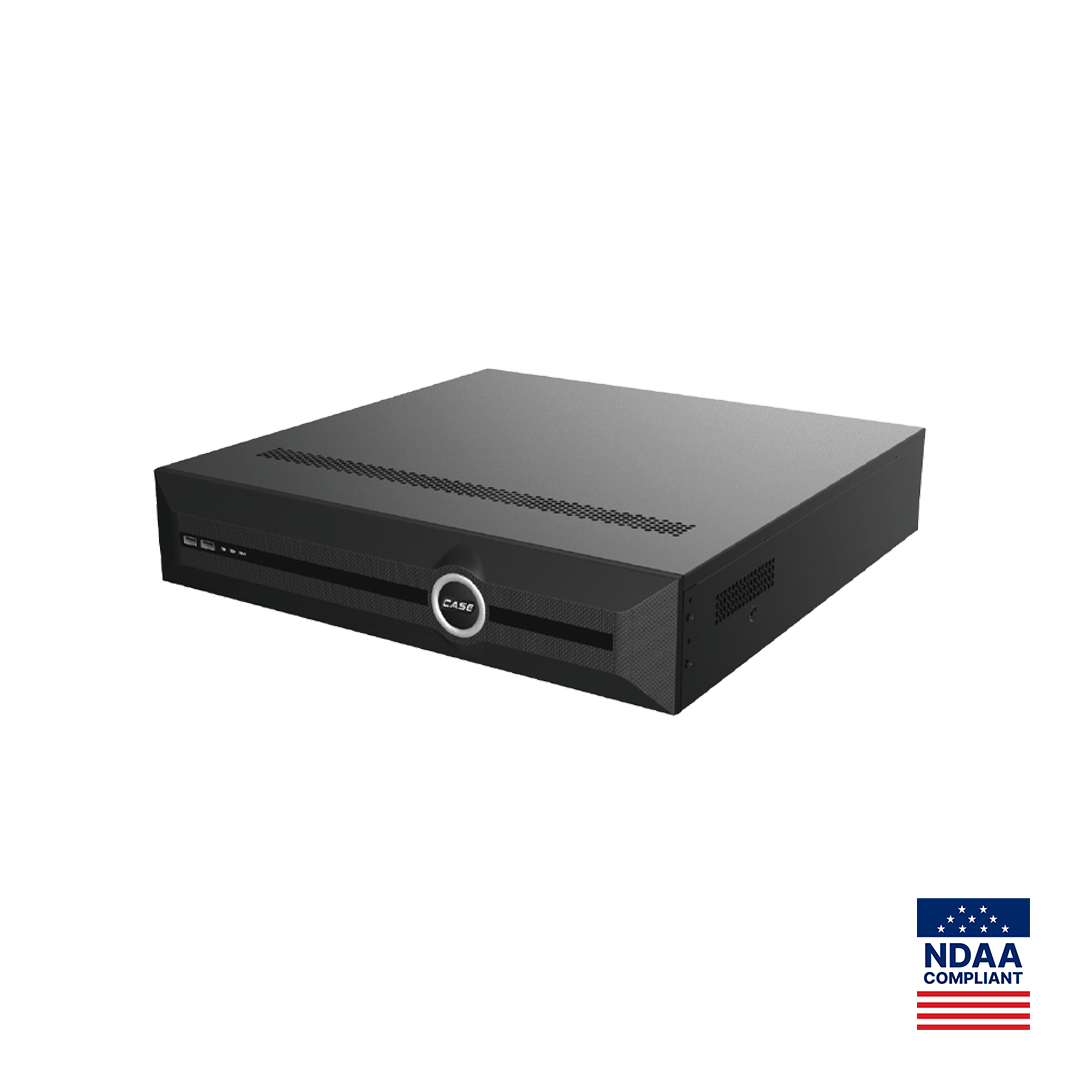
- Exact model and current version recorded from the recorder’s system information page, including the hardware version where shown. A CS-N220 P16H-AI and a CS-N440 P16H-AI take different files; one character in a SKU changes the file.
- Release notes read and the reason for the update written in one line on the job sheet.
- File verified: downloaded from the Anabon download center for that SKU, file name and version matching the notes. If the name or the target hardware version is unclear, ask Anabon technical support before you proceed, not after.
- Configuration exported and screenshots taken, as described in the next section.
- Evidence secured. If the customer has an open incident, export the relevant clips first. A firmware update does not normally touch recordings, but you do not promise that; you protect against it.
- Power secured. The recorder on a UPS, or at least on a circuit nobody will switch during the update.
- Someone at the site who can power-cycle the unit and read the screen if you are working remotely, and a window agreed with the customer in which recording may pause.
- Previous firmware file kept on the same USB drive, so the rollback does not start with a search.
Backup configuration first
The configuration export is the difference between a ten-minute rollback and an afternoon of retyping camera names, schedules and analytics rules. The menu label varies by model and firmware; the procedure does not.
- Export the configuration file to your USB drive and name it so it identifies itself a year from now: site, SKU, serial number, firmware version and date.
- Export the system log as well; if the update goes wrong, support will ask for the state before the change.
- Photograph or screenshot the pages that take longest to rebuild: network settings, PoE and channel assignments, recording schedules, AI by NVR and VCA Search rule settings, alarm input and output assignments, user accounts and roles, display layouts.
- Store the export and the images in the job folder, and store any passwords in your password manager, never in the folder.
One caution: a configuration file exported on one firmware version may not import on another. Treat the export as your way back to the version you are leaving, and the screenshots as the human-readable record that works on any version. Recorder hardening, including the password and account settings you will re-check after the update, is covered in our guide to hardening a CASE NVR.
Update sequence and verification
When cameras and the recorder are both due, the order matters, and it is confirmed per model combination with Anabon technical support, because camera and recorder firmware compatibility is confirmed per model and version. Our general approach, used unless support says otherwise for your models:
- One camera first, on a channel the customer can live without for an hour. Update it, confirm it comes back online on the recorder with its stream, name, PoE power and analytics rules intact.
- The recorder next, from the local menu or the web interface. Do not power off, unplug or reload the page while the progress indicator runs, and do not run an update from a remote session unless someone at the site can intervene; CASE Cloud is remote NVR configuration and troubleshooting, and no remote tool restores a unit that stopped responding.
- The remaining cameras, in batches small enough that a problem is visible before it spreads.
After each reboot, work through the verification list and write the result down; nothing is finished until every line passes:
| Check | Pass criterion |
|---|---|
| Firmware version | System information shows the new version for the exact model |
| Channels | Every camera online, named, with its PoE port powering and its stream decoding |
| Recording | Each channel recording on its schedule; a one-minute playback from after the reboot works |
| Time | NTP synchronized, time zone and daylight saving unchanged |
| Analytics | AI by NVR and camera rules present; one rule tested by walking the line |
| Remote access | CASE Connect live view and playback work on cellular, not only on site Wi-Fi |
| Alarm I/O | Inputs and relay outputs trigger as wired |
| Users | Accounts and roles intact; default passwords still changed |
| Storage | Hard drives recognized, status normal, overwrite setting unchanged |
| Network | IP addressing, gateway, DNS and platform access unchanged |
The rollback plan
Decide what “wrong” looks like before you start: a failed check that you cannot clear within the agreed window. Then follow the ladder without skipping steps:
- Settings first. Many post-update faults are a setting reset to default, not a firmware fault. Compare against the screenshots, correct the setting, and re-test before touching the firmware again.
- Import the configuration if the recorder is on the same version the export came from and several settings changed at once.
- Downgrade only where supported. Some models and versions do not allow a return to an earlier firmware, or allow it only through a specific procedure. Confirm with Anabon technical support for the model and the two versions involved before you load the previous file.
- A recorder that will not boot is a support call, not a power-cycle contest. Note the model, serial number, both versions, the file name and what the screen shows, and contact Anabon technical support through your business account; what to prepare is listed in Before you call support. If the unit is faulty, the RMA runs through your dealer or business account, never from the end user directly; CASE NVRs carry a 6-year warranty, and hard drives are supported through back-to-back manufacturer warranty.
Never leave a site with a recorder that is not recording. If the ladder runs out inside the window, a spare recorder from the van, loaded with the configuration export where the versions match, keeps the cameras recording while the faulty unit is handled. That spare is why the export exists.
Documenting versions for the customer
A version log turns firmware from an argument into a record. Keep one row per device, copy it into the handover documents, and update it at every service visit. Copy this table into your own spreadsheet:
| Device | SKU | Serial | Location | Previous firmware | New firmware | Date and time (zone) | Technician | Backup file | Result |
|---|---|---|---|---|---|---|---|---|---|
| Recorder | CS-N220 P16H-AI | Rack, back office | site-sku-serial-version-date | All checks passed / notes | |||||
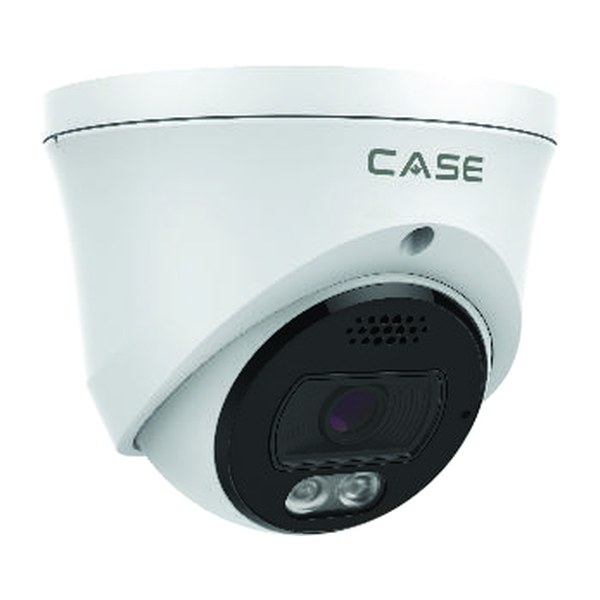
| Camera 01 | CS-I8XQ II-2.8mm | Yard gate | n/a | ||||||
| Camera 02 |
Two habits make the log useful. Record the time with its time zone, because the recorder log, your phone and the customer’s email will disagree otherwise. And write the reason for each update in the result column; “security fix per release notes” answers the customer who asks why their system changed. Under a service agreement, the firmware review becomes a scheduled line item rather than an emergency.
What to tell your customer
“We review the recorder’s firmware on a schedule and update it only when the release notes fix a security issue or something that affects your site. Before we touch it we save the configuration and secure any footage you need, we update inside a window we agree with you, and we test recording, remote access and alarms afterwards. You receive the version log with every service report.” For warranty and service, please contact the installer or company that supplied your system.
FAQ
Where should I download CASE NVR and camera firmware?
Only from the Anabon download center, for the exact SKU and hardware version, with the release notes read first. A file taken from a search result or a forum may be for a different model or region and can leave the recorder unable to boot. If the file name, version or target hardware is unclear, ask Anabon technical support before loading anything.
Do I update the cameras or the NVR first?
Confirm the order with Anabon technical support for your model combination, because camera and recorder firmware compatibility is confirmed per model and version. Our general approach is one test camera first, then the recorder, then the remaining cameras in small batches, verifying channels, recording, time, analytics and CASE Connect access after each step. Never run both updates at once from a remote connection.
Can I roll back an NVR firmware update?
Sometimes. Some models and versions allow a return to the previous firmware, others block it or require a specific procedure, so confirm with Anabon technical support for the model and the two versions before loading the older file. Keep the previous firmware file and the configuration export from before the update, and try settings and configuration import before any downgrade.
Will a firmware update erase the recordings on the hard drive?
It normally does not, but you should not promise that to the customer. Export any clips an open incident depends on before you start, record the hard drive status and overwrite setting, and verify after the reboot that the drives are recognized and that playback from before the update still works. Hard drives are supported through back-to-back manufacturer warranty.