

Quick answer: How to add an IP camera to an NVR depends on where the camera plugs in. A CASE camera on an NVR PoE port is plug-and-play: the NVR powers it, assigns its address and adds it. A CASE camera on an external switch is added manually with a fixed IP on the NVR’s LAN subnet. A third-party camera is added over ONVIF, where profiles supported are S, T, and G, with M on pinhole models, and third-party behavior is confirmed per platform and project. Use plug-and-play or manual add for CASE cameras so the NVR’s AI functions stay available.
Before you start: firmware, credentials and a cable test
Most failed adds are prevented on the bench.
- Firmware. Note the NVR and camera firmware versions. Plug-and-play between a CASE camera and a CASE NVR relies on firmware approved to work together; get the files from Anabon technical support and keep the previous version for rollback.
- Credentials. Decide the camera passwords before the first camera is powered and write them in the site credential record, following the customer’s password policy (unique per device, never reused across customers). The NVR stores a password per channel, so an unrecorded change doubles the troubleshooting later.
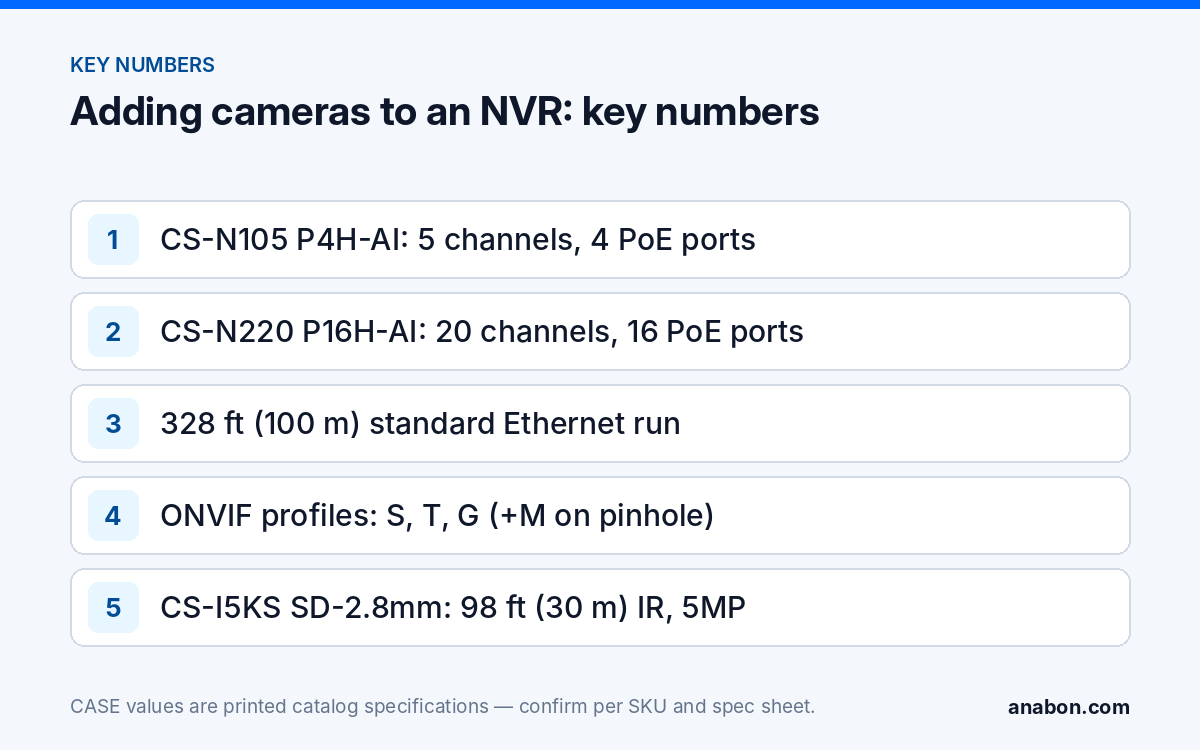
- Cable test. Test every run with a wiremap tester before the camera goes up. A standard run is 328 ft (100 m) end to end, patch cords included; cabling follows NEC (CEC in Canada).
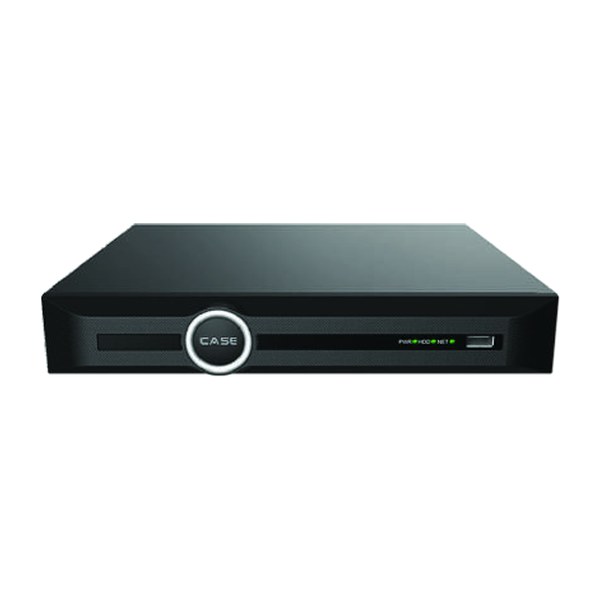
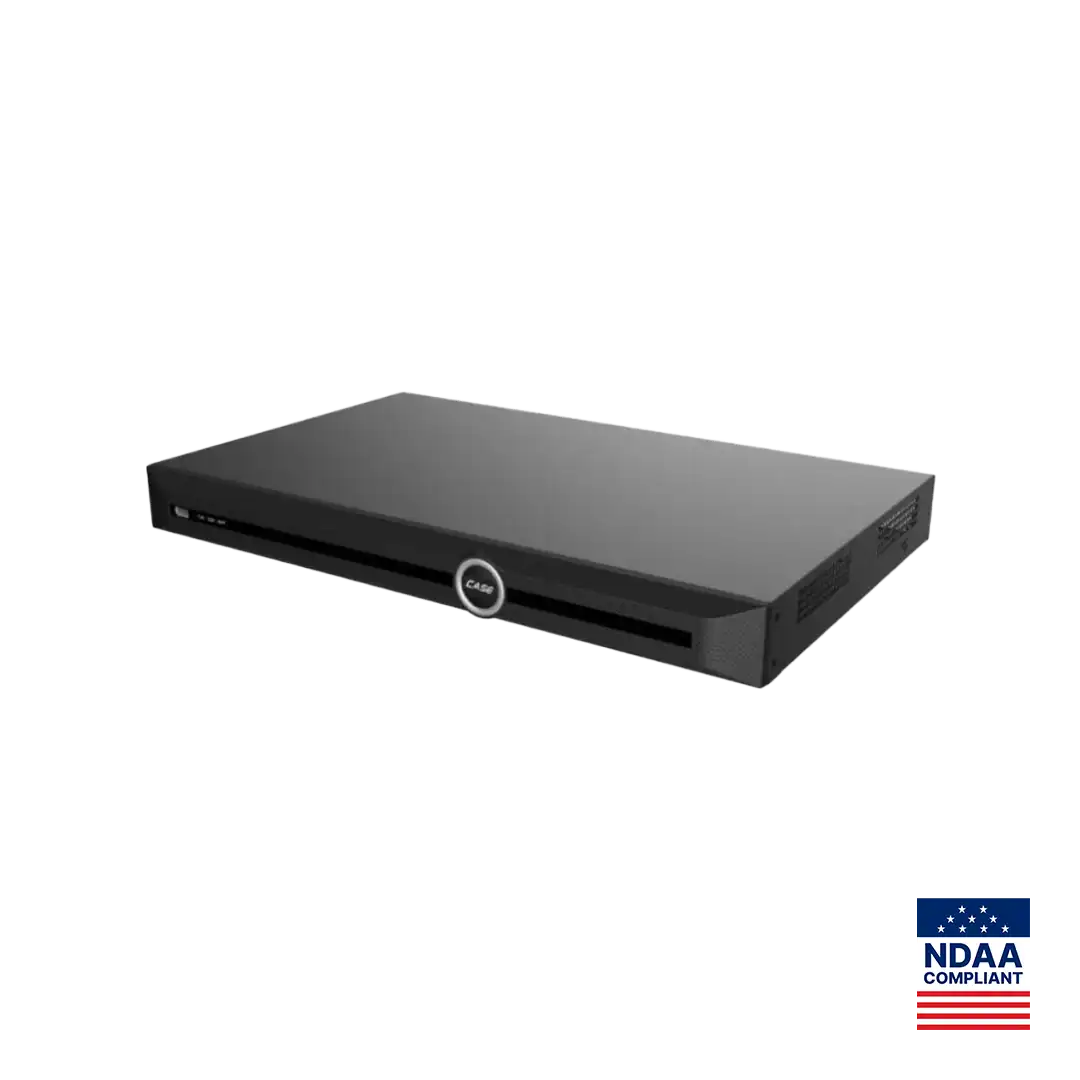
- Channel plan. Write down which camera goes on which port. A CS-N105 P4H-AI has 5 channels and 4 PoE ports, so the fifth camera comes in through the LAN port; a CS-N220 P16H-AI has 20 channels and 16 PoE ports, so four cameras arrive from an external switch.
- Bandwidth. Add the main-stream bit rates. The CS-N105 P4H-AI prints 100 Mbps incoming / 80 Mbps outgoing; the CS-N220 P16H-AI prints 160 Mbps incoming (120 Mbps with AI on) / 80 Mbps outgoing. Both print a maximum resolution of 16MP.
Method 1: Plug-and-play on the NVR PoE ports
This is the default for a CASE camera on a CASE PoE NVR, wherever the cable reaches the recorder.
- Power up the NVR, finish the first-run wizard, set the admin password and time zone, and connect the LAN port to the customer network if remote viewing is planned.
- Plug the camera into a PoE port. The NVR powers it, assigns an address on the internal PoE segment and adds it to the matching channel. Allow a minute or two for the camera to boot.
- Open the camera management menu. The channel should show Online with the camera model and address. If it asks for a password, enter that camera’s password from the credential record; exact behavior for a brand-new camera depends on the firmware version.
- Open live view, check focus and field of view, and name the channel by location.
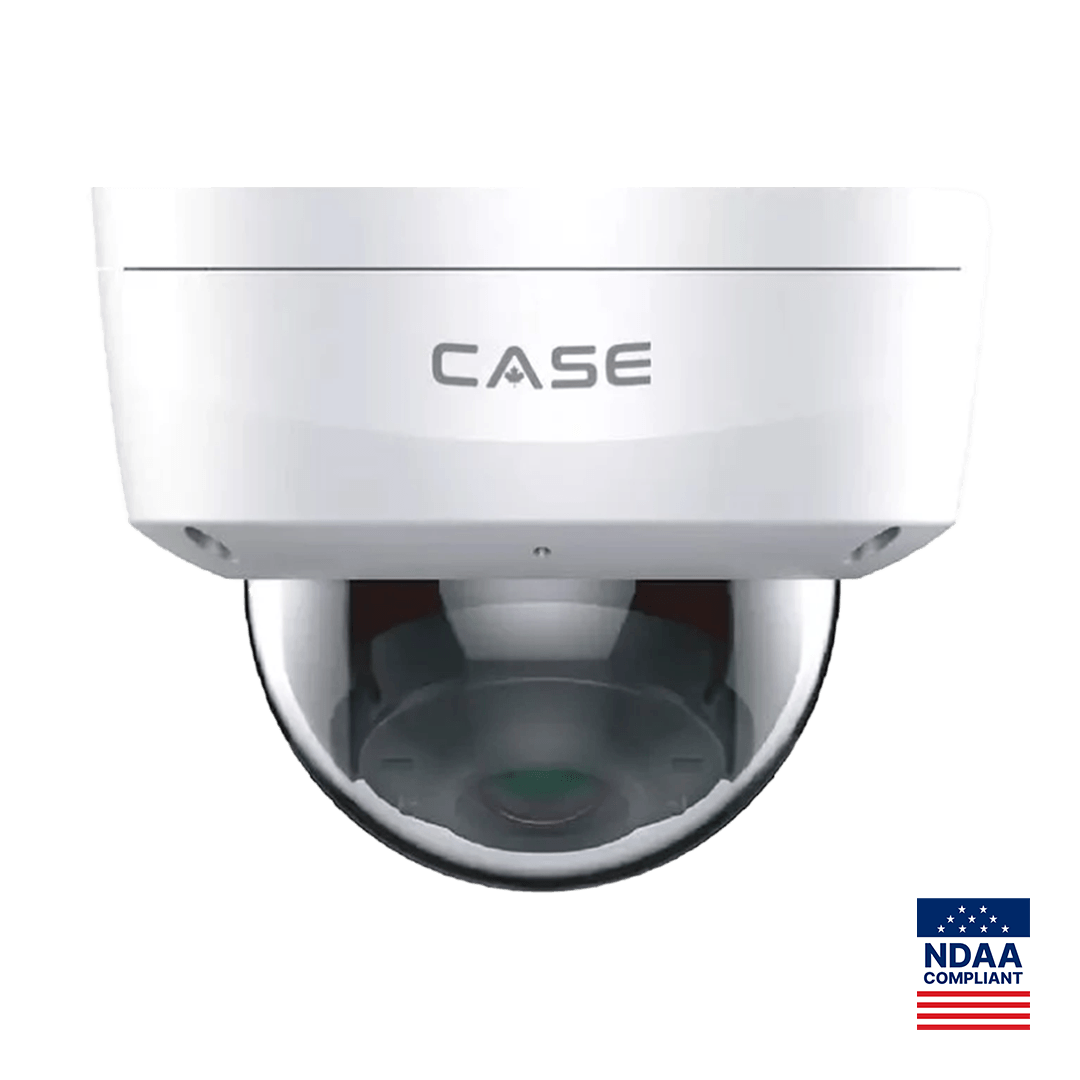
Example: a CS-I5KS SD-2.8mm (5MP, 2.8 mm fixed lens, 3072×1728 at 30 fps, 98 ft (30 m) IR plus 33 ft (10 m) white light, IP67 and IK10) on a PoE port of the CS-N105 P4H-AI comes up with Tripwire, Perimeter and Human and Vehicle Classification available for configuration, as printed for that camera. If the channel stays Offline, work through NVR not showing cameras first.
Method 2: Camera on an external PoE switch (manual IP)
Use this when the run is longer than the recorder’s position allows, or when the channel count is higher than the PoE port count (the fifth channel on a CS-N105 P4H-AI, channels 17 to 20 on a CS-N220 P16H-AI).
- Connect the camera to a PoE switch on the same LAN as the NVR’s LAN port. Confirm the switch class (802.3af gives 15.4 W at the port, 802.3at gives 30 W) matches the camera’s spec sheet requirement.
- On a laptop on that LAN, open the Search Config Tool (the download is labeled CASE Setup Tool), find the camera, and set a static IP on the NVR’s LAN subnet, outside the router’s DHCP pool, with the correct mask and gateway. Record it.
- On the NVR, open the camera management menu, choose manual add for a free channel, and enter the camera IP, port, user name and password. Choose the native protocol option rather than ONVIF; the label depends on the firmware version.
- Confirm the channel shows Online and that live view, playback and the AI configuration pages are available.
Two rules keep manual adds stable: never leave a LAN-side camera on DHCP without a reservation, because a lease renewal moves it while the NVR keeps looking at the old address; and never put the camera on a different subnet from the NVR unless you also route and allow the ports deliberately. If the NVR is still being chosen, choosing the right CASE NVR covers PoE NVR against external switch by channel count.
Method 3: Third-party camera over ONVIF (Profile S/T)
When the customer keeps existing cameras from another brand, you add them over ONVIF. Set expectations in profile language: ONVIF profiles supported are S, T, and G, with M on pinhole models. Third-party behavior is confirmed per platform and project. Profile S covers basic streaming and PTZ control; Profile T adds H.264/H.265 streaming, imaging settings and event metadata; Profile G covers edge recording. What the third-party camera supports is on its own conformance listing, not assumed.
- On the camera, enable ONVIF (some brands ship it off), create a dedicated ONVIF user with operator or administrator rights, and note the ONVIF port.
- Set the camera to the same NTP server and time zone as the NVR. ONVIF authentication uses a time stamp, and a clock offset of a few minutes fails the login even with the right password.
- Give the camera a static IP on the NVR’s LAN subnet (if the camera sits on an NVR PoE port instead, it takes an address on the PoE segment; treat it as a manual ONVIF add, not plug-and-play).
- On the NVR, choose manual add, select ONVIF as the protocol, and enter IP, ONVIF port, the ONVIF user and its password.
- Confirm live view on main and sub stream, and check that codec and resolution are within the NVR’s printed limits. If only one stream works, lower the other to a resolution and codec the NVR lists.
If the channel still refuses, the ONVIF camera not connecting to NVR checklist walks through profile, credentials and time sync, and ONVIF Profile S, T, G and M explained covers what each profile does not promise.
Which method for which camera?
| Decision point | Method 1: Plug-and-play | Method 2: Manual IP | Method 3: ONVIF |
|---|---|---|---|
| Camera | CASE camera | CASE camera | Third-party camera |
| Connection | NVR PoE port | External PoE switch on the LAN | Either, manual add |
| Address | Assigned by the NVR on the PoE segment | Static IP on the LAN subnet | Static IP; ONVIF port and user |
| Time sync needed | Recommended | Recommended | Required for authentication |
| AI functions and VCA Search | Per camera and NVR model, as printed | Per camera and NVR model, as printed | Confirmed per platform and project; do not promise |
What you give up with ONVIF: AI features and VCA Search
ONVIF carries video, audio and events in a standard form. It does not carry the camera’s full configuration or the NVR’s AI pipeline, so set expectations before the quote, not after the handover.
- Camera-side AI. On the CS-I5KS SD-2.8mm the printed AI list is Tripwire, Perimeter and Human and Vehicle Classification, configured and received by a CASE NVR through the native add. Over ONVIF, what arrives depends on the camera’s Profile T or M event support and the NVR’s handling, confirmed per platform and project.
- AI by NVR and VCA Search. The CS-N105 P4H-AI and CS-N220 P16H-AI print AI by NVR (Face Detection, Face Recognition, Tripwire, Double Tripwire, Perimeter, Smart Motion Detection) and VCA Search. Whether these run on a third-party ONVIF channel is confirmed per NVR model, firmware and project; quote them on CASE cameras.
- Deterrence, audio and edge playback. White light, EW and two-way audio controls on a CASE camera, where printed for that SKU, are native functions (EW and AEW availability is confirmed per SKU); do not promise them for a third-party camera over ONVIF. Edge-storage retrieval depends on Profile G support on both sides.
For a mixed site the clean design is CASE cameras on the native add for every channel where analytics or deterrence are sold, and ONVIF only for the legacy cameras kept during the transition.
Common errors and fixes
| Message or symptom | Cause | Fix |
|---|---|---|
| Camera not found in search | No power, wrong segment, or ONVIF disabled | Check the port LED, search from the camera’s segment, enable ONVIF |
| Password or authentication error | Wrong channel password, locked account, or ONVIF user missing | Edit the channel credentials; wait out the lockout; create a dedicated ONVIF user |
| ONVIF add fails with the correct password | Clock offset between camera and NVR | Set both to the same NTP server and time zone, then retry |
| Online, but black tile or bandwidth message | Main streams exceed the NVR’s incoming bandwidth or resolution | Lower bit rate, use S+265 or H.265, reduce frame rate |
| Two channels flip Online/Offline | Duplicate IP address | Reassign one camera; use reservations on the LAN |
| Video works, no events or AI | Third-party camera over ONVIF, or AI not enabled on the channel | Expected for ONVIF; for CASE cameras enable AI on the channel |
What to tell your customer
“Your CASE cameras are added directly to the recorder, which is what lets the analytics and search features work on those channels. The older cameras we kept are connected through the ONVIF standard, so they record and play back, but the smart features are limited to what that camera supports.” If a feature matters to the customer, confirm it per model and firmware with Anabon before you put it in writing. For end users who land here: for warranty and service, please contact the installer or company that supplied your system.
FAQ
Can I add a CASE camera over ONVIF instead of plug-and-play?
You can, but there is no reason to on a CASE NVR. The native add gives the NVR the camera configuration and the AI event path; ONVIF gives a standard stream and standard events. Use ONVIF only for third-party cameras, and remember that ONVIF profiles supported are S, T, and G, with M on pinhole models, confirmed per platform and project.
Why does the NVR have more channels than PoE ports?
The PoE ports are for cameras cabled directly to the recorder; the remaining channels are for cameras that arrive through the LAN port from an external switch. On the CS-N105 P4H-AI that is 5 channels with 4 PoE ports; on the CS-N220 P16H-AI it is 20 channels with 16 PoE ports. Plan the extra channels as manual-IP adds.
Which ONVIF port and user should I enter on the NVR?
Enter the ONVIF port shown in the camera’s own network settings, and a dedicated ONVIF user you created on the camera rather than the admin account. Match the time zone and NTP server on both devices first; ONVIF authentication carries a time stamp, and a clock offset of a few minutes fails the login even with correct credentials.
Will AI features from a third-party camera show up on a CASE NVR?
Do not promise them. Over ONVIF the NVR receives the stream and the events the camera exposes through Profile T or M; whether the NVR’s AI by NVR and VCA Search functions run on that channel is confirmed per NVR model, firmware and project. Quote analytics on CASE cameras added natively, where the printed AI list applies.