

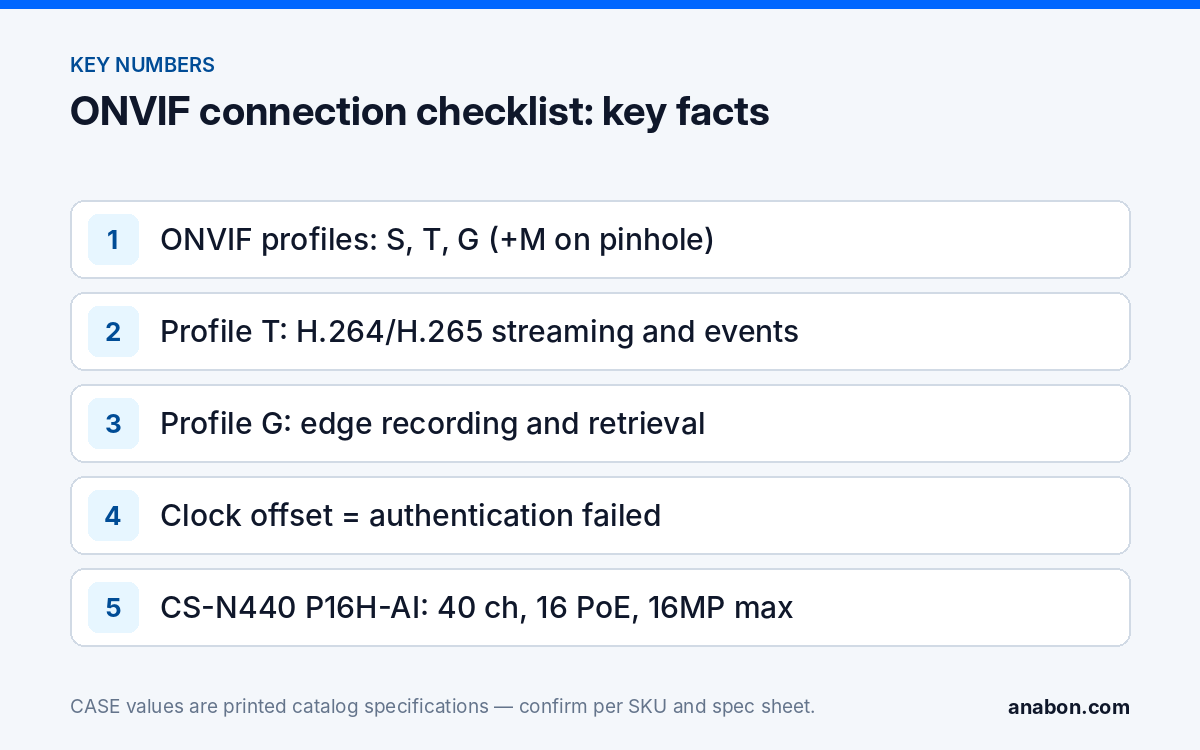
Quick answer: An ONVIF camera not connecting to NVR usually fails on one of four things: the camera’s clock is off (ONVIF authentication carries a time stamp), the NVR is pointed at the wrong ONVIF port, the account is the admin login instead of a dedicated ONVIF user, or the stream uses a codec or resolution the NVR cannot decode. Fix time first, then port and user, then the stream. ONVIF profiles supported are S, T, and G, with M on pinhole models; third-party behavior is confirmed per platform and project.
The 10-point checklist: symptom, cause, one-minute test
Work the list top to bottom. Each test runs from a laptop on the camera’s segment in about a minute; most sites are fixed by row five.
| # | Check | Symptom if it fails | One-minute test |
|---|---|---|---|
| 1 | ONVIF service enabled on the camera | Camera pings, NVR search finds nothing, manual add times out | Open the camera web page and confirm the ONVIF setting is on |
| 2 | Profile the camera actually supports | Adds, but no video or no events | Check the camera’s conformance listing for Profile S (streaming) and T (H.265, events) |
| 3 | ONVIF port | Connection refused or timeout with correct IP | Read the ONVIF port on the camera’s network page; enter that exact number on the NVR |
| 4 | Dedicated ONVIF user | Authentication failed with the right password | Create an ONVIF user with operator or administrator rights; do not use the admin login |
| 5 | Time sync | Authentication failed, often right after a reset or power loss | Compare camera and NVR clocks; point both at the same NTP server and time zone |
| 6 | Authentication method | Fails on the NVR, works from a laptop tool | In the camera’s security settings, enable digest authentication and WS-UsernameToken where offered |
| 7 | Stream codec and resolution | Online, black tile, or only the sub stream plays | Set the main stream to H.264 inside the NVR’s printed limits; H.265 needs Profile T |
| 8 | Stream encryption | Live view fails while the camera web page works | Test with HTTPS-only or encrypted RTSP off; if that fixes it, set a secure transport both ends support rather than leaving it off |
| 9 | Network path | Search finds nothing; manual add by IP works or fails by VLAN | Confirm same subnet, or that ONVIF port, RTSP port and RTP range pass the VLAN or firewall |
| 10 | Firmware and capacity | Everything right, still unstable | Update both ends; check channel count and incoming bandwidth on the NVR spec sheet |
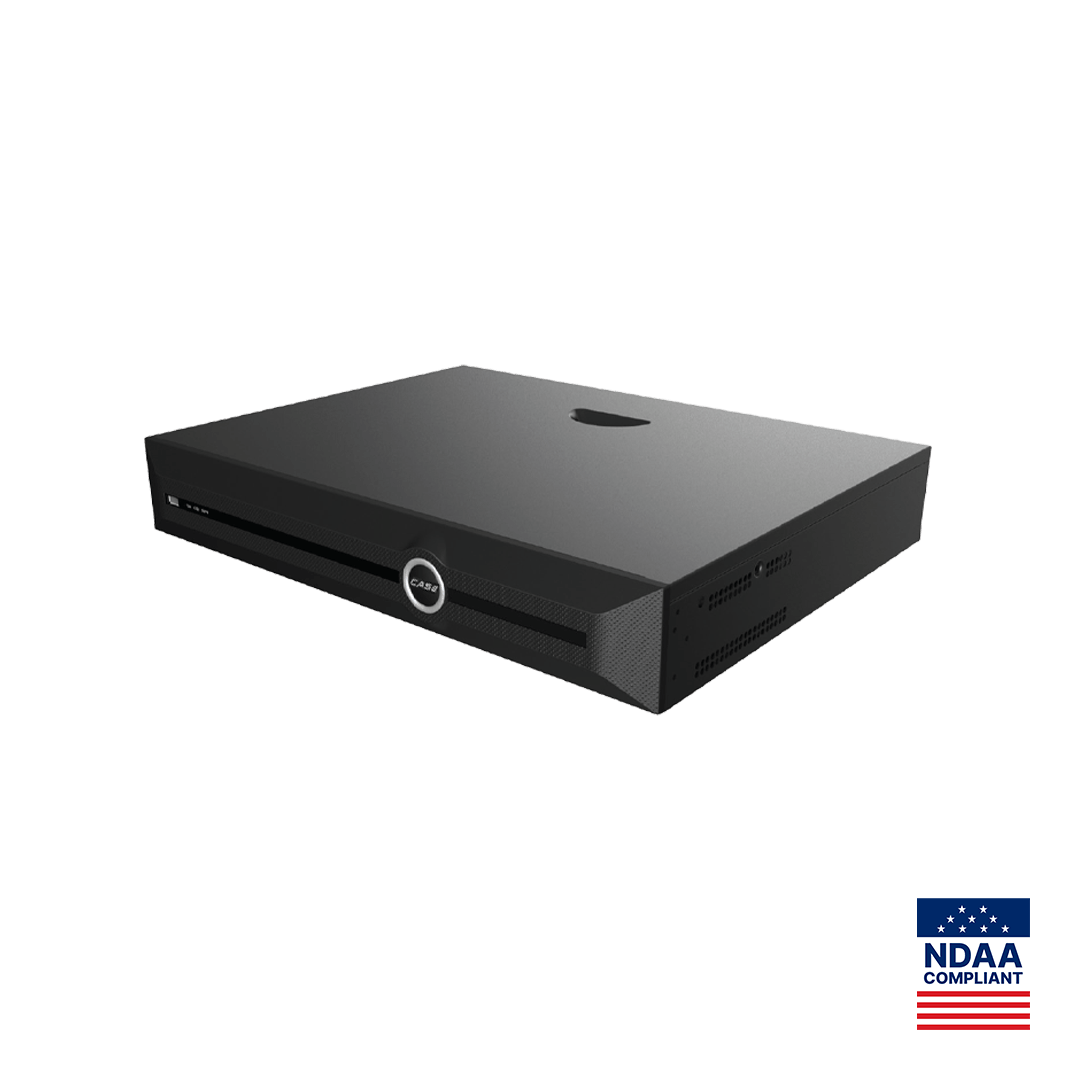
Keep the NVR side in view as well. On a CS-N440 P16H-AI the printed figures are 40 channels, 16 PoE ports, 400 Mbps incoming / 400 Mbps outgoing (200 / 200 Mbps with AI on) and a maximum resolution of 16MP. A camera whose main stream pushes the total over the incoming figure, or whose resolution exceeds the maximum, fails even when every ONVIF setting is right.
Why time sync breaks ONVIF authentication
This check catches experienced technicians because the error says password and the cause is the clock. ONVIF uses WS-Security UsernameToken authentication: the NVR sends the user name, a nonce, a creation time stamp and a digest of the password combined with those values. The camera checks the time stamp against its own clock. If the clocks differ by more than the camera’s tolerance, often a few minutes and implementation-specific, the camera rejects the request as a replay attempt and the NVR reports an authentication failure with a correct password.
Three situations produce the offset:
- Factory reset or long power loss. Many cameras come up with a default date years in the past; the add fails until the time is set.
- Time zone or daylight saving mismatch. The clocks look the same in the two menus but are hours apart in UTC. Set both devices to the site’s zone and daylight saving rule, in the US or in Canada.
- No NTP reachable. A camera on an isolated VLAN with no route to its NTP server drifts, and an add that worked at commissioning fails months later.
The fix is the same in every case: give camera and NVR the same NTP server and time zone, confirm the offset is seconds rather than minutes, then retry. If the site has no Internet access, use an on-site time source both devices can reach. What a wrong clock does to recorded evidence is in NVR time and date wrong: NTP, time zones and why it breaks evidence.
Credentials: a dedicated ONVIF user, not the admin login
On many cameras the ONVIF service has its own user list, separate from the web login, so the admin password fails because that account was never created on the ONVIF side. Create a user on the camera’s ONVIF user page with operator rights for streaming and events, or administrator rights if the NVR needs to change stream settings, and enter that user on the NVR. Keep the credentials in the job folder with the camera’s IP and ONVIF port.
Two more details cause failed adds. Special characters: some cameras and recorders handle them differently over ONVIF, so use a long password of letters and numbers for the ONVIF user. Lockouts: repeated failed attempts can lock the account for a period, so wait before retrying. For CASE cameras themselves, use the native add rather than ONVIF; the methods are compared in how to add an IP camera to an NVR.
Profile S vs T vs G (and M): what each covers
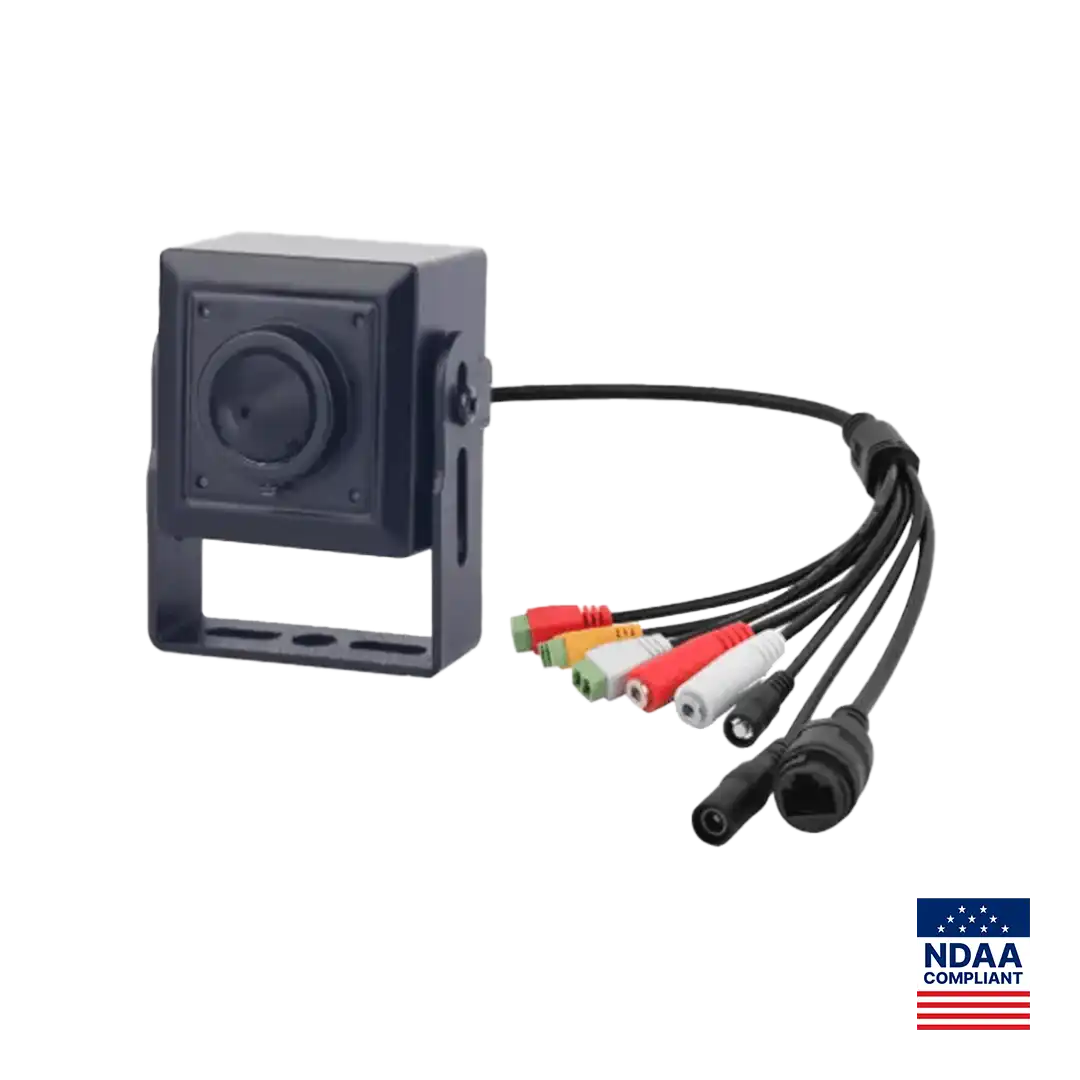
“ONVIF compatible” on a box tells you nothing by itself; the profile tells you what is covered. The statement for CASE is exact: ONVIF profiles supported are S, T, and G, with M on pinhole models. Third-party behavior is confirmed per platform and project. The one CASE catalog spec page that prints the profile list is the pinhole CS-I2PN S-3.7mm (2MP, 3.7 mm fixed lens, True WDR, 3 streams), which prints ONVIF (Profile S/T/G/M); every other claim is made per SKU from its own spec sheet, not from a brand-level line.
| Profile | What it covers | What it does not promise |
|---|---|---|
| S | Basic video streaming, PTZ control, audio in, relay outputs, multicast | H.265, imaging settings, analytics events |
| T | Advanced streaming: H.264 and H.265, imaging settings, motion and tamper events, metadata streaming, two-way audio | Edge recording, analytics metadata beyond the basic events |
| G | Edge recording and retrieval: storing on the camera’s card and playing it back through the NVR | Live streaming on its own (pair it with S or T) |
| M | Metadata and events for analytics: object classification, geolocation, event handling for analytics applications | That the NVR will display or search those analytics; confirmed per platform and project |
Practical reading: for a third-party camera on a CASE NVR you want Profile S at minimum and Profile T for H.265. Profile G matters only if the camera’s own card must play back through the recorder. Profile M matters for analytics metadata, and the NVR’s handling of it is confirmed per project. More in ONVIF Profile S, T, G and M explained.
Stream settings the NVR cannot decode
When the channel shows Online but the tile is black, the ONVIF handshake has succeeded and the stream is the problem. Check these on the camera’s encoding page:
- Codec. H.264 is the safe first test. H.265 over ONVIF requires Profile T on the camera and H.265 decoding on the NVR; turn off vendor-specific smart codecs for a third-party recorder.
- Resolution and frame rate. Stay inside the NVR’s printed maximum resolution (16MP on the CS-N440 P16H-AI) and lower the frame rate if the tile stutters.
- Bit rate and bandwidth. Add every main stream; if the total passes the NVR’s incoming figure, the newest channels fail first.
- Audio codec. G.711 is the usual decodable choice over ONVIF; other audio codecs often produce a silent or failed stream, so test or turn audio off.
- Stream selection and transport. Make sure the NVR pulls the main stream for recording and a smaller sub stream for the grid, not the same heavy stream twice; if UDP shows artifacts, try RTSP over TCP where the NVR offers it.
Network: VLAN, firewall and the ONVIF port
Discovery and streaming use different paths, and a network that allows one can block the other. ONVIF discovery uses WS-Discovery multicast, which does not cross a router or VLAN boundary; a camera on another VLAN never appears in the NVR search but can still be added manually by IP if the ports are allowed. The ports that must pass are the camera’s ONVIF port, its RTSP port (commonly 554; read it from the camera) and the RTP range used for UDP streaming. A firewall that allows the ONVIF port but blocks RTP produces exactly the Online-but-black symptom above.
- Put cameras and NVR on one camera VLAN whenever the design allows; the method is in camera network basics: VLANs, subnets, DHCP vs static.
- Across a firewall, allow the ONVIF port, RTSP port and RTP range from the NVR’s address only, or use RTSP over TCP to avoid the UDP range.
- Give the camera a static address or a DHCP reservation; a lease change after commissioning looks exactly like an ONVIF failure.
- Treat a third-party camera on an NVR PoE port as a manual ONVIF add; do not count on plug-and-play.
What to tell your customer
“The camera is connected through the ONVIF standard, which gives us recording and playback. Smart detection features depend on what that camera supports through its ONVIF profile, so I will confirm each one before I promise it.” Keep it in profile language, never a general compatibility promise. For end users who land here: for warranty and service, please contact the installer or company that supplied your system.
FAQ
Why does the NVR say authentication failed when the ONVIF password is correct?
Most often the camera’s clock is off. ONVIF authentication includes a time stamp, and a camera whose time differs from the NVR by more than its tolerance rejects the login as a replay attempt. Set both devices to the same NTP server and time zone, confirm the offset is seconds, and retry. The second cause is using the admin login instead of a dedicated ONVIF user.
Which ONVIF port should I enter on the NVR?
The port shown on the camera’s own network or ONVIF settings page. Many cameras use the HTTP port for ONVIF, but some use a separate port, and a firewall or router may change it. Never assume a default; read it from the camera, enter it exactly on the NVR, and confirm the RTSP port and RTP range are allowed on the same path.
Does Profile S cover H.265?
No. Profile S covers basic streaming and control; H.265 streaming over ONVIF is a Profile T capability, and both the camera and the recorder must support it. If a Profile S camera shows a black tile, switch its main stream to H.264 first. The exact statement for CASE products is that ONVIF profiles supported are S, T, and G, with M on pinhole models.
Will a third-party ONVIF camera give me AI events on a CASE NVR?
Do not promise it. Events arrive over ONVIF only as far as the camera’s Profile T or M support exposes them, and the NVR’s handling of those events is confirmed per platform and project. AI by NVR and VCA Search functions are quoted on CASE cameras added natively, where the printed AI list for that camera and NVR model applies.