

Quick answer: An NVR whose time is wrong misdates every recording, makes playback searches miss the event, can break ONVIF logins that depend on matching timestamps, and hands opposing counsel an easy question about every clip. The fix is one NTP source for the NVR and every camera, the correct time zone with daylight saving enabled on each device, a check of the clock against a reference before any export, and the time zone and measured offset written into the export log.
Why does a wrong NVR clock break evidence?
Recorded video is only as useful as the time written on it. An investigator asks for “between 2:40 and 3:10 on Tuesday”; if the recorder was eleven minutes slow, the clip you hand over shows an empty doorway and the real event sits unreviewed in the next segment. If the error is discovered later, every clip from that recorder needs an explanation. In US federal courts, video is authenticated under the Federal Rules of Evidence (Rule 901), with similar rules in state courts; in Canada, under the Canada Evidence Act’s electronic-document provisions and provincial evidence acts. None requires a perfect clock, but all require that the time on the recording can be explained and defended, and an undocumented offset is the easiest attack there is. Verify specifics with counsel; the installer’s job is a right clock and a complete record.
| What goes wrong | Why | What the customer sees |
|---|---|---|
| Playback search misses the event | The NVR indexes recordings by its own clock | “The camera did not record the incident” |
| Camera and NVR timestamps disagree on screen | Different time zones or NTP sources on camera and recorder | Two times burned into one clip; neither is trusted |
| ONVIF camera refuses to connect after a reboot | ONVIF authentication carries a timestamp; a large clock difference can fail the handshake | A channel that “used to work” is offline |
| Duplicate or missing hour in November and March | Daylight saving transitions not handled, or handled differently on camera and NVR | Overlapping clips or a gap at 2 a.m. |
| Export rejected or questioned | No record of the recorder’s offset at export time | Insurer, counsel or police ask how far off the clock was |
How do you set NTP and the time zone on a CASE NVR?
Menu names differ by NVR model and firmware, but the settings are the same: a time zone, a daylight saving option, a manual time and an NTP client. Set them in this order, before you add cameras, so every channel inherits a correct clock from day one.
- Time zone first. Choose the zone by the site’s location, not the shop’s. A recorder installed in Calgary (Mountain Time) from a shop in Toronto (Eastern Time) is two hours off on every clip until someone notices.
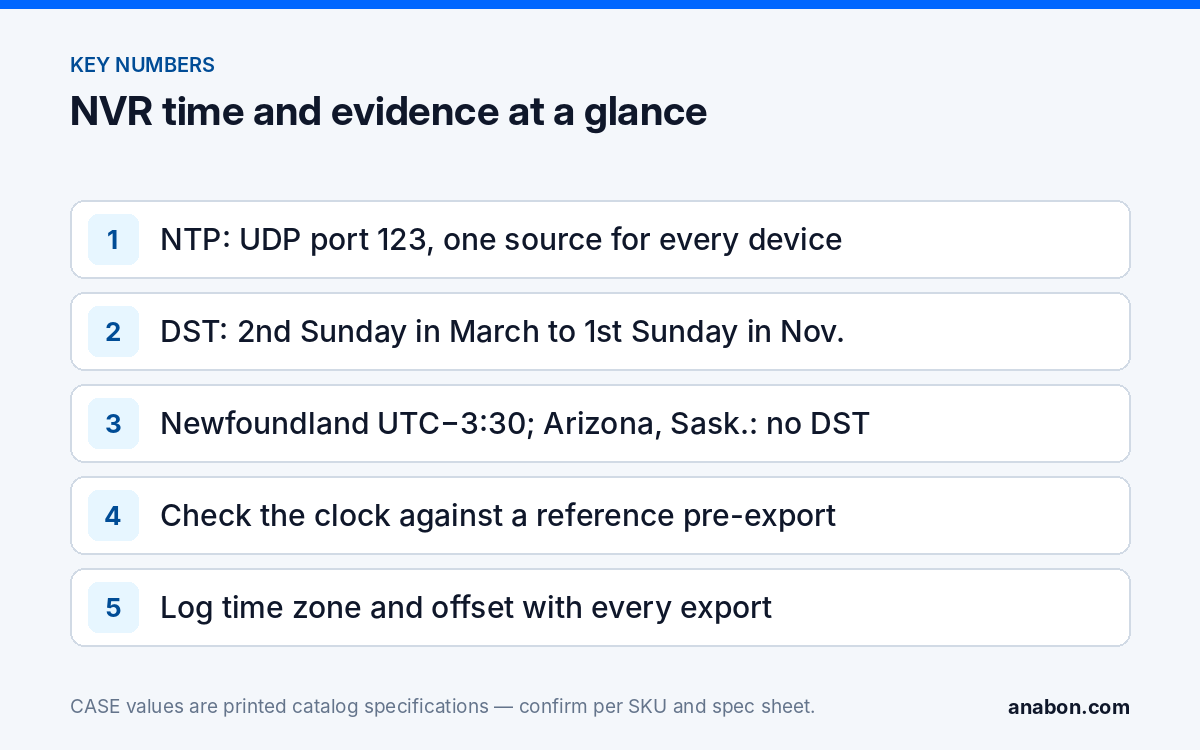
- Daylight saving on, where the location observes it, with the US and Canadian rule: second Sunday in March to first Sunday in November. Leave it off only for locations that do not shift (see the table below).
- NTP enabled, with a server the NVR can actually reach. On a camera VLAN with internet access, a public pool such as the NTP Pool Project works; on an isolated VLAN, use an internal source: the firewall, a domain controller or a dedicated time server. NTP uses UDP port 123; the firewall rule has to allow it.
- Verify against a reference such as a phone on network time, then reboot and verify again; a recorder that boots with no NTP reachable may fall back to its last saved time.
Record the NTP source, zone and daylight saving setting in the handover document. The same settings, with logs and certificates, are covered in time sync, logs and certificates: the settings that save evidence.
How do you sync the cameras from the NVR?
A correct NVR clock is half the job. Each camera burns its own time into its on-screen display and metadata, so a camera on a different source or zone produces the two-times-on-one-clip problem above. The goal: one time source for the whole system, the same zone on every device.
Cameras on the NVR’s PoE ports
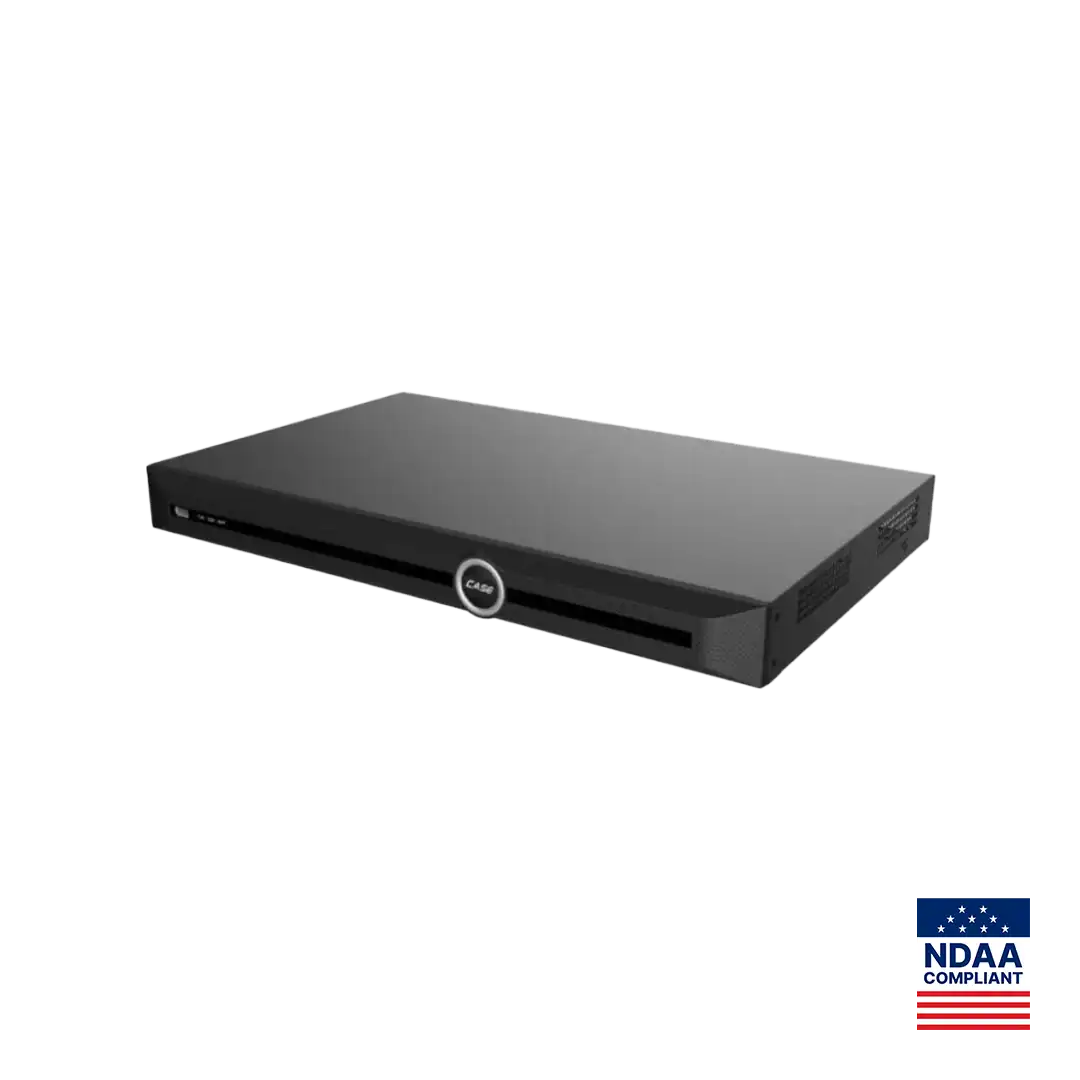
Cameras on a PoE NVR’s own ports sit on the recorder’s internal network. Many recorders push their time to those cameras or act as their NTP server; whether and how a given CASE NVR does this is per model and firmware. Check rather than assume: open the camera’s time settings on the internal segment and confirm it points at the NVR or at the NVR’s source. On a CS-N220 P16H-AI the 16 PoE ports and the single Gigabit uplink are two different networks (as printed), so a camera on a PoE port cannot reach a public NTP server on its own; it takes time from the recorder side.
Cameras on the customer LAN
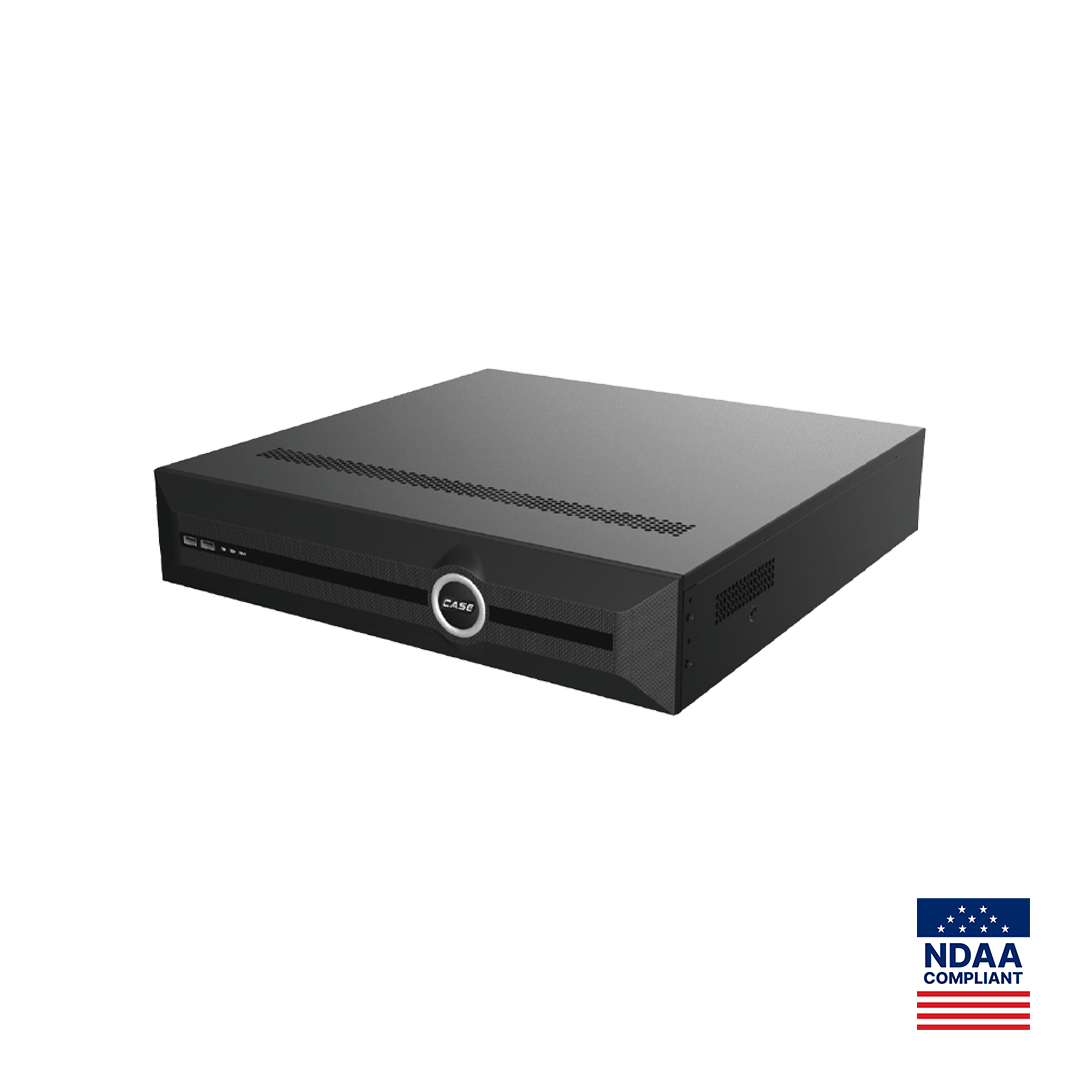
Cameras added through the uplink, and every camera on a non-PoE recorder such as the CS-N880 H-AI, keep their own NTP client. Set each to the same server the NVR uses, the same zone and the same daylight saving rule. The classic error: NVR on Eastern, camera on its factory zone, both “synced” and hours apart on screen.
ONVIF and third-party devices
ONVIF authentication includes a timestamp, so a camera and a recorder that disagree by more than the tolerance can fail to connect even with the right password. When an ONVIF channel drops after a reboot, check time before credentials; the checklist is in ONVIF camera not connecting to NVR. ONVIF profiles supported are S, T, and G, with M on pinhole models; third-party behavior is confirmed per platform and project. After commissioning, compare every camera’s on-screen time with the NVR’s in live view; more than a few seconds of difference means one device is on another source.
Where do DST and multi-site jobs hide mismatches?
North America is not one clock. The US and most of Canada shift together on the second Sunday in March and the first Sunday in November, but several regions do not shift at all and one has a half-hour offset. Set each device to the zone of its site and let the daylight saving rule do the work; hand-adjusting clocks twice a year is how two-hour errors are born.
| Zone | Standard offset | Daylight saving | Notes for installers |
|---|---|---|---|
| Newfoundland | UTC−3:30 | Yes | Half-hour offset; confirm the firmware’s zone list has it |
| Atlantic | UTC−4 | Yes | Maritime provinces |
| Eastern | UTC−5 | Yes | Most of Ontario and Quebec; US East Coast |
| Central | UTC−6 | Yes, except Saskatchewan | Saskatchewan stays on UTC−6 year-round |
| Mountain | UTC−7 | Yes, except Arizona and Yukon | Arizona stays on UTC−7 year-round (Navajo Nation observes DST); Yukon stays on UTC−7 year-round |
| Pacific | UTC−8 | Yes | British Columbia, US West Coast |
| Alaska | UTC−9 | Yes | |
| Hawaii | UTC−10 | No |
Two field notes. At the November fall-back the hour between 1 a.m. and 2 a.m. occurs twice; how the recorder stores it (both copies, or one overwriting the other) is per model and firmware, so test it once on the bench and write the behavior into the handover notes. For multi-site customers with one monitoring room, keep each NVR on its own site’s local zone so timestamps match local witnesses and the local police report, and state the zone on every export; a central operator converts with the offsets in the table rather than forcing every recorder onto one zone.
How do you document time when you export evidence?
A perfect clock still needs a record. The export log turns “we think it was accurate” into a statement an investigator can use. Copy the table into your job folder and complete one row per export.
| Field | Example entry |
|---|---|
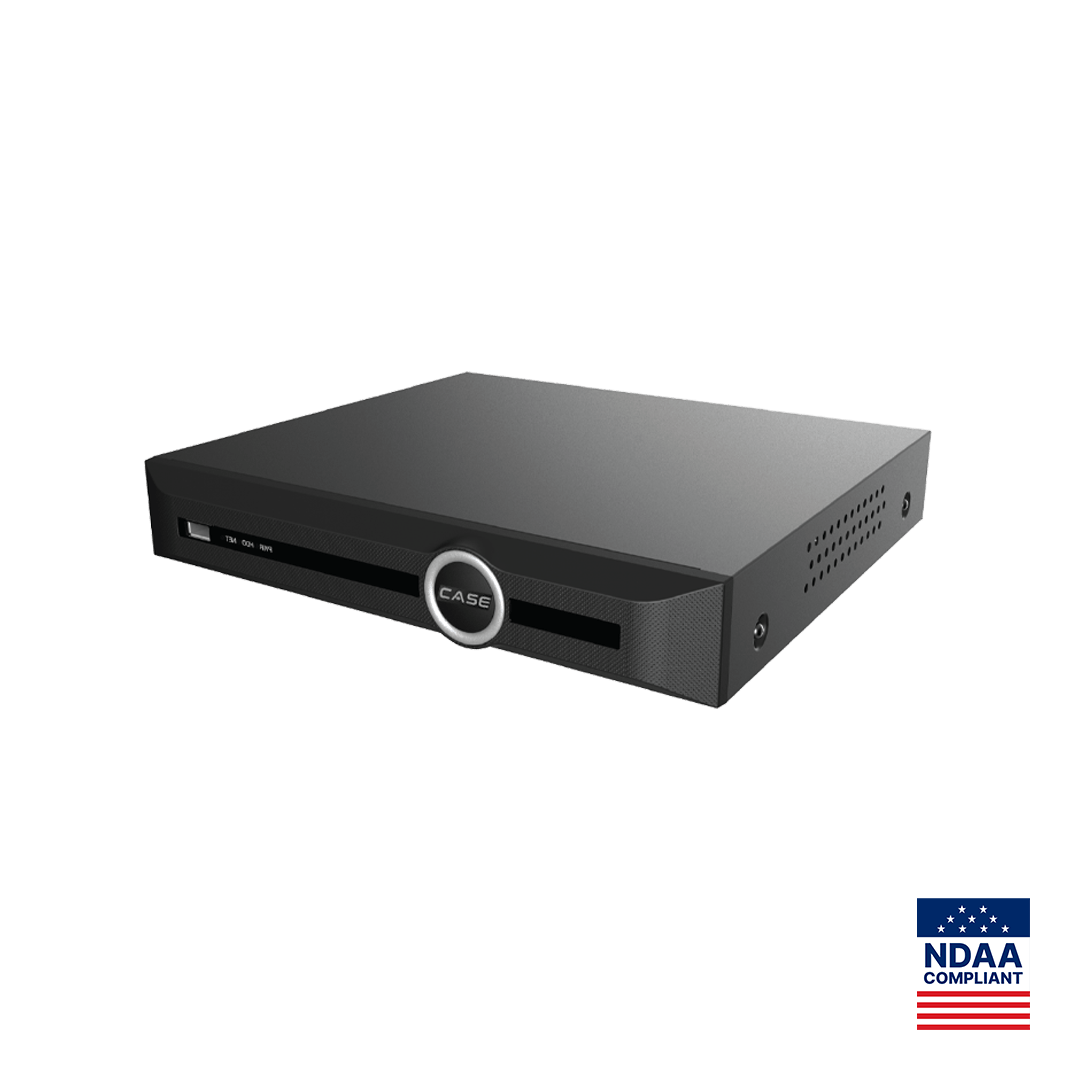
| Recorder and channel | CS-N110 P8H-AI, channel 3, loading dock |
| Reference used | Phone on carrier network time |
| Measured offset at export | NVR 14 seconds behind reference |
| Time zone and DST setting on the NVR | Eastern, daylight saving on |
| NTP source and last sync shown by the NVR | Internal firewall, last sync 2026-10-20 08:00 |
| Clip range exported (NVR time) | 2026-10-19 14:38:00 to 14:52:00 |
| Exported by, date, method | Technician name, 2026-10-20, USB export with player |
- Before exporting, read the NVR clock against the reference and write the offset down; do not correct the clock first, or the clip and the live system will disagree.
- Export with the recorder’s own player or verification feature where the model offers one, so the file carries its own integrity check.
- Copy the completed row into the handover email to the customer, who passes it on with the clip.
- Only then correct the clock, and note the correction as a separate line.
The export workflow is in finding, clipping and exporting evidence from a CASE NVR.
What to tell your customer
“Your recorder and every camera now take their time from one source and are set to this site’s time zone with daylight saving handled automatically. Before any clip is exported we check the clock against a reference and log the result, so the time on your video can be explained if an insurer or the police ask.” For end users who land here: for warranty and service, please contact the installer or company that supplied your system.
FAQ
Why is my NVR time wrong even though NTP is enabled?
Usually the recorder cannot reach the server it was given. A camera VLAN with no internet route cannot use a public pool, and a firewall that blocks UDP port 123 blocks NTP silently. Point the NVR at an internal source it can reach, confirm the last-sync status in its time menu, and check the zone, because a reachable server with the wrong zone still shows the wrong time.
Should the NVR be set to local time or UTC?
Set each NVR to the local time zone of the site it protects, with daylight saving enabled where the location observes it. Local time matches the clocks that witnesses, shift logs and police reports use, which is what evidence review needs. For multi-site monitoring, state the zone on every export and convert with the published offsets.
How do I keep the cameras’ time in sync with the NVR?
Use one time source for everything. Cameras on the NVR’s PoE ports take time from the recorder side; whether the NVR pushes time or acts as their NTP server is per model and firmware, so confirm it in the camera’s own time settings. Cameras on the LAN point their NTP client at the server the NVR uses, with the same zone and daylight saving rule.
What happens to recordings when the clocks fall back in November?
The hour between 1 a.m. and 2 a.m. occurs twice. Whether the recorder stores both copies or lets the second overwrite the first is per model and firmware. Test it once on the bench and write the behavior into the handover notes for the day an incident falls in that hour. In March the skipped hour simply has no recordings, which is normal and worth noting the same way.
Can a wrong clock stop an ONVIF camera from connecting?
Yes. ONVIF authentication carries a timestamp, and when the camera and the recorder disagree by more than the tolerance the login can fail even with the right password, typically after one device reboots without NTP. Check both clocks before touching credentials. ONVIF profiles supported are S, T, and G, with M on pinhole models; third-party behavior is confirmed per platform and project.