

Quick answer: To export video from an NVR as usable evidence, fix the time window and the camera first, use VCA Search to find the event and a time search to confirm it, cut a clip with padding on both sides, export to a clean USB drive in the recorder’s native format plus a standard format, and verify it plays before you leave. Then protect the original: lock or extend retention, keep an untouched copy, record a hash and a log, and let the system owner hand it to the police.
Before you search: pin down the window, the camera and the clock
Most wasted hours at the recorder come from searching the wrong hour on the wrong channel. Before you touch the search screen, get three facts from the customer: the incident time as precisely as they know it, the location on site, and who first noticed. Then check the recorder’s clock against a reliable reference and write down the offset. A recorder that is eleven minutes slow still holds the footage, but a clip exported with that timestamp will be questioned later; the NVR time and date guide explains why this breaks evidence and how to fix it for the future, without changing the clock before you export.
From the camera schedule or the live view grid, pick every channel that covers the location, the approach and the exit; the camera on the parking entrance often identifies the vehicle.
Search by time or use VCA Search? When each one wins
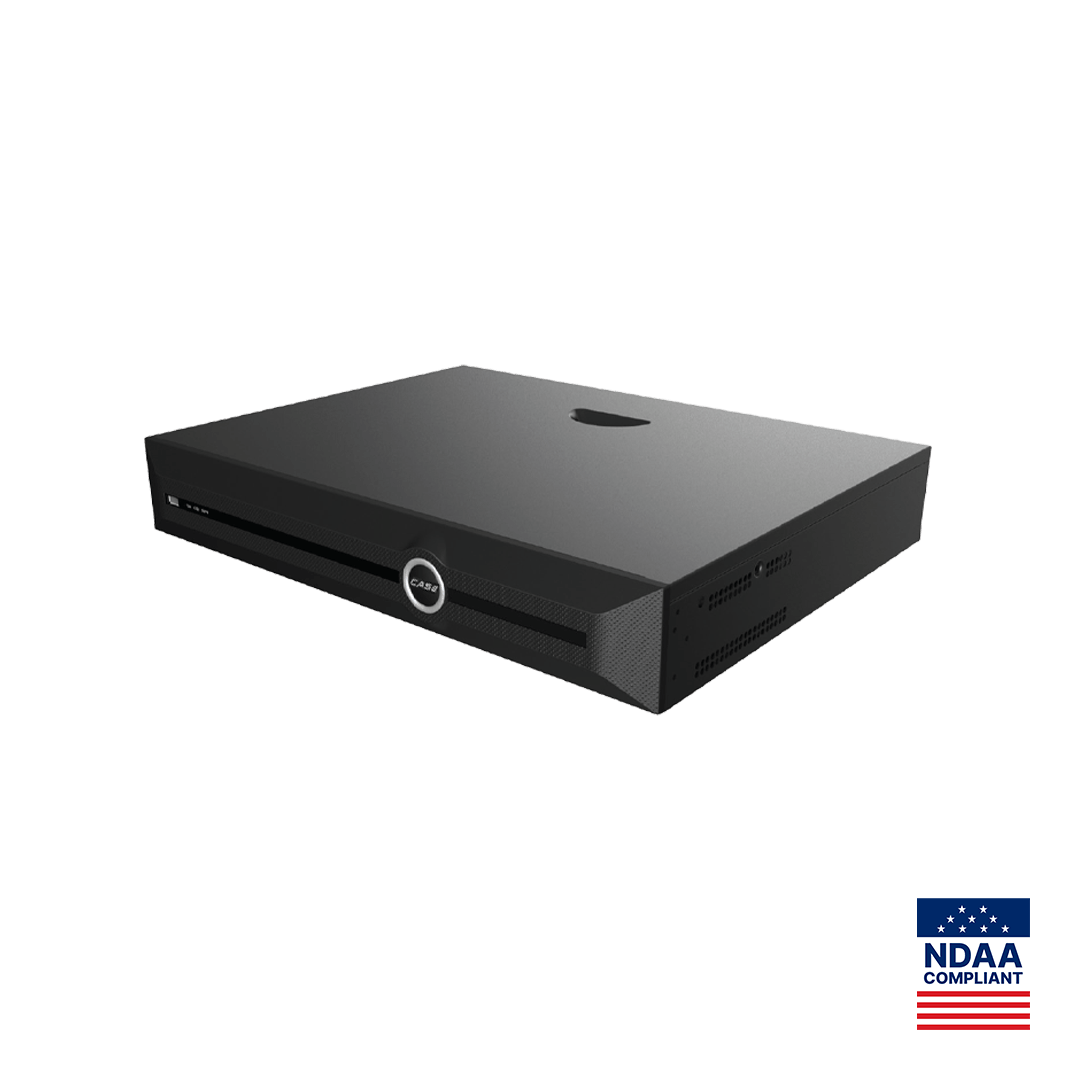
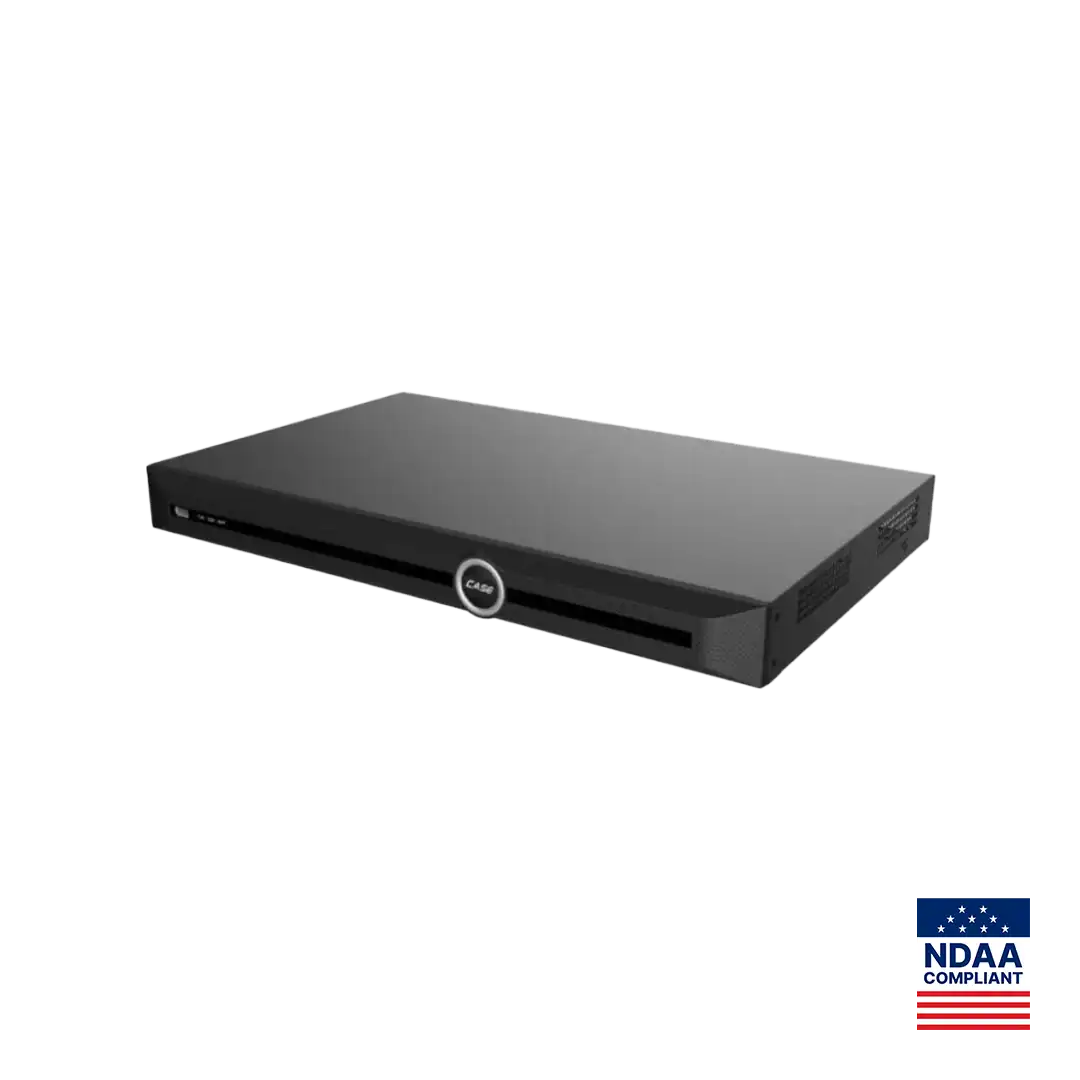
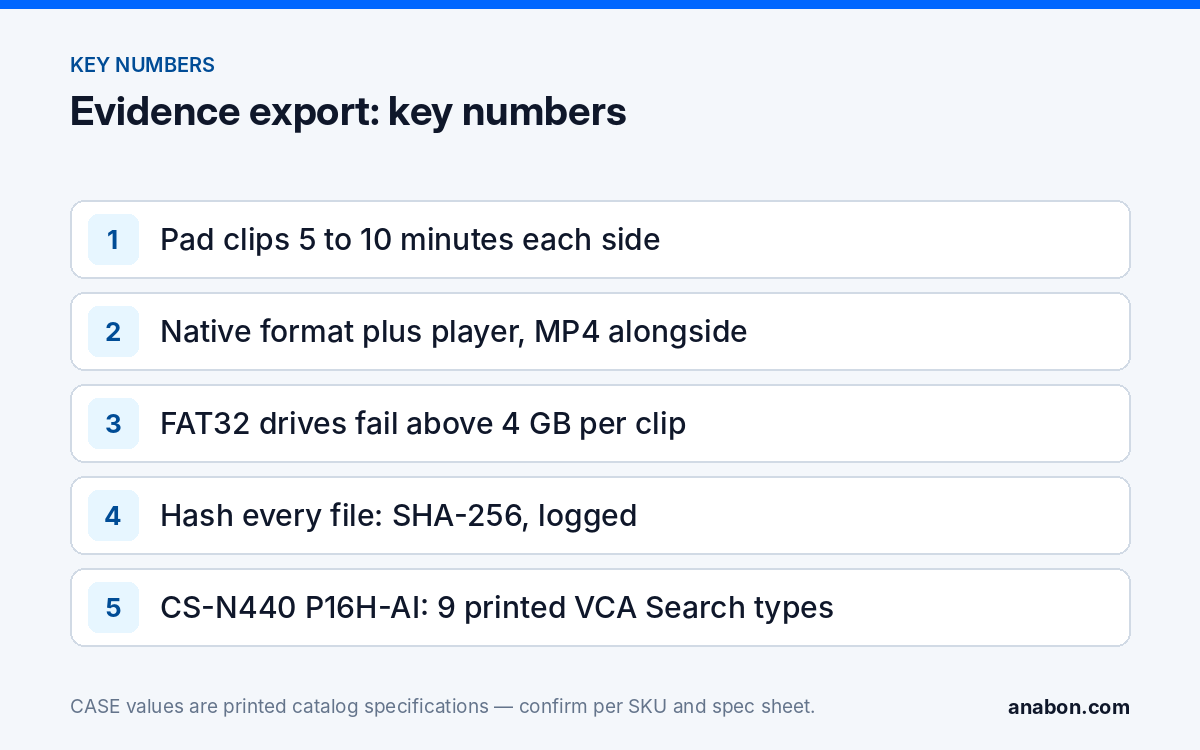
Every NVR searches by channel and time; AI NVRs add event-based searches that filter recorded video by what happened in it. On a CASE AI NVR the search functions are printed per model. CS-N440 P16H-AI prints a VCA Search row of Heatmap, Early-warning Search, Behavior Search, Thermographic Retrieval, Duty Search, Electric Bicycle Retrieval, Face Search, Safety Helmet Search and License Plate Search Support; CS-N220 P16H-AI prints Early-warning Search, Behavior Search, Safety Helmet Search, Thermographic Retrieval, Duty Search, Electric Bicycle Retrieval, Face Search (search by face attributes) and Smart Motion Detection. Two notes: “License Plate Search Support” is an NVR search function and does not make any camera a plate-reading camera, and every search depends on the camera’s AI rules, firmware and configuration at the time of recording; a search only finds events the system was set up to detect.
| Situation | Use | Why |
|---|---|---|
| Customer knows the time within 30 minutes | Time search | Fastest route to the footage; nothing depends on AI rules having been armed |
| “Sometime this week, someone tried the side door” | VCA Search by event, then time search to confirm | Filters days of video to a list of candidate events on that channel |
| Repeated incidents, same person or vehicle | Face Search or Behavior Search where printed, then time search | Links separate events; confirm availability per model and firmware, and confirm the use case and legal requirements for face search in the region first (Quebec is the most restrictive) |
| Evidence for court or insurance | Time search for the final clip | Continuous footage with no gaps around the event is what the recipient expects |
Use VCA Search as the finder and time search as the confirmer. Export the final clip from continuous or scheduled recording around the event, not from an event list, so nobody can argue frames were skipped. VCA Search: turning “sometime last week” into a clip goes deeper into the event searches.
Creating the clip: markers, padding and locking the segment
With the event on screen, set a start marker 5 to 10 minutes before and an end marker 5 to 10 minutes after; the approach and the exit carry the identification. Repeat for every channel on your list with the same window, so the clips line up when played side by side.
Before exporting, protect the segment on the recorder. Many NVR firmwares offer a way to lock or protect a recording segment so that overwrite skips it; check whether the customer’s model and firmware version offers this, and use it. If not, calculate how long the footage will survive from the retention of the drives and the export becomes the urgent task of the visit; a clip exported a week late may no longer exist. Never change recording settings, time or overwrite on the recorder before the export is complete and verified.
Exporting: USB or network, and what to check in the export dialog
The export dialog is where most evidence problems start. It decides the file format, the clip boundaries and whether the recorder’s own player is included. Read it on the customer’s model rather than from memory, because options differ by firmware version.
- Use a clean USB drive dedicated to this export. On FAT32, clips larger than 4 GB fail; use exFAT where the recorder accepts it, or keep clips shorter.
- Select the channels and the exact window from your markers. Export one clip per channel; do not merge channels into one file.
- Choose the format (see below) and include the recorder’s player if the dialog offers it.
- Wait for the recorder to report completion; removing the drive early produces a file that opens but stops short.
- Plug the drive into a laptop and play every clip to the end before you leave the site.
- Export a snapshot of the best identification frame from each channel as a still image.
Where the recorder supports it, export over the network to a laptop on the same LAN instead of USB; it avoids the drive-format limits. Where the site runs CASE Station, the desktop software prints playback and export among its functions and the same workflow applies from the desk, confirmed per version. CASE Connect covers live view and playback for remote staff; the evidence export itself belongs at the recorder or the desktop so the original format and player travel with the clip.
Formats and players: what the recipient can actually open
Recorders generally offer two kinds of output: a standard container such as MP4 that any computer plays, and a native format that preserves the recorder’s timestamp overlay and metadata but needs the recorder’s own player. The dialog on the customer’s CASE NVR shows which are available for that model and firmware; do not promise a format to the police or an insurer before you have seen it.
| Output | Strength | Weakness | Hand over |
|---|---|---|---|
| Native format plus player | Original data, recorder metadata, hard to alter unnoticed | Recipient must run the player; may be blocked on a managed PC | Always, as the primary copy |
| Standard MP4 (or AVI where offered) | Plays anywhere, easy to review and share internally | Converted copy; some overlay or metadata may be lost | Alongside the native copy, labeled as a viewing copy |
| Still image (JPEG snapshot) | Fast to circulate; shows the identification frame | No motion context | One per channel, with the clip |
| Phone recording of the monitor | None worth having | Flicker, no timestamp integrity, no metadata | Never as evidence |
Test the native player on a second machine. If the recipient’s IT policy blocks executables, the MP4 copy keeps the case moving while the native copy stays with the owner.
Keeping the original: a chain-of-custody routine any installer can follow
Chain of custody is the record of who held the evidence, when, and what was done to it. For a camera clip it needs an untouched original, a way to prove the copy matches, and a log. Build it into the export visit:
- Export two sets: one sealed and labeled as the master, one as the working copy for the customer and the police.
- Record a SHA-256 hash of each exported file on the laptop (Windows: certutil -hashfile; macOS: shasum -a 256) and write it in the log, so anyone can later prove the file is unchanged.
- Leave the recording on the NVR locked or protected, or extend retention, until the customer confirms the matter is closed.
- Never edit, trim, brighten or re-encode the master. Do any enhancement on a copy and say so in the log.
- Hand everything to the system owner; the owner releases footage to the police or an insurer and signs for it. The installer documents, the owner decides.
| Field | Example entry |
|---|---|
| Incident date, time and time zone | 2026-10-14, 02:17 to 02:31 EDT (recorder 4 min slow; corrected in log, not on recorder) |
| Recorder and channels | CS-N440 P16H-AI, channels 3, 7, 12 |
| Export window per channel | 02:05 to 02:45 |
| Files, format, size | CH03_20261014_0205-0245 (native + MP4), snapshot CH03.jpg |
| SHA-256 per file | 64-character value from the laptop |
| Exported by, witnessed by | Technician name; site manager name |
| Master location | Sealed envelope, customer’s safe |
| Released to | Officer name, badge or report number, date, signature |
Copy this table into your job folder or spreadsheet and fill one per incident. Footage often shows people other than the suspect, so the owner’s privacy obligations apply when it is released: state laws in the US, provincial laws and PIPEDA in Canada. Verify with counsel where a threshold is unclear; this is not legal advice.
What to tell your customer
“We have located and exported the footage from every camera that covers the area, in the recorder’s own format with its player and as a standard video file, and we have verified both play correctly. The recording stays protected on the recorder for now. The master copy and the log are yours; you decide who receives the footage and signs for it.” If an end user contacts you directly about a system you did not install: for warranty and service, please contact the installer or company that supplied your system.
FAQ
Should I export the clip in the NVR’s native format or as MP4?
Export the native format with its player when the recorder offers it, because that copy keeps the recorder’s own timestamp and metadata, and export a standard MP4 alongside it for anyone who only needs to watch. Which options appear depends on the NVR model and firmware version; open the export dialog on the customer’s recorder and note what it offers.
How much padding should a clip have before and after the incident?
Five to ten minutes on each side is a practical default. The approach and the exit often matter more than the moment itself: a vehicle arriving, a person checking doors, a direction of travel afterwards. Padding costs little storage on a USB drive and saves a second visit when an investigator asks what happened just before the clip starts.
Who hands the footage to the police, the installer or the customer?
The customer. The footage belongs to the system owner, and the owner decides who receives it and signs for it. The installer finds, clips, exports and documents on the owner’s instruction, then hands the drive and the log to the owner. Privacy obligations under state laws (provincial laws and PIPEDA in Canada) rest with the owner; verify with counsel when third parties appear in the footage.
What does VCA Search do that a time search does not?
It filters recorded video by event type instead of by clock, so an operator can look for a tripwire crossing, a loitering event or a face across a whole week rather than scrubbing hour by hour. CS-N440 P16H-AI prints a VCA Search row that includes Behavior Search, Early-warning Search and Face Search; which searches are available and how they perform is confirmed per model, firmware and camera configuration.