

Quick answer: When an NVR is not showing cameras, check in this order: power (is the PoE port delivering, and is the run inside the cable budget), address (is the camera on the segment the NVR expects, with no duplicate IP), then credentials, channel bandwidth and firmware. On a CASE PoE NVR most blank channels are an address or power problem, and both can usually be diagnosed from the NVR camera management menu before anyone climbs a ladder.
Which symptom are you looking at? Symptom, cause and fix
The status text on the NVR camera list tells you where to start.
| Symptom on the NVR | Most likely cause | Go to |
|---|---|---|
| No Link or Offline; no port LED; no faint red IR glow at night | No PoE power: dead port, cable over budget, wrong class, budget used up | Step 1 |
| Port LED on, channel still Offline; camera missing from the search list | Camera address on the wrong segment (static IP left from another site or the bench) | Step 3 |
| Camera found in search, but Add fails or shows a password error | Wrong credentials, locked account, or ONVIF user and port not matching | Step 4 |
| Two channels alternate between Online and Offline every few seconds | Duplicate IP address on the camera segment | Step 3 |
| Camera goes Online, but the tile stays black or shows a bandwidth message | Stream exceeds the NVR incoming bandwidth or maximum resolution | Step 5 |
| Channel drops after a firmware update or at the same time every day | Firmware mismatch, or a time-zone problem | Step 6 |
Step 1: Does the camera actually have power? (PoE LED, cable budget, switch class)
- Port LED. The link LED on the NVR PoE port or switch must be on. No LED with a known-good camera means cable, port or budget.
- Camera LED. Cover the lens or look after dark: the IR array glows faint red when powered. No glow, no power.
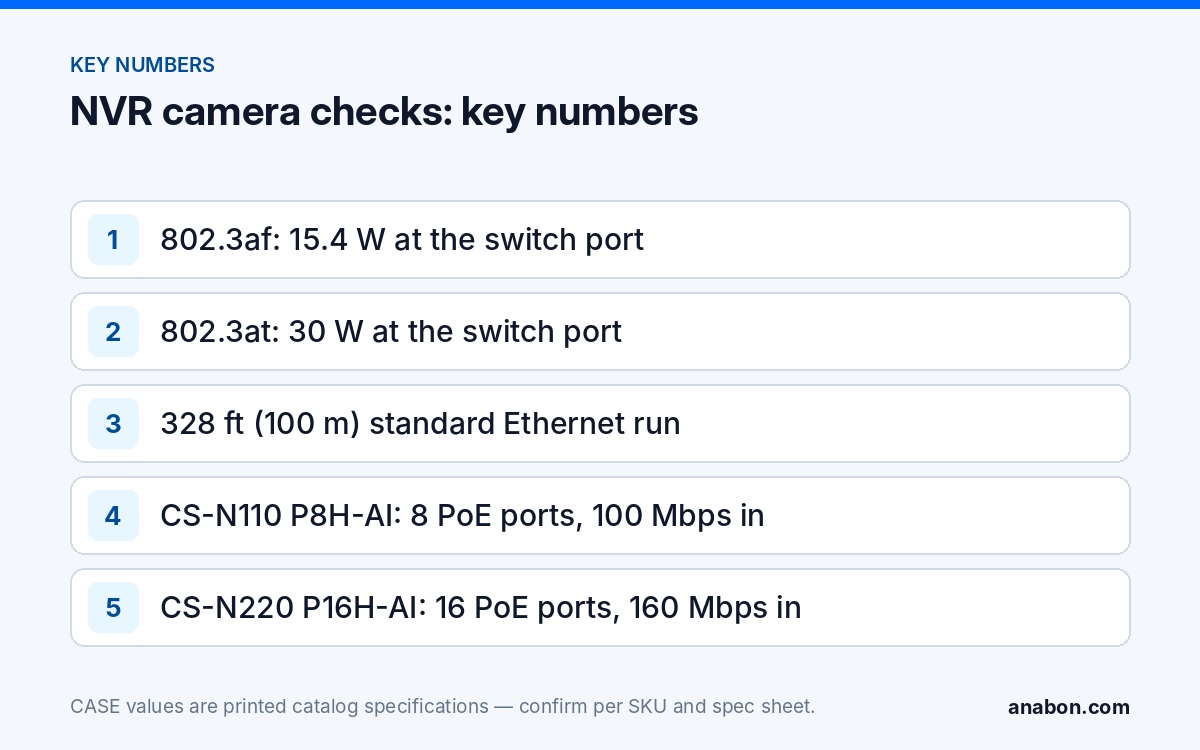
- Cable budget. A standard Ethernet run is 328 ft (100 m) end to end, patch cords included. Longer runs drop link or power before they drop video; see PoE camera not working for extenders.
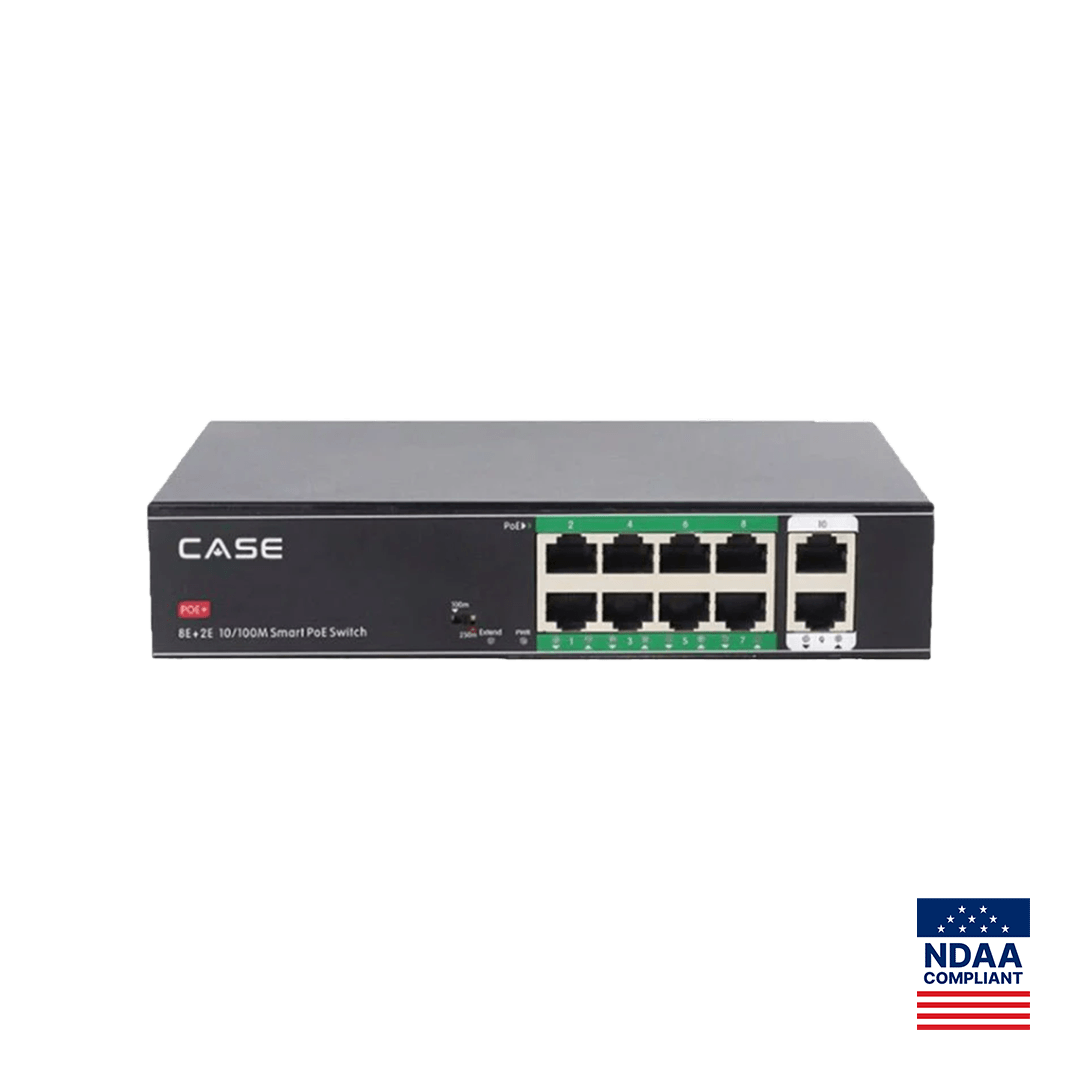
- Switch class. IEEE 802.3af delivers 15.4 W at the port; 802.3at delivers 30 W. A camera that needs 802.3at on an 802.3af port may boot, then drop when its illuminator turns on. The CASE catalog switches are 802.3af/at with 30 W per port; the CS-H1108PLS prints 8×10/100M PoE ports plus 2 uplinks, a 100 W total PoE budget, and 328 ft (100 m) standard or 820 ft (250 m) in Extend Mode.
- Budget. Add up the cameras against the printed total budget, not the port count; for an NVR with built-in PoE, take the figure from the NVR spec sheet.
One-minute test: move the camera to a port feeding a working camera. If it comes up, the fault is the original port, cable or budget; if it stays dark, the camera or its pigtail. PoE cabling is low-voltage, but cable ratings and pathways still follow NEC (CEC in Canada).
Step 2: Can you find the camera on the network? (Search Config Tool)
Once the camera has power, find it before you try to add it. Two tools do this on a CASE system:
- The NVR search. From the camera management menu, run the device search on the PoE segment and the LAN side. A camera that shows up with an address, model and firmware is reachable; the problem is then address, credentials or bandwidth.
- Search Config Tool. On a laptop on the same segment as the camera, the Search Config Tool (the download is labeled CASE Setup Tool) discovers CASE devices, shows their current IP, and lets you change the address or set it to DHCP with the device credentials, without opening each camera’s web page. See the Search Config Tool guide.
A camera on a different subnet than the NVR expects takes you to Step 3. One that does not appear at all needs a wiremap test and a swap to a known-good port.
Step 3: DHCP or static IP on the NVR PoE ports?
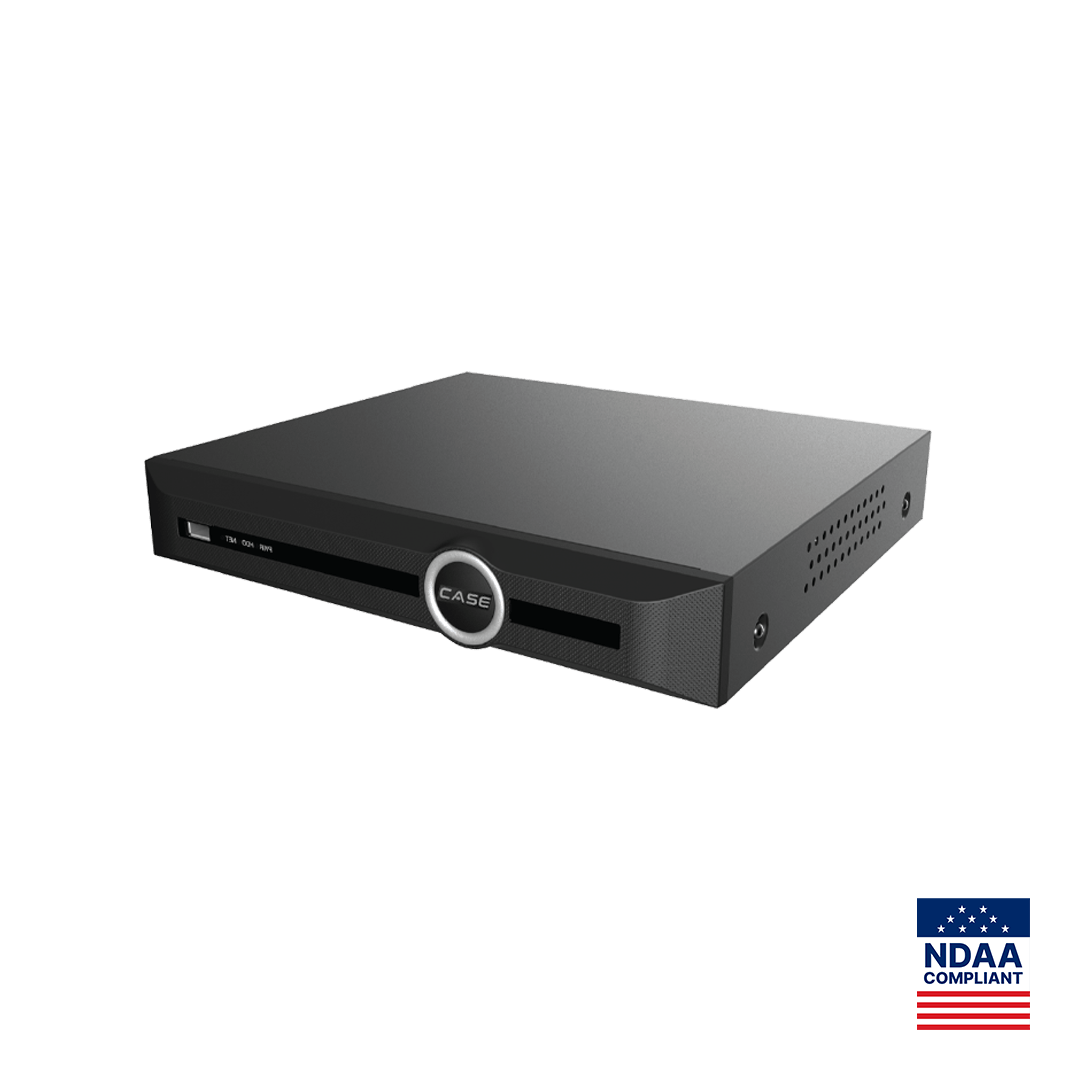
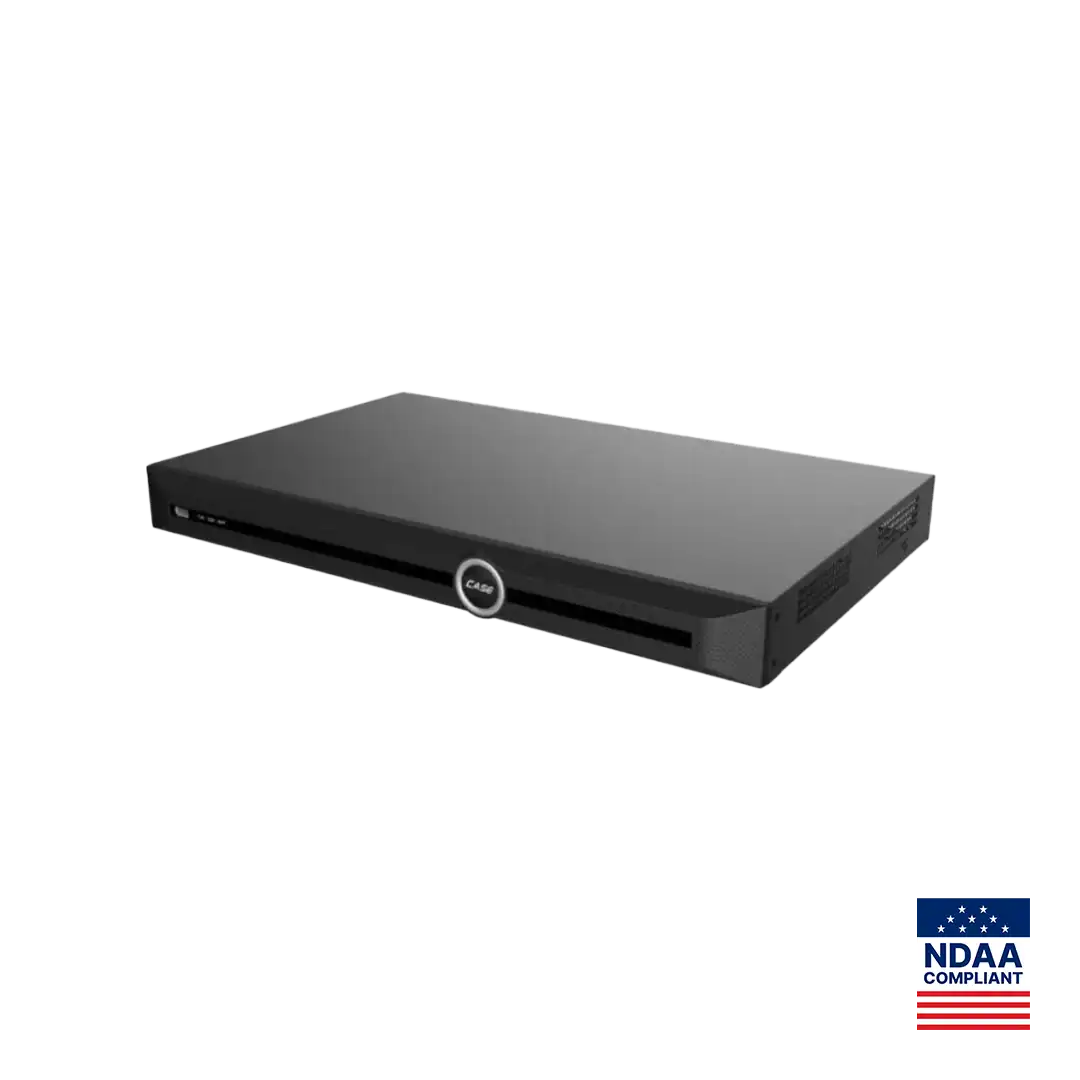
This is the most common cause of an NVR not showing cameras. On a PoE NVR such as the CS-N110 P8H-AI (10 channels, 8 PoE ports, 8+1 RJ45 10/100 Mbps) or the CS-N220 P16H-AI (20 channels, 16 PoE ports, one 10/100/1000 Mbps uplink), the PoE ports form an internal segment separate from the LAN uplink. The NVR assigns each camera an address on that segment, and the LAN port carries a different address on the customer network. The ranges are shown in the NVR network menu and differ by firmware, so read them from the unit. For the longer explanation, see the earlier post why your NVR doesn’t show cameras: learn DHCP once and for all.
| Where the camera sits | Who hands out the address | What goes wrong | Fix |
|---|---|---|---|
| NVR PoE port | The NVR, on its internal PoE segment | Camera keeps a static IP from a bench or another job | Set it back to DHCP with the Search Config Tool, or give it an address inside the PoE segment |
| External PoE switch on the LAN | The customer router (DHCP) or your static plan | Lease renews, the camera moves, the NVR keeps looking at the old address | Static address or DHCP reservation outside the router pool |
| Behind a second router or across a VLAN | That router or the VLAN DHCP scope | NVR sees the camera in search but cannot reach it, or the reverse | One segment for cameras and NVR, or route and allow the ports deliberately |
Two channels that flip between Online and Offline every few seconds almost always share one address; the method is in IP address conflicts between cameras.
Step 4: Credentials and ONVIF profile
A camera that is found but will not add is normally a password problem. A CASE camera’s password is set at first setup, and the NVR stores credentials per channel. After a camera is reset or replaced, the channel still holds the old password; edit the channel and enter the current one. Many cameras lock the account for a period after repeated wrong attempts; wait it out.
For a third-party camera the add method is ONVIF, and the profile language matters: ONVIF profiles supported are S, T, and G, with M on pinhole models. Third-party behavior is confirmed per platform and project. Create a dedicated ONVIF user on the camera, match the ONVIF port on both sides, and confirm both clocks, because a large offset fails ONVIF authentication; the checklist is in ONVIF camera not connecting to NVR. Add CASE cameras with the NVR’s native plug-and-play or manual add rather than ONVIF; AI functions and VCA Search on the NVR are confirmed per camera model, NVR model and firmware, and ONVIF is not the path to them.
Step 5: Is the channel over the NVR bandwidth or resolution limit?
A camera that goes Online and then stays black or stutters is often the last straw on the incoming bandwidth. The printed limits:
- CS-N110 P8H-AI: bandwidth 100 Mbps incoming / 80 Mbps outgoing, maximum resolution 16MP.
- CS-N220 P16H-AI: bandwidth 160 Mbps incoming (120 Mbps with AI on) / 80 Mbps outgoing, maximum resolution 16MP.
Add the main-stream bit rate of every camera. If the total passes the incoming figure, the channels added last fail, and the fix is in the camera encoding settings: lower the bit rate, use S+265 or H.265 instead of H.264, and drop the frame rate where 30 fps is not needed. Turning AI on lowers the incoming figure on the CS-N220 P16H-AI from 160 to 120 Mbps, so a system that worked before AI was enabled can lose its last cameras. The worked method is in the IP camera bandwidth calculator.
Step 6: Firmware and time sync
If a channel dropped right after an update, or appears and disappears on a schedule, look at firmware and time.
- Firmware pairing. Plug-and-play between a CASE camera and a CASE NVR depends on both running firmware approved to work together. Update with firmware supplied through Anabon technical support, and keep the previous version so you can roll back.
- Time and time zone. Sync the NVR to an NTP server and set the site’s time zone and daylight saving rule, in the US or in Canada. ONVIF cameras fail authentication when clocks differ widely, and a wrong clock breaks evidence timelines.
- Reboot order. After updates, power-cycle the NVR, wait for it to boot, then the cameras. A camera that boots before the PoE segment is ready can sit at an old address until it restarts.
When to call technical support
If the camera has power, appears in search, has the right address and password, and the NVR is inside its bandwidth figure, the remaining causes are a faulty camera, port or firmware, better handled with support than by trial and error. Anabon supports installers, integrators, dealers and approved business accounts through technical support on your business account. Have ready: NVR model and firmware, camera SKU and firmware, a photo of the camera list with the status column, the switch model, and the cable run length.
What to tell your customer
Say what you checked and what you changed: “The camera had power but was sitting on the wrong network address, so the recorder could not see it. I reset it to take its address from the recorder, confirmed it is recording, and checked the other channels.” The service relationship stays with you. For end users who land here: for warranty and service, please contact the installer or company that supplied your system. Anabon supports warranty and technical service through our installer, dealer, and business-account network.
FAQ
Why does my NVR show a camera as offline when the camera LED is on?
Power is present but the NVR cannot reach the camera over the network. The usual cause is an address on the wrong segment: a static IP left from a bench test or another site, or a LAN-side camera that moved after a router lease renewal. Search for the camera, note its address, and set it to DHCP or to a fixed address the NVR can reach.
Should cameras on the NVR PoE ports be DHCP or static?
Leave cameras on the NVR PoE ports on DHCP so the NVR assigns addresses on its internal segment; that is what plug-and-play relies on. Cameras on an external switch on the customer LAN should have a static address or a DHCP reservation outside the router pool, so a lease renewal cannot move them away from the stored address.
Can a PoE budget problem look like a network problem?
Yes. A switch or NVR with its PoE budget used up may power the first cameras and leave the last ones dark, or a camera may boot and then drop when its illuminator turns on at night. Compare the camera count and class against the printed total budget, and test the suspect camera on a port that already feeds a working one.
Does a third-party camera work on a CASE NVR?
Third-party cameras are added over ONVIF. ONVIF profiles supported are S, T, and G, with M on pinhole models, and third-party behavior is confirmed per platform and project. Video is the usual starting point, and which events arrive depends on the camera’s profile support; AI functions and VCA Search on the NVR are confirmed per camera model, NVR model and firmware, so do not promise them for an ONVIF camera.