


Quick answer: A security camera firmware schedule combines planned reviews with prompt action on relevant security advisories. Keep an exact device inventory, obtain approved files, follow the documented update path, test the change and record the result. A quarterly review can organize routine work; it must not delay assessment of an urgent issue.
On this page
Why put firmware on the maintenance calendar?
A camera can still show live video while its firmware is out of support or a required function is failing. A maintenance calendar gives the installer and customer a clear answer to three questions: who checks for changes, who approves the work and who verifies the system afterwards.
Blindly updating every device is not a plan either. An update can affect recording, analytics, integrations or browser behavior. The aim is to keep the installation appropriately supported and address risk without turning a working site into an unplanned outage.
Keep this calendar with the cybersecurity handover record. Agree the service scope before handover, including who receives advisories when the customer does not have a maintenance agreement.
What should the maintenance calendar include?
Use the following as a starting point, then adjust it to the site’s risk, operational needs and service agreement. These intervals are planning examples, not a universal standard or a promise that a monthly check will detect every fault.
| When | Check or action | Record |
|---|---|---|
| Monthly, or the service interval agreed for the site | Check required channels, recording and playback, drive status, device time and relevant event logs. Use only an approved access method that supports these checks. | Date, technician, results and open issues. |
| Quarterly planned review | Review the inventory, supported firmware, release notes and account list. Decide what needs a maintenance window. | Exact model/revision, installed and proposed versions, decision, owner and next review. |
| As relevant advisories arrive | Check affected models and versions promptly. Assess exposure with the customer’s IT contact and support; agree an urgent update or documented temporary controls when necessary. | Advisory, affected devices, priority, action deadline and responsible person. |
| At the agreed site visit | Inspect mounts, cable entries, lenses, enclosure airflow and power protection. Test the required functions and update the handover record. | Findings, test results, agreed remedial work and next visit. |
| When a device or its support status changes | Add replacement equipment to the inventory. Review devices that no longer receive appropriate security support. | New model/version, support decision and replacement plan where required. |
A release review ends with an action, a reason and an owner. If an update is deferred, record why, the temporary controls where appropriate and the date for reconsideration. “The cameras still work” is not enough to dismiss an applicable security fix.
When should you update sooner than the next planned visit?
Review an advisory as soon as it is relevant to equipment you support. Match the affected products and versions to the inventory, then consider exposure, the required function and the consequences of downtime. The customer’s security policy or support advice may require a faster response than your normal service cycle.
Do not wait for a visible problem at the site before considering a security update. If a safe update path is not yet available, agree temporary restrictions and a follow-up date with IT and support. This is an exception to manage, not an indefinite hold.
The NIST guide to enterprise patch management treats patching as preventive maintenance. For an installer, the practical result is a repeatable process: identify the equipment, prioritize the change, obtain the right file, deploy it deliberately and verify the outcome.
Where should CASE firmware come from?
Start with the Anabon Download Center or request the correct file from Anabon technical support. If the download entry does not clearly cover the device, stop and confirm it before starting the window.
- Match the complete SKU on the label, including letters and suffixes, plus hardware revision where applicable.
- Read the supported starting versions, prerequisites and release notes. A similar-looking camera is not proof of interchangeable firmware.
- Confirm the approved file and its integrity using the verification information supplied with it, where provided.
- Record the source and version in the work order. Do not use an unknown mirror, forum file or file intended for another model.
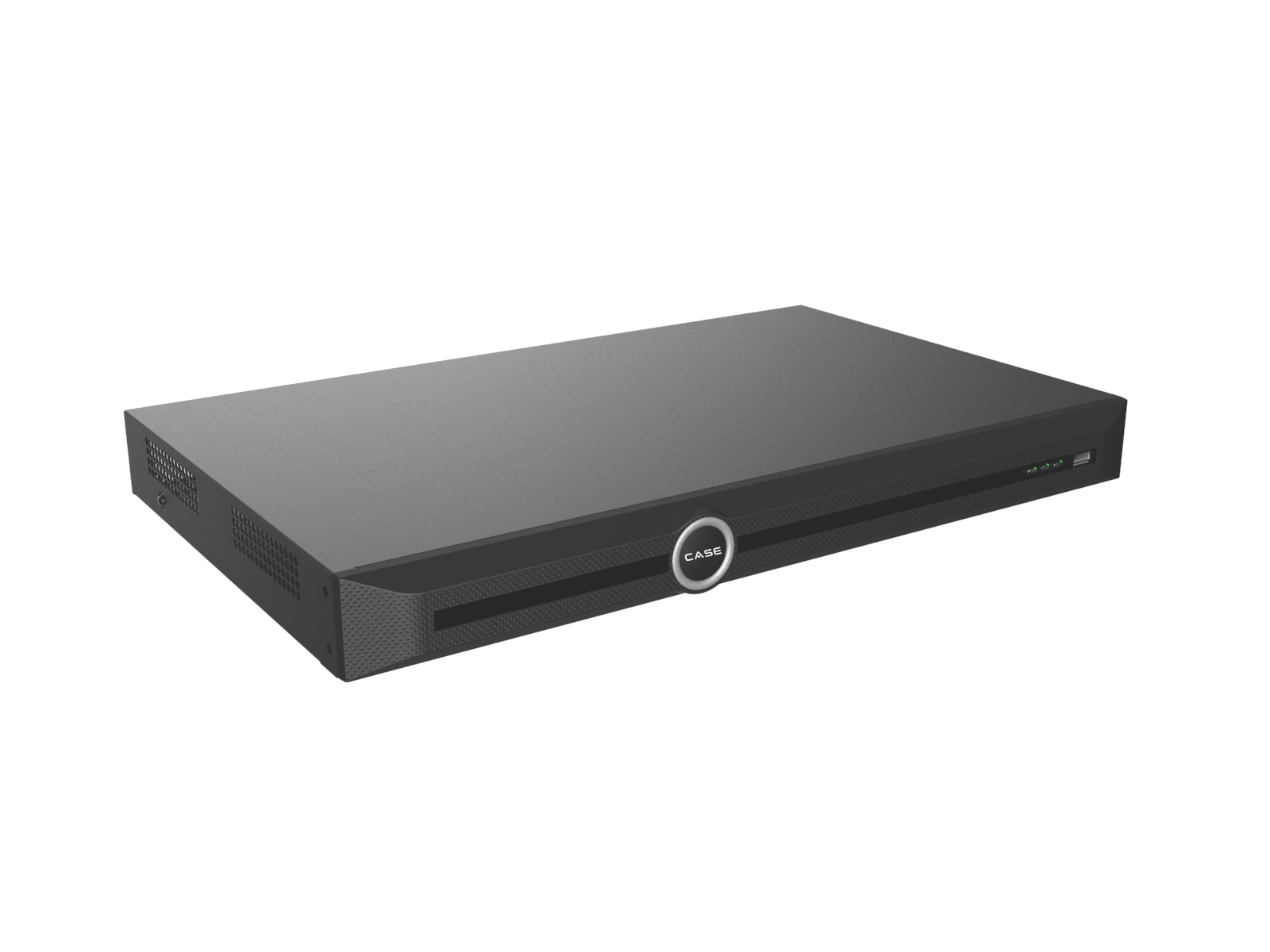
For example, CS-N220 P16H-AI identifies a specific recorder. The product name helps you locate the right support record; it does not establish that a file for another NVR is suitable.
How do you plan the update without assuming a rollback will work?
Read the documented update sequence for the exact recorder, cameras and software combination. Some changes have prerequisites or compatibility dependencies. There is no camera-first or recorder-first sequence that is correct for every release.
Before, during and after the change
- Identify and approve: match the devices, release and reason for the change; agree the window and recording interruption.
- Prepare and test: protect configuration exports, confirm recovery instructions and test a representative device or supported combination where feasible.
- Apply in the documented order: use small controlled batches where the procedure permits; pause when a required check fails.
- Verify and record: test the required functions, update the version log and close or assign every remaining issue.
A configuration export is valuable, but it is not a guarantee that settings can be restored to any firmware version. A saved old firmware file does not prove that downgrade is supported. Confirm the permitted recovery method before the change. If recovery is uncertain, resolve it with support rather than planning to experiment on the customer’s recorder.
- Store configuration exports in the protected project folder. They may contain sensitive network or account information.
- Record how to recover access if the web interface or remote connection becomes unavailable.
- Arrange someone on site where physical intervention may be required.
- Maintain stable power and follow the update instructions. Do not interrupt an update or power-cycle an unresponsive device unless the documented recovery procedure or support directs it.
- Define what causes you to stop the rollout and whom to contact. Allow time for recovery within the approved outage plan.
Use the NVR firmware update guide as a planning checklist, while the exact release instructions and support advice control the actual sequence.
What must you verify after an update?
Start with the reason for the update, then test the functions the site relies on. A successful version number alone does not prove that the installation is ready to hand back.
- Confirm the exact installed version and inspect relevant device status and logs.
- Check required channels, recording schedules and playback recorded after the update.
- Test time zone, daylight-saving behavior where applicable and the configured time source.
- Test the analytics, alarm actions, audio and integrations actually used on this project.
- Check named accounts, permissions and disabled services; make sure the change has not altered the agreed access design.
- Test the approved remote-access method from outside the site if remote use is in scope. Confirm CASE Connect functions for the exact device and software; its name does not establish every available health check or update function.
- Record the outcome and let the customer know when the system is back in service.
What belongs in the firmware version log?
Keep one device row in the inventory and a dated history of changes. Record version strings exactly as the device displays them. “Latest” is not useful when another technician reviews the site six months later.
| Field | What to record |
|---|---|
| Identity | Site, physical location, full SKU, hardware revision if applicable, serial number, MAC address and channel. |
| Before and target | Exact installed version, approved target version and the release-note or support reference. |
| Change approval | Reason, risk/priority, agreed window, customer contact and technician. |
| Recovery preparation | Protected configuration-export location, approved recovery instructions and on-site contact. Record any downgrade restriction. |
| Result | Actual installed version, completion time, checks passed/failed and any support case. |
| Follow-up | Open issue, owner, action date and next routine review. |
Record failures as clearly as successes. If the rollout stops after one test device, say so. Do not mark the remaining cameras as updated, and do not erase the prior version history.
How does this fit a service agreement?
The agreement should name the maintenance owner, routine review frequency, advisory contact, approval process, access method and what happens outside normal hours. Define which checks can be completed remotely and which require a visit. An app connection does not replace physical inspection.
State how the version log and findings reach the customer, and what happens when equipment reaches the end of its supported life. Avoid a promise that scheduled maintenance prevents every compromise or equipment fault. The service agreement guide for installers covers the wider commercial discussion.
“We keep a record of the firmware on your system and review relevant releases and advisories. We agree the timing of changes, test the functions you use and report the result. Urgent issues are assessed separately from the normal service calendar.”
FAQ
How often should security camera firmware be updated?
Set a routine review interval appropriate to the site and review relevant advisories when they arrive. Apply updates according to risk, support requirements and the approved procedure. Quarterly review is an example of routine planning, not a reason to leave an urgent applicable issue until the next quarter.
Should the cameras or NVR be updated first?
Follow the release notes and support instructions for the exact combination. Confirm prerequisites and test the required functions. Do not assume that one fixed order works for every camera, recorder and release.
Can I always return to the previous firmware?
No. Downgrade and configuration compatibility depend on the product and release. Confirm the supported recovery path before the update, and keep the approved instructions and contact details in the job folder.
Can updates be completed remotely?
Only where the device, software and approved access method support it and the outage/recovery plan is suitable. Arrange on-site assistance when needed. A remote connection cannot reconnect a cable, restore failed power or resolve every recovery situation.
What if there is no suitable supported firmware?
Ask support to confirm the device’s status, review the risk with the customer’s IT contact and document any temporary controls and replacement plan. A working live image does not settle the support decision.
Planning equipment for a maintained installation? Review the network video recorder range and send the full equipment list and firmware questions to Anabon technical support before committing to the update path.