


Quick answer: CASE Connect is the official app experience for CASE systems, available as a mobile app for iOS and Android and as a website built for it. A clean handover has five parts: the NVR online with correct time and a changed admin password that stays with you, the device added under your company account, access shared to the customer’s own account, a ten-minute walkthrough of live view, playback and alarm information, and a signed checklist. App features and remote access options should be confirmed by model, software version, and project configuration.
What CASE Connect is, and what you can promise
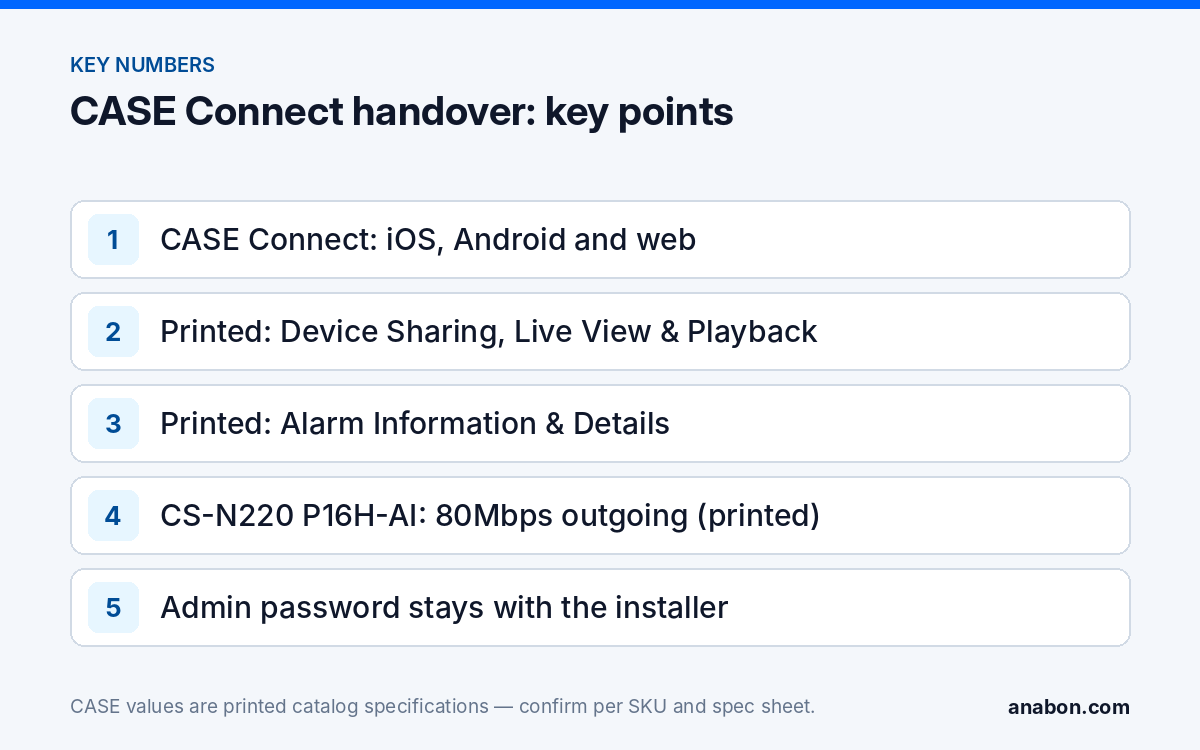
CASE Connect is the main CASE software and the only one your customer needs to hear about. The CASE catalog describes it as centralized device management, monitoring and alarm information in a single interface, and prints these functions: Device List & Preview, Device Sorting & Management, Device Sharing, Live View & Playback, Alarm Information & Details, and Alarm Type & Event Time. That printed list is the scope you can put in a proposal. Anything beyond it, from a specific notification behavior to a feature on one phone platform, is confirmed for the model, software version and project configuration before you promise it in writing.
Two habits keep this honest. First, the name: write CASE Connect in the proposal, the handover sheet and the sticker on the rack; older names on legacy documents are not to be reused. Second, the scope: the app is remote access and viewing, not cloud recording. Video stays on the recorder; the app reaches it. The wider software question, including what CASE supports today and nothing more, is covered in Cloud vs NVR storage: what is supported today for CASE systems.
Before the app: five NVR prerequisites
Most “the app does not work” calls are recorder or network problems that the app only reveals. Settle these on the bench or on the day of installation:
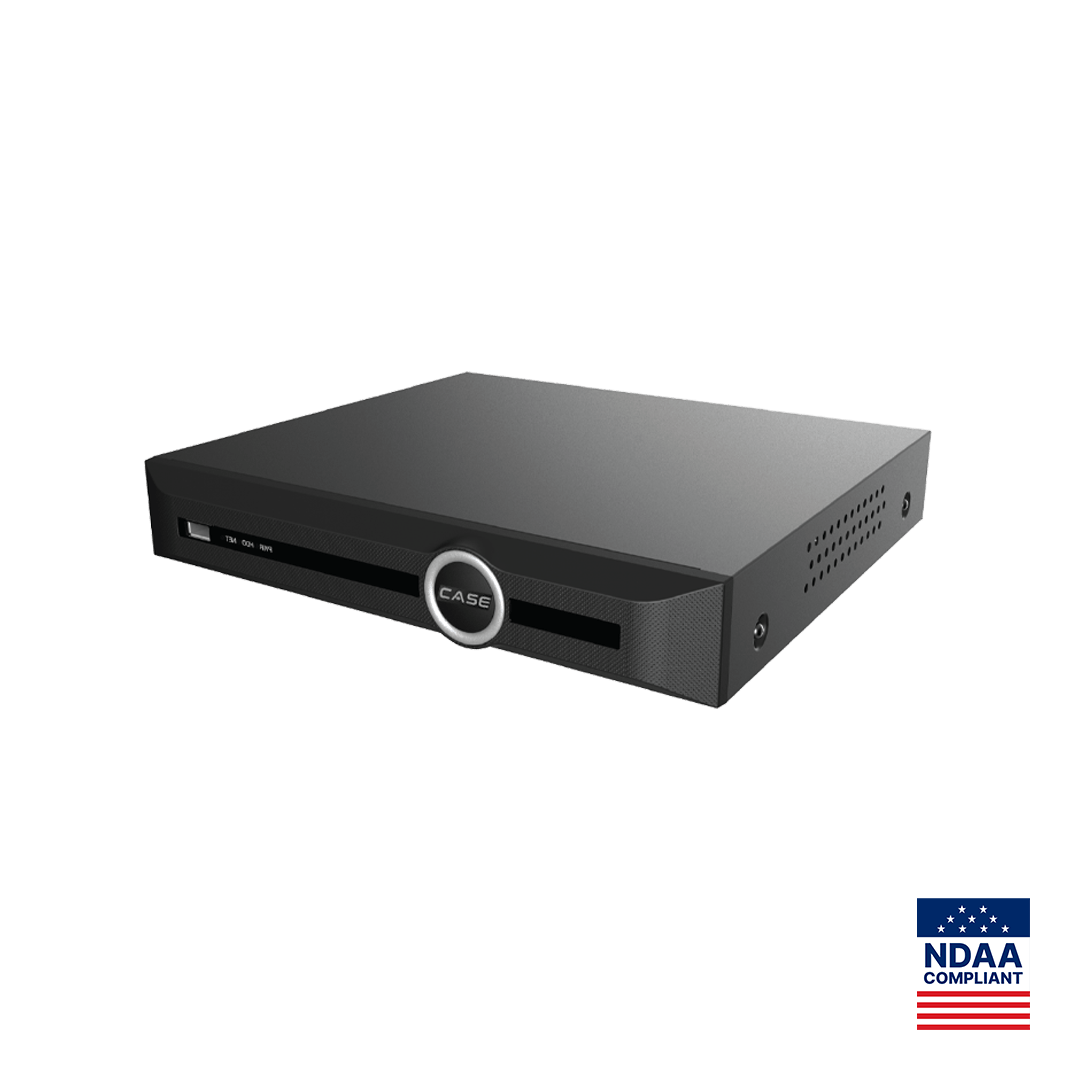
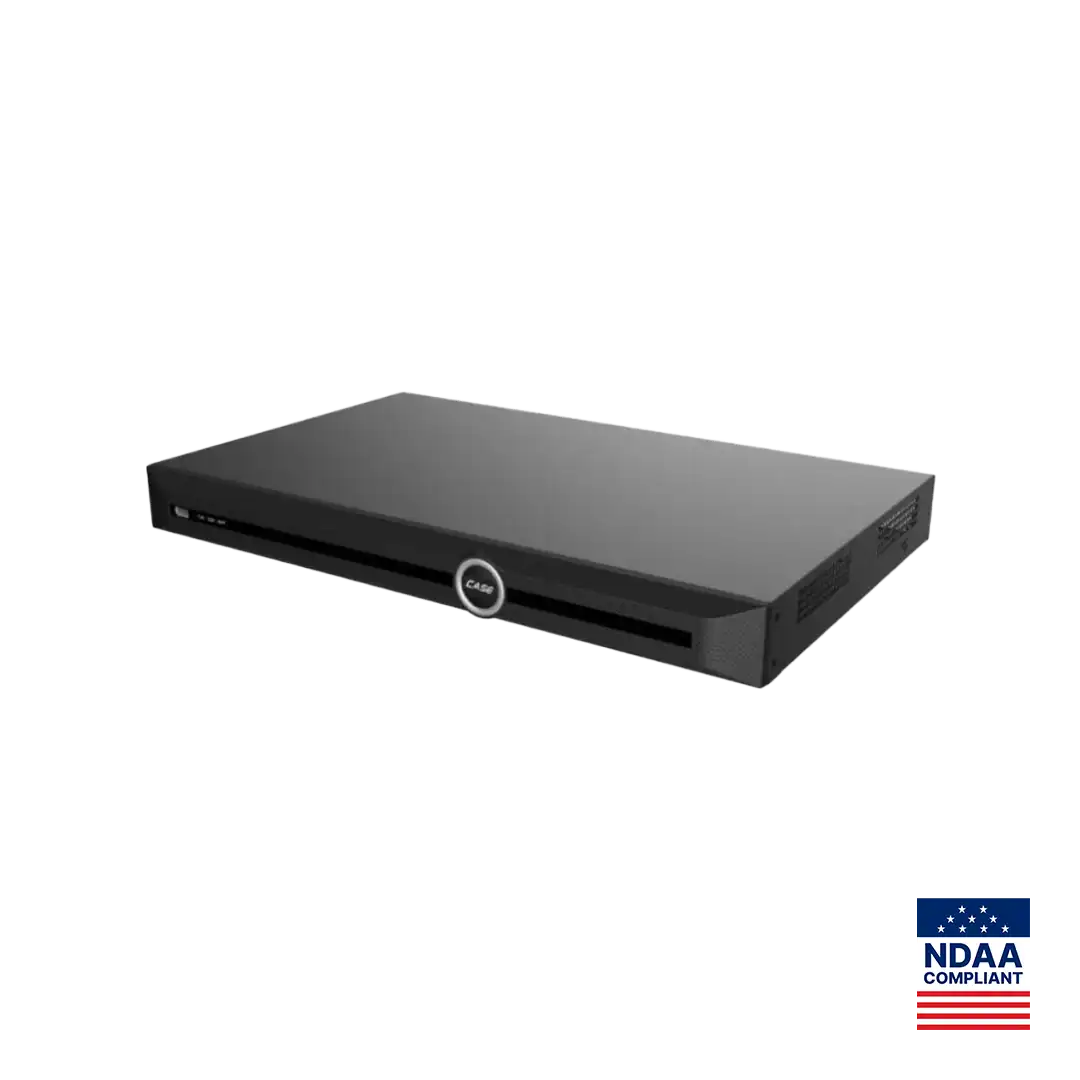
- Internet on the NVR uplink. The recorder’s network port, not the PoE camera ports, connects to the customer’s router or switch with a working gateway and DNS, by DHCP reservation or a static address agreed with the customer’s IT contact. On a CS-N220 P16H-AI that is the single RJ-45 10/100/1000 Mbps port; the sixteen PoE ports are for cameras only.
- Platform access enabled, no port forwarding. Where the NVR menu offers a P2P or platform-access service, enable it and note the device ID; it is designed to let a viewing app reach the recorder without opening inbound ports, and whether CASE Connect uses it is confirmed by model, software version and project configuration. Why we do not recommend port forwarding is covered in Port forwarding security camera risk: P2P vs VPN.
- Time. NTP server set, time zone correct, daylight saving handled. Playback by time in the app is only as good as the recorder clock.
- Accounts. Change the default admin password, record it in your own password manager, and create a separate customer account with the rights the customer needs. The admin account stays with you under the service agreement; roles are covered in User roles and permissions on CASE NVRs.
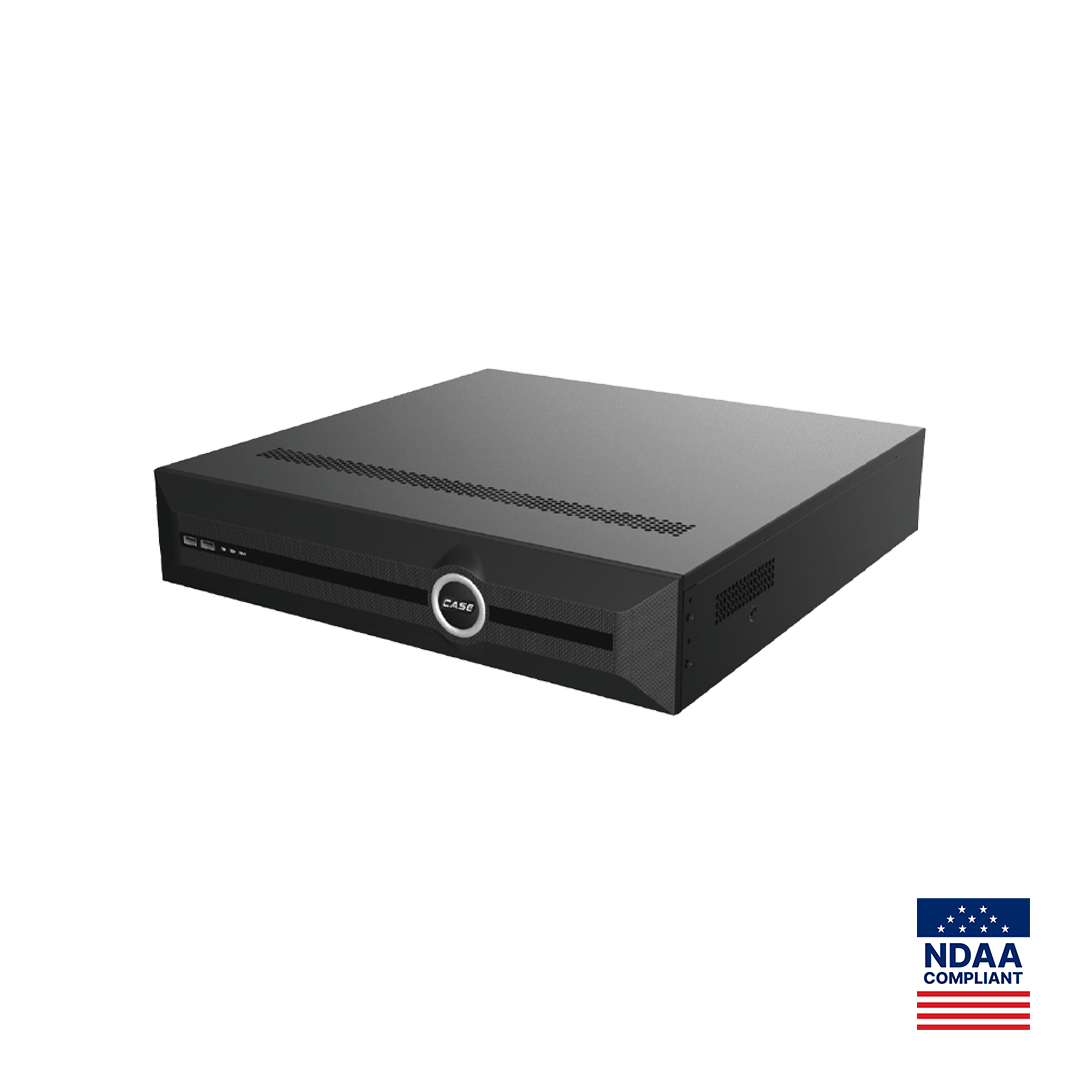
- Streams. Set a sub-stream on every camera with a resolution and bitrate suited to a phone over cellular, and check the recorder’s printed outgoing bandwidth: the CS-N110 P8H-AI and CS-N220 P16H-AI print 80Mbps outgoing, the CS-N880 H-AI prints 400Mbps (AI on: 200Mbps). Every remote viewer shares that figure.
Install and add the device
Do this from your own phone first, on cellular data rather than the site Wi-Fi, so you prove the path the customer will actually use.
- Install CASE Connect from the official app store for the phone platform, and sign in to your company’s account; one company account keeps ownership clear when technicians change.
- Add the recorder. Depending on the NVR model and app version, the add flow offers the device’s QR code or ID for platform (P2P) access, or the IP address on the local network; use the platform method for anything the customer will view off site. The exact add methods are confirmed per model, firmware and app version.
- Name the device the way the customer talks: “Main Street store” rather than the model number, and name the channels on the recorder the same way, because the app normally displays the recorder’s channel names (confirm per app version).
- Open live view on at least two channels, then playback for an hour earlier the same day, then the alarm information screen. If all three work on cellular, the recorder side is finished.
- For a customer with several recorders, add each one; the printed Device List & Preview and Device Sorting & Management functions are what turn three sites into one list.
If a step fails, the checklist in Remote viewing not working: a checklist for CASE Connect access works through the network, time and account causes in order.
Sharing access with the customer: accounts, not passwords
The handover mistake that costs the most later is typing the admin login into the owner’s phone; six months on, nobody knows who can see the cameras. Use two layers instead. On the recorder, each person gets an NVR user account with the rights they need. In the app, the printed Device Sharing function lets you share the recorder from your company account to the customer’s own CASE Connect account, which means you can also remove that share when staff change. What a shared user can do inside the app is confirmed per app version; the NVR account rights are the floor that applies regardless.
| Person | NVR account | How they get the app | Handover note |
|---|---|---|---|
| Installer (you) | Admin | Company account; device owner | Credentials in your password manager, never on site |
| Owner or general manager | Operator-level: live, playback, export as agreed | Own account; device shared from your account | Written record of what they can do |
| Shift manager or reception | Viewer: live only, or live and playback | Own account; shared | Removed when they leave; no shared logins |
| Outside party (alarm company, consultant) | Only if the customer authorizes it in writing | Own account; shared for a defined period | Review at each service visit |
Agree in writing what happens if the customer wants full control later: the recorder is re-added under their account, your access is removed, and the admin responsibility is theirs from that point.
Live view, playback and alarm information: the ten-minute walkthrough
Teach the three screens the customer will use, on their phone, with you watching. Keep it to the printed functions:
- Device list and live view. Open the list, pick the recorder, open a camera, switch cameras, and open a multi-view where the app version offers it. Explain that the phone normally shows the sub-stream you set, so the image is lighter than the recorded one, and that cellular data is consumed while a live view is open.
- Playback. Pick a camera, pick a time, and watch a minute. Show that the recorder’s clock is what the timeline follows.
- Alarm information and details. Open the alarm list and show the alarm type and event time printed for each entry, then open the footage behind one. Whether and how the phone notifies them depends on the phone’s settings and the app version; set it with them and write down what you set.
- What not to touch. Recorder settings, user management and firmware are yours under the service agreement, and the admin account is the reason they cannot change them by accident.
What to confirm per model, firmware and app version
Before any of these go into a written proposal or handover sheet, confirm them with Anabon technical support for the exact recorder model, its firmware, the app version and the deployment, and write the confirmed answer rather than the general one:
- The add methods offered (QR code, device ID, local IP) and whether platform access is available on that firmware.
- Which alarm types from AI by NVR or camera-side analytics appear in Alarm Information & Details on that model.
- Playback and export behavior in the app, including clip or snapshot saving to the phone where offered.
- Device Sharing permissions available in the app version you install.
- Behavior on each phone platform; do not promise a detail on one platform that you have tested only on the other.
- The web version: which functions it offers for this customer, confirmed before it is promised.
Handover checklist for the app
Copy this table into your job sheet or spreadsheet and sign it with the customer. It belongs next to the camera schedule and the installation checklist and commissioning report.
| Item | Done | Notes |
|---|---|---|
| NVR uplink online; gateway and DNS verified | IP or DHCP reservation | |
| NTP and time zone verified on the recorder | Server used | |
| Admin password changed; stored by installer only | Password manager entry | |
| Customer NVR account(s) created with agreed rights | Names and roles | |
| Platform access enabled; device ID recorded | No port forwarding | |
| Recorder added to company account; device and channels named | ||
| Device shared to customer account(s) | Who, and what they can do | |
| Live view, playback and alarm list tested on cellular | Phone platform(s) tested | |
| Notification settings agreed and recorded | ||
| Walkthrough given; customer signature | Date, app version, NVR firmware |
What to tell your customer
“Your cameras record on the recorder in the building; CASE Connect is how you reach them from your phone. You have your own login, and so does anyone you authorize, so when someone leaves we remove their access without touching yours. If the app ever cannot connect, it is almost always the internet connection at the building, and that is the first thing we check.” For warranty and service, please contact the installer or company that supplied your system.
FAQ
Does CASE Connect need port forwarding on the customer’s router?
Not where the recorder offers platform (P2P) access that CASE Connect is confirmed to use for that model and software version; it reaches the NVR without inbound ports. Enable it in the recorder menu, record the device ID, and add the device with the QR code or ID rather than a public address. Availability of platform access is confirmed per model and firmware; port forwarding is not the recommended path.
Should I put the admin login in the customer’s phone?
No. Give the customer their own NVR account with the rights they need, and share the recorder to their own CASE Connect account from your company account using the printed Device Sharing function. You keep the admin credentials under the service agreement, so settings and firmware stay controlled, and you can remove a departed employee’s access without resetting the whole system.
Can the customer see several locations in one app?
Yes. Add each recorder as its own device; the printed Device List and Preview and Device Sorting and Management functions present them in one list. Name devices by location and name channels on each recorder the way the customer talks about them. Each recorder’s printed outgoing bandwidth is shared by all remote viewers, so set sub-streams for phones.
Which app functions can I write into a proposal?
The functions printed in the CASE catalog: Device List and Preview, Device Sorting and Management, Device Sharing, Live View and Playback, Alarm Information and Details, and Alarm Type and Event Time. Anything more specific, including notification behavior, export to the phone and web functions, is confirmed by model, software version and project configuration before it is promised in writing.