

Quick answer: When a customer says the app does not connect, work from the recorder outward: is the NVR online with a gateway and DNS, where the recorder uses P2P, is it enabled and reporting online and does the device code in CASE Connect match the NVR menu, is the phone signed in to the right account with an active share, is the app current, and does the failure follow the phone network or the customer’s firewall. Eight checks in that order find the cause on almost every call, and none of them involves opening ports.
What does “the app does not connect” actually mean? The 8 checks at a glance
The sentence covers three different failures: the NVR has no path to the internet, the NVR is online but the app cannot find or is not allowed to see it, or the phone is the problem. Ask two questions first: does it work on the site Wi-Fi, and does it work on a second phone.
| # | Check | Where | Pass looks like |
|---|---|---|---|
| 1 | NVR has IP, gateway and DNS on its uplink port | NVR network menu or router client list | All three filled in; NVR reachable from the LAN |
| 2 | NVR clock correct | NVR time settings | Right time zone, NTP on, date and time current |
| 3 | P2P enabled and reporting online | NVR P2P or platform-access page | Status reads online within a minute |
| 4 | Device code matches (where the app adds by code) | NVR P2P page vs CASE Connect device entry | Same code or QR as the unit on site, not an old job sheet |
| 5 | Right account and active share | CASE Connect on the phone | Owning account, or a share not revoked |
| 6 | App current and permitted | Phone app store and OS settings | Latest CASE Connect; cellular data and local-network permission allowed |
| 7 | Phone network | Wi-Fi, then cellular, then a second phone | Pattern separates NVR side from phone side |
| 8 | Customer firewall or filter | Router, firewall, content filter, guest-network isolation | Outbound traffic from the NVR allowed; no double-NAT surprise |
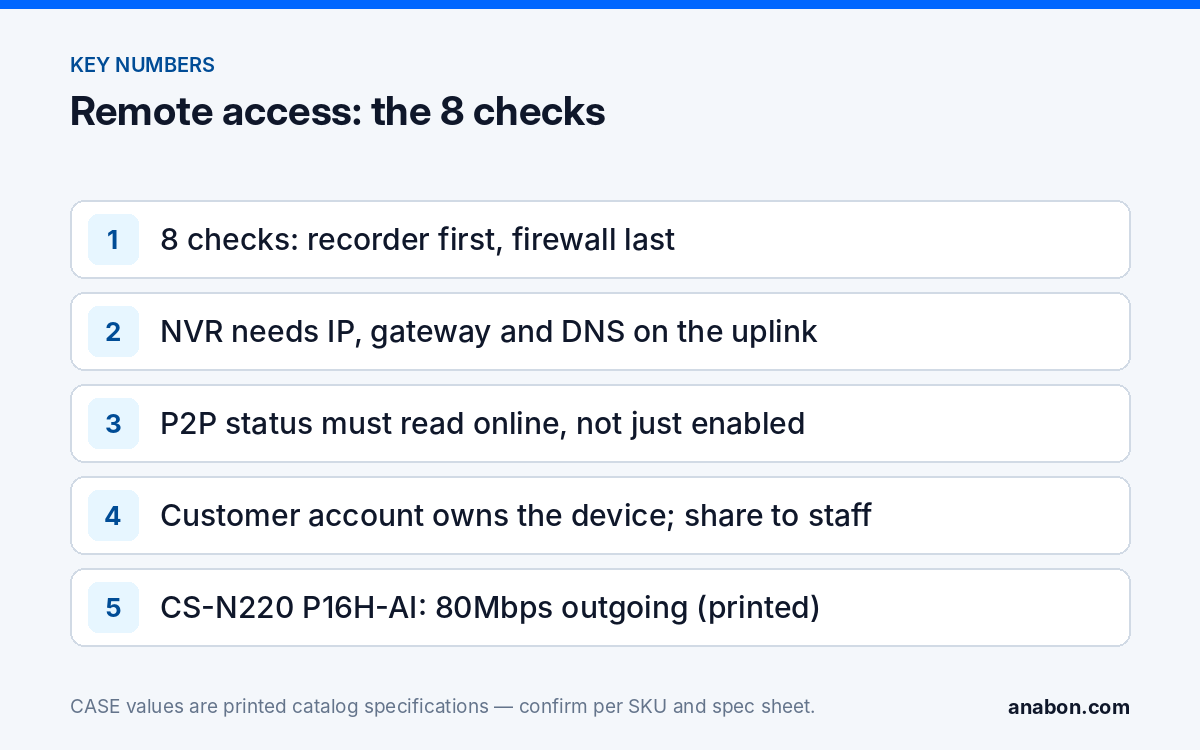
Checks 1 to 4 are done at the recorder, 5 to 7 on the phone, 8 with the customer’s IT contact. Do not start with the firewall; most failures are checks 1, 4 and 5.
Is the NVR actually online? Gateway, DNS and the uplink port
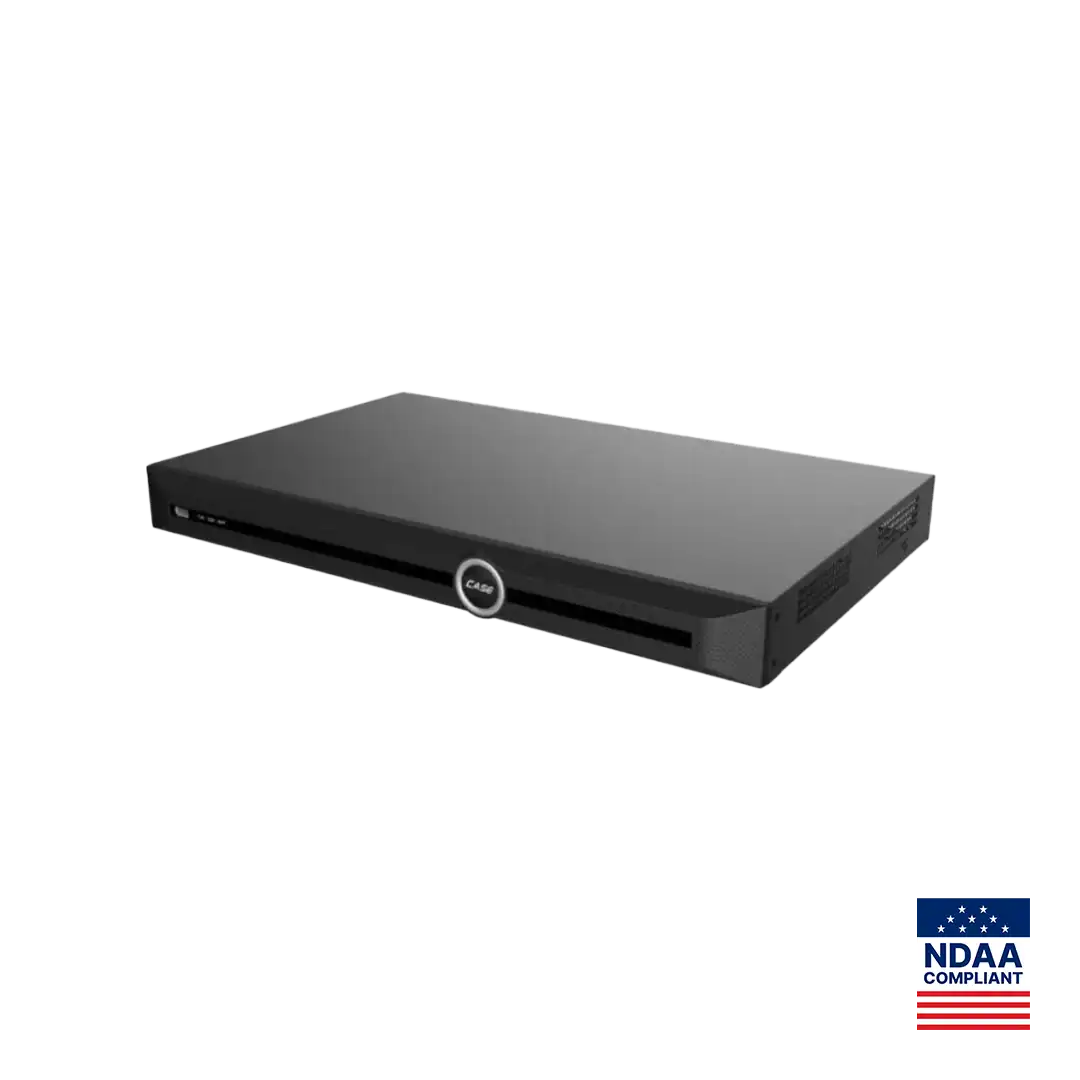
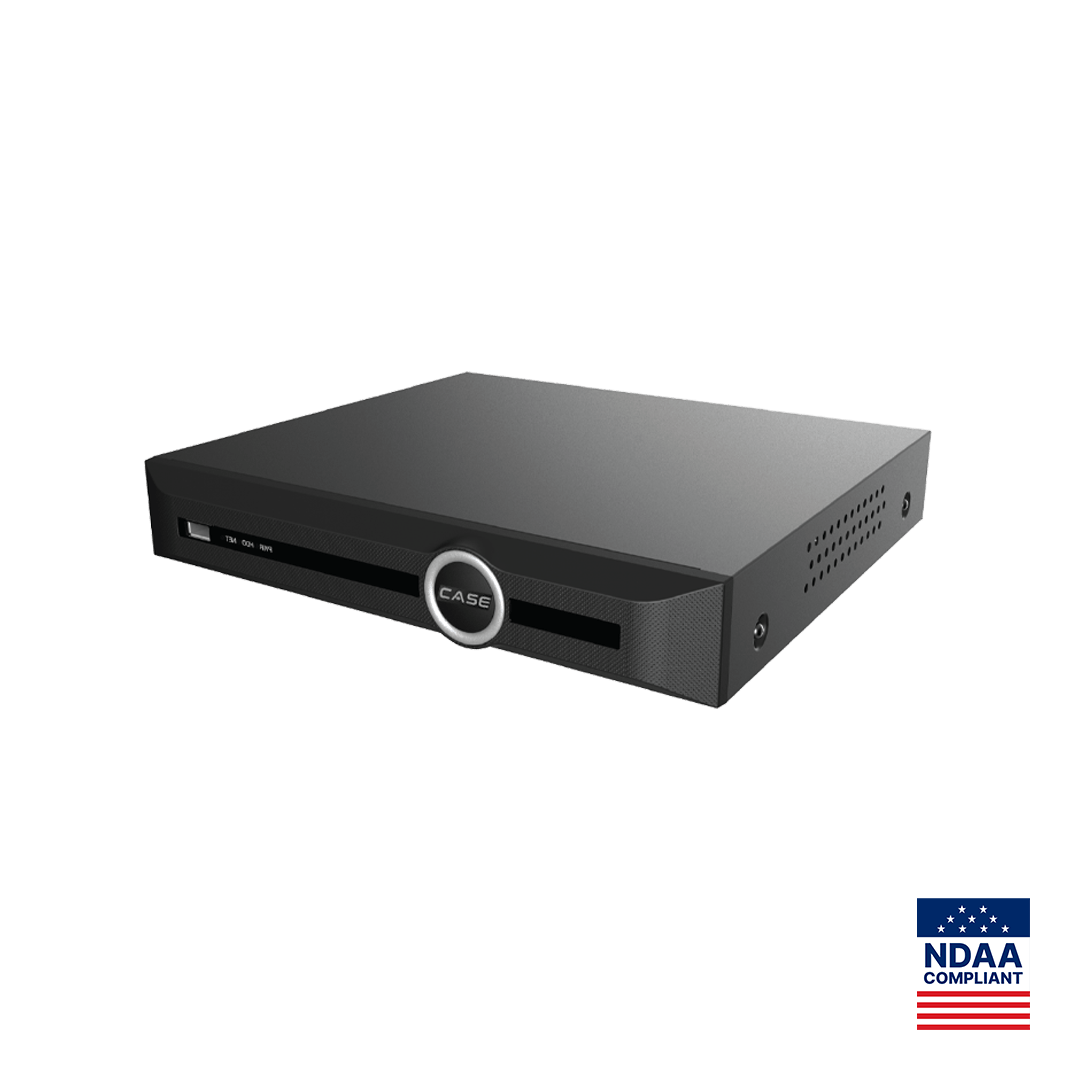
A PoE NVR has two kinds of network port. The camera-side PoE ports form their own network for the cameras; the single uplink port is what connects to the customer’s router. CS-N220 P16H-AI prints one 10/100/1000 Mbps RJ-45 port plus 16 RJ45 10/100 Mbps PoE ports; CS-N110 P8H-AI prints 8+1 RJ45 10/100 Mbps. If the uplink cable was moved to a PoE port during a cleanup, cameras still record and the local monitor works, but nothing leaves the building.
The second common fault is a static IP without a gateway or DNS server. The NVR answers a ping from a laptop on the LAN, which convinces everyone it is online, yet it has no route out and no way to resolve a name. Confirm all three fields: IP address, gateway (normally the router) and at least one DNS server. If the NVR offers a network test or ping tool in its maintenance menu, use it against the gateway and a public name; if not, check the router’s client list for the NVR’s lease or reservation.
Third, the clock. A secure connection to the service can fail when the NVR date is years out, typically after a long power-down with a flat clock battery. Set the time zone, enable NTP and confirm the date; NVR time and date wrong covers the settings and why a wrong clock also damages evidence.
Is P2P enabled and online, and does the device code match?
Where the recorder offers P2P (platform) access, CASE Connect remote access may use it (for example a P2P-style connection that avoids inbound port forwarding); this is confirmed by model, software version and project configuration. In a typical P2P design the NVR registers outbound under its device code, the app asks the service for that code, and the two sides are introduced without any inbound port on the customer’s router. On that path the NVR has to be enabled for P2P and registered right now, not just at handover.
- Open the P2P or platform-access page in the NVR network menu (the label varies by model and firmware version).
- Confirm the function is enabled. If it was off, enable it, save, wait a minute and refresh the status.
- Read the status. Anything other than online points back to check 1: gateway, DNS, or the firewall in check 8.
- Compare the device code or QR on this page with the device entry in CASE Connect. After an RMA swap or a replacement, the code on site differs from the original job sheet and the app is looking for a recorder that no longer exists. Re-add from the code on screen and update the job record.
A note on names: CASE Cloud (cloud.case.cam) is a separate tool for remote NVR configuration over P2P, not a viewing app and not cloud recording; the viewing path is CASE Connect only. App features and remote access options should be confirmed by model, software version, and project configuration.
Account, sharing and permissions: who owns the device?
Once the recorder is online and registered, most remaining failures are about accounts. In CASE Connect a device is held by an owning account, and other people see it because that account shared it with them (device sharing is a printed function of the app; ownership and share permissions are confirmed per app version). The patterns to look for:
- Wrong account on the phone. The manager created a company account at handover and is now signed in to a personal one, or a new phone restored the app without the login. Sign in to the owning account and the device reappears.
- Share revoked or never made. A staff member was removed or the share was limited to live view, so playback “does not work”. Check the share list from the owning account.
- Device re-added under the technician’s account. A technician scanned the QR into their own account to test, which can move the device; the customer then loses it. Return ownership to the customer’s account before you leave.
- NVR password changed. Where a device was added with the recorder’s own user credentials, a password change on the NVR breaks the stored login until it is updated in the app.
The handover rule that prevents all four: the customer’s account owns the recorder, the installer is a shared user with the customer’s consent, and each staff member gets a share with only the permissions they need. The CASE Connect handover guide and user roles on CASE NVRs set this up properly.
App version and phone network: why does it work on Wi-Fi but not on cellular?
The phone side is quick to test. Run the three tests in order and read the pattern.
| Site Wi-Fi | Cellular | Second phone | Meaning |
|---|---|---|---|
| Works | Fails | Same | Local reach is fine; the remote path out (P2P where used) is blocked: checks 1, 3, 8 |
| Fails | Fails | Same | Recorder side: checks 1 to 5 |
| Fails | Fails | Works | This phone: app version, permissions, account (checks 5 and 6) |
| Works | Works, but video stalls | Same | Bandwidth, not connectivity: use the sub-stream, check the site upload speed |
On the phone, update CASE Connect from the official app store and update the operating system if the app requires it. Then check permissions: on iOS the app needs cellular data allowed and, for discovery on site, the local-network permission; on Android, data-saver and battery restrictions can stop a background connection. Guest Wi-Fi with client isolation stops local discovery while leaving the internet path untouched.
Stalling video over cellular is a different problem from a failed connection. Remote viewing is limited by the site’s upload speed and by the recorder’s printed outgoing bandwidth, 80Mbps on both CS-N220 P16H-AI and CS-N110 P8H-AI; several phones pulling main streams exhaust the upload long before the NVR. Use the sub-stream for remote viewing; sub-stream planning for 4G/LTE gives the numbers.
The customer’s firewall: what to ask the IT contact
If the recorder has a gateway and DNS, the clock is right, P2P is enabled and the status still refuses to go online, the site is blocking the outbound path. Firewalls that allow only web traffic, content filters that block unknown destinations and routers that drop unsolicited UDP can all do this. Two routers in series (double NAT) usually still work for P2P but confuse the diagnosis.
- Ask IT to allow outbound traffic from the NVR’s IP address and to confirm nothing filters it; do not ask for inbound ports.
- Confirm the NVR is not on a guest or isolated VLAN with no route to the internet.
- Check for a captive portal or a proxy that the NVR cannot authenticate against.
- If the policy forbids outbound P2P, propose a VPN into the site for the people who need remote access; P2P vs VPN and what to recommend explains the trade-offs.
Do not open inbound port forwarding as a shortcut: it exposes the recorder’s login to the internet, it is not the recommended path for CASE Connect remote access, and it turns a connectivity ticket into a security incident later. Record whatever IT changes in the site documentation.
What to tell your customer
“Remote viewing depends on three things working together: the recorder’s internet connection, its remote-access path (for example a P2P registration, as confirmed for your model), and the account on your phone. We check them in that order. Nothing we do opens inbound ports on your network, and your own account controls who can see the cameras.” If an end user contacts you directly about a system you did not install: for warranty and service, please contact the installer or company that supplied your system.
FAQ
CASE Connect works on the site Wi-Fi but not on cellular. What does that mean?
The phone is reaching the NVR locally, so the recorder and the app are fine; the remote path out, P2P where used, is not. Check that P2P is enabled and reports online on the NVR, that the NVR has a valid gateway and DNS server, and that the customer’s firewall allows outbound traffic from the NVR. Once the app is confirmed as allowed to use cellular data, nothing else on the phone needs changing.
The NVR shows P2P online but the app still says the device is offline. Why?
Usually an account or code problem rather than a network one. Confirm the phone is signed in to the account that owns the device, that any device code used in the app matches the code shown in the NVR menu, and that any shared user still has an active share. Also check the NVR clock; a date years out can break the secure connection to the service.
Should I open ports on the customer’s router to make remote viewing work?
No. Inbound port forwarding exposes the NVR login page to the internet and is not the recommended path for CASE Connect; P2P access, where offered, connects outbound, confirmed per model and software version. If a strict firewall blocks the outbound path, ask the customer’s IT contact to allow the NVR’s address outbound, or use a VPN into the site. Treat port forwarding as a last resort that needs the customer’s written agreement.
Who should own the device in CASE Connect, the installer or the customer?
The customer, from handover. Add the NVR to an account the customer controls, then share it to the installer and to staff with the permissions each needs. If the device stays under a technician’s personal account, every staff change, phone change or departure becomes a support call, and the customer cannot manage their own access.