

Quick answer: An NVR hard drive error has three common forms: the drive is not detected (seating, cable, power or a drive above the printed capacity), the drive reports a SMART warning (failing sectors; replace it), or the file system is damaged after a power cut (reformat in the NVR if SMART is clean). Export any footage the customer needs before you format or pull a drive. Hard drives are supported through back-to-back manufacturer warranty, so the drive’s own warranty applies, not the NVR’s.
Which hard drive error is it, and what does it mean?
The NVR’s disk page and alarm log use short status words. Each points to a different cause and first action, so read the exact text before you open the case.
| Status or message | What it usually means | First action |
|---|---|---|
| No HDD / HDD not detected | Drive not seated, SATA or power connector loose, drive dead, or capacity above the printed per-drive maximum | Power down, reseat drive and both cables, try another bay, check capacity against the table below |
| HDD error / Disk abnormal | File system damaged after a power cut, or bad sectors | Run the SMART check; reformat if clean, replace if not |
| SMART warning / HDD health warning | Reallocated or pending sectors are rising; the drive is wearing out | Export critical footage now; schedule the replacement |
| Not formatted / Uninitialized | New drive, or a drive that came from a PC or another recorder | Format in the NVR (this erases the drive) |
| Disk full / Recording stopped | Overwrite turned off, or a schedule problem, not a drive fault | Check overwrite and schedule settings |
A healthy drive with gaps in playback is a settings problem; work through security camera not recording: schedule, motion settings and disk overwrite before you suspect the hardware.
Before you format anything: seating, cables and power
Many not-detected cases are mechanical. Do these with the recorder powered off.
- Seat the drive. Push the drive fully onto its SATA and power connectors and check the mounting screws. A drive that walked a millimeter during transport reads as absent.
- Swap the cables. Replace the SATA data cable with a known-good one and reseat the power lead. A marginal cable produces exactly the random write errors that look like a dying disk.
- Try another bay. On a multi-bay unit, move the drive to a bay that works. If it is detected there, the first bay’s connector is the fault; if it is still absent, the drive is.
- Check the capacity. A drive larger than the NVR’s printed per-drive maximum may show as absent or with the wrong size. The table below gives the printed figures.
- Check the power. Confirm the correct power adapter and stable mains; brownouts corrupt file systems and show up as disk errors later. A small UPS on the recorder prevents the repeat.
Power up and read the disk page. If the drive is now detected, run the SMART check before you trust it.
How to run a SMART check on the NVR
SMART is the drive’s own self-monitoring report. The NVR reads and displays it on its disk or storage page, under a label that depends on the firmware version (SMART, detection, or health). Run it and read five attributes:
- Reallocated Sectors Count. Sectors the drive has already retired. Any rising number means wear; a jump between two checks a week apart means replace.
- Current Pending Sector Count. Sectors the drive could not read and is waiting to reassign. Non-zero on a surveillance drive is a replacement signal, because the footage in those sectors is already at risk.
- Uncorrectable Sector Count. Reads that failed outright. Replace.
- Power-On Hours. A surveillance drive runs 24 hours a day; 8,760 hours is one year. Read it against the drive maker’s rating.
- Temperature. Compare with the drive maker’s operating range. A recorder in a closed cabinet runs drives at the top of their range and shortens their life; add ventilation.
SMART Good with zero reallocated and zero pending sectors means the drive is sound and the error was the file system or the cable. A SMART warning, or any non-zero pending or uncorrectable count, means the drive is failing no matter how the format goes. Photograph the SMART page; it is the evidence for the replacement conversation.
Reformat or replace? The decision in one table
Formatting is not a repair. It rebuilds the file system and erases everything on the drive; it does nothing for failing sectors.
| Finding | Decision | Before you act |
|---|---|---|
| HDD error after a power cut, SMART Good, zero reallocated and pending sectors | Reformat in the NVR | Export any footage the customer needs; formatting erases the drive |
| Drive from a PC or another recorder, shows Not formatted | Reformat in the NVR | Confirm it is a surveillance-rated drive, not a desktop drive |
| SMART warning, or rising reallocated sectors | Replace; do not format | Export critical clips first; keep the old drive until the new one records |
| Pending or uncorrectable sectors above zero | Replace now | Export what still reads; some clips may already be lost |
| Not detected in any bay, with good cables | Replace | Note the drive model and serial for the warranty claim |
| Detected, SMART Good, errors return after a format | Suspect the NVR bay, cable or power | Test the drive in another bay; contact technical support with the log |
Reformatting correctly
- Export the clips the customer needs through the NVR’s backup function to USB or over the network.
- On the disk page, select the drive and choose format or initialize; the NVR writes its own recording file system.
- Confirm the expected capacity and a Normal or Good status, set overwrite on and check the schedule.
- Watch the disk page while all channels record; a drive that drops back to error within the hour is failing.
Replacing correctly
- Choose a surveillance-rated drive: one the drive maker specifies for continuous video write duty, with a stated workload rating. A desktop drive is not built for 24-hour streaming write and fails early. Ask Anabon which drive models are approved for the NVR you are servicing.
- Stay within the printed per-drive maximum for the NVR model.
- Install, power up, format in the NVR, and confirm the capacity and status.
- Record the new drive’s model, serial and install date in the job folder and on a label inside the case, for the warranty claim.
- Recalculate retention. A different capacity changes how many days the site keeps; the method is in the NVR storage calculator.
Supported drive capacities on CASE NVRs
The capacity that fits is a printed figure. Quote the row for the exact NVR model; one letter in the SKU changes the unit.
| NVR | Channels / PoE ports | Storage as printed |
|---|---|---|
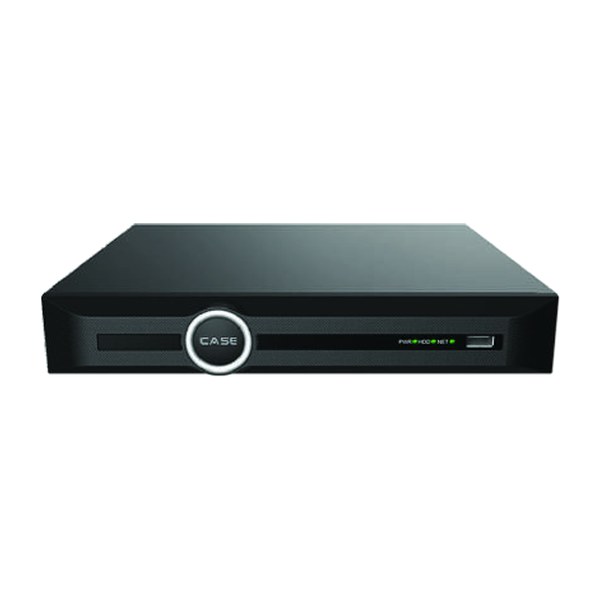
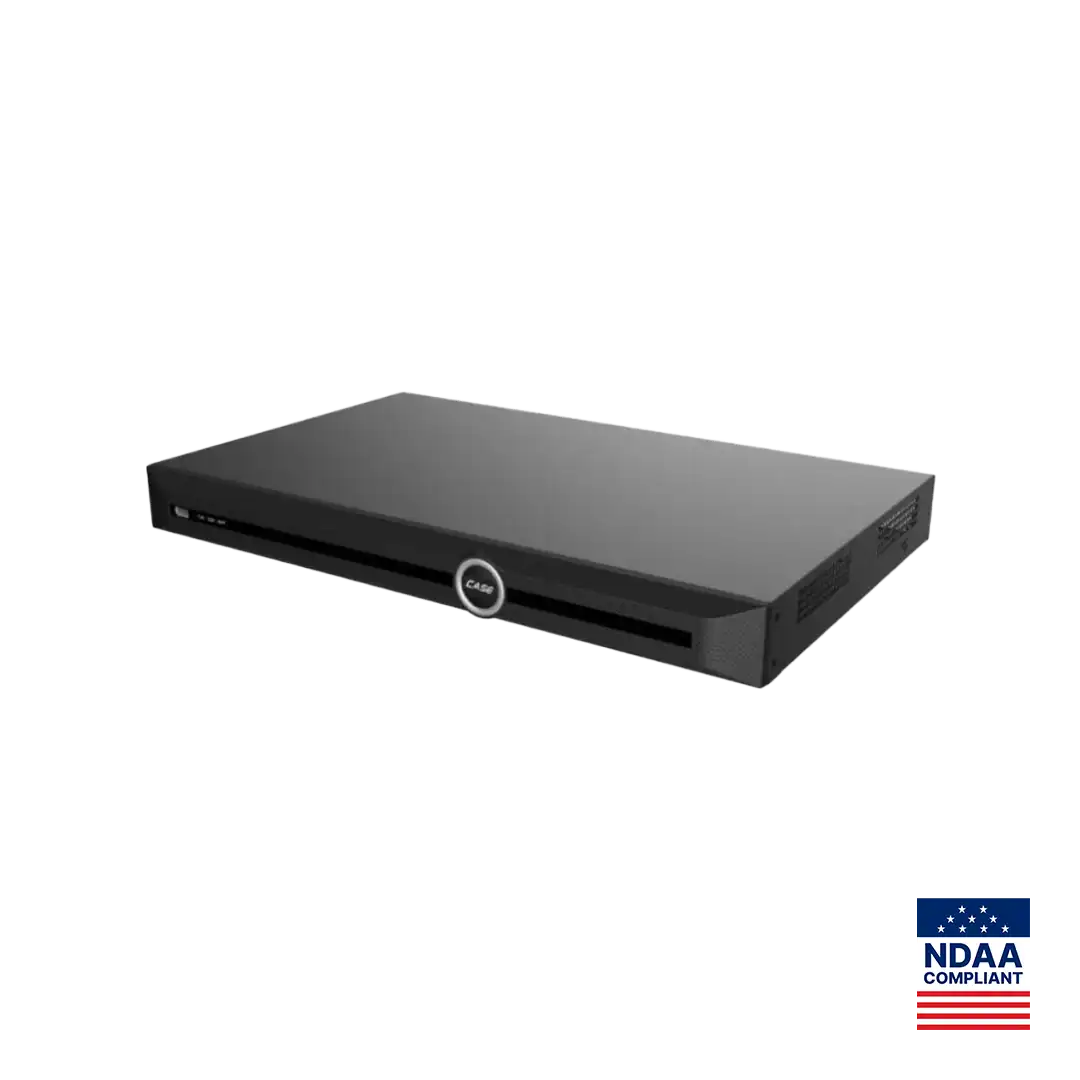
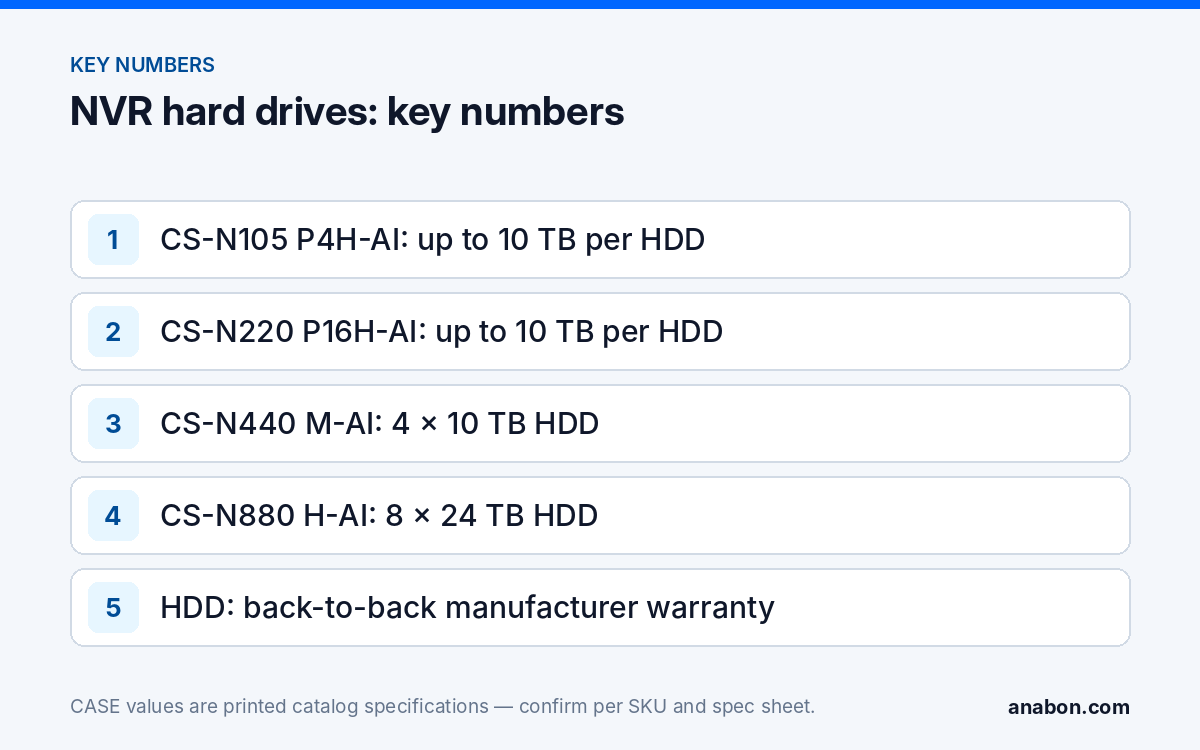
| CS-N105 P4H-AI | 5 / 4 | Up to 10 TB capacity for each HDD |
| CS-N110 P8H-AI | 10 / 8 | Up to 10 TB capacity for each HDD |
| CS-N220 P16H-AI | 20 / 16 | Up to 10 TB capacity for each HDD |
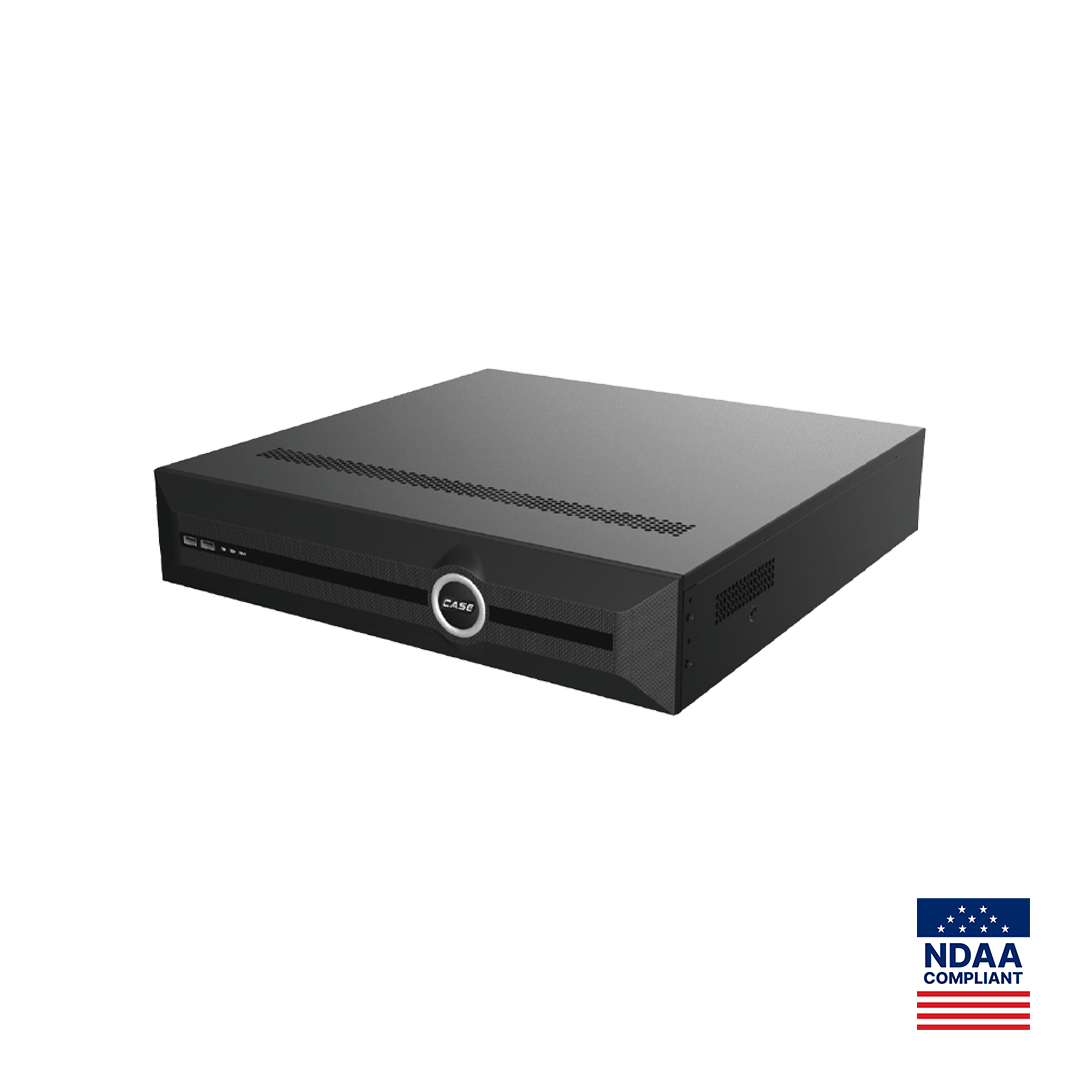
| CS-N440 M-AI | 40 / none (external switch) | 4 × 10 TB HDD |
| CS-N880 H-AI | 80 / none (external switch) | 8 × 24 TB HDD |
Two reading notes. For the CS-N105 P4H-AI, CS-N110 P8H-AI and CS-N220 P16H-AI the catalog prints the per-drive maximum; the number of bays is on each unit’s spec sheet, so confirm it before quoting total capacity. For the CS-N440 M-AI and CS-N880 H-AI the catalog prints bays and per-drive size together. In all cases the drive maker’s compatibility and workload ratings still apply, and recording days depend on channel count, resolution, codec and schedule, not on capacity alone.
Hard-drive warranty: back-to-back manufacturer only
This is the part to get exactly right in writing, because customers ask about it when a drive fails in year three. The wording is: CASE cameras and CASE NVRs carry a 6-year warranty. Hard drives are supported through back-to-back manufacturer warranty. The recorder is covered by the CASE NVR warranty; the drive inside it carries the drive maker’s own warranty term and conditions, passed through back-to-back. The two terms are different numbers, and the NVR’s 6 years must never be quoted for the drive.
- Keep the drive’s model, serial number and install date; a claim needs them.
- Keep the SMART photograph and the NVR log export; they document the failure.
- Raise the claim through your Anabon business account, where warranty and RMA coordination is handled for installers, dealers and approved business accounts. The step-by-step is in how the warranty and RMA process works through your business account, and the category terms are in CASE security camera warranty by category.
- Footage on a failed drive is not recoverable under any warranty; a service agreement with a quarterly SMART check is how you reduce that exposure.
What to tell your customer
“The recorder’s hard drive reported early signs of failure. I exported the footage you asked for, replaced the drive with a surveillance-rated model, and confirmed every camera is recording again. The recorder is covered by the CASE NVR warranty; the drive carries its own warranty from the drive maker, which we handle for you.” Keep the two terms separate in writing. For end users who land here: for warranty and service, please contact the installer or company that supplied your system.
FAQ
Why does the NVR say HDD not detected after a power outage?
A power cut can damage the recording file system, and some recorders then report the drive as absent or abnormal rather than as corrupted. Power down, reseat the drive and both cables, power up and run the SMART check. If SMART is Good with zero reallocated and pending sectors, export what you can and reformat in the NVR; if SMART warns, replace the drive.
Can I put a desktop hard drive in a CASE NVR?
It may format and record, but it is the wrong drive. A recorder writes continuously from every channel, 24 hours a day, and desktop drives are not rated for that workload; they fail early and lose footage. Use a surveillance-rated drive within the NVR’s printed per-drive maximum, and ask Anabon which drive models are approved for the NVR you are servicing.
Does formatting fix a SMART warning?
No. Formatting rebuilds the file system and erases the footage; it does not repair sectors the drive has already retired or cannot read. A SMART warning, rising reallocated sectors, or any pending or uncorrectable sectors mean the drive is wearing out and must be replaced. Format only when SMART is clean and the error was the file system or a cable.
What is the largest drive I can install in a CASE NVR?
Read the printed row for the exact model. The CS-N105 P4H-AI, CS-N110 P8H-AI and CS-N220 P16H-AI print up to 10 TB capacity for each HDD; the CS-N440 M-AI prints 4 × 10 TB HDD; the CS-N880 H-AI prints 8 × 24 TB HDD. The bay count for the three smaller units is on each spec sheet, so confirm it before quoting total capacity.
Is a failed hard drive covered by the 6-year NVR warranty?
No. CASE NVRs carry a 6-year warranty; hard drives are supported through back-to-back manufacturer warranty, so the drive carries the drive maker’s own term and conditions. Keep the drive model, serial, install date and the SMART evidence, and raise the claim through your Anabon business account. Lost footage is not recoverable under either warranty.