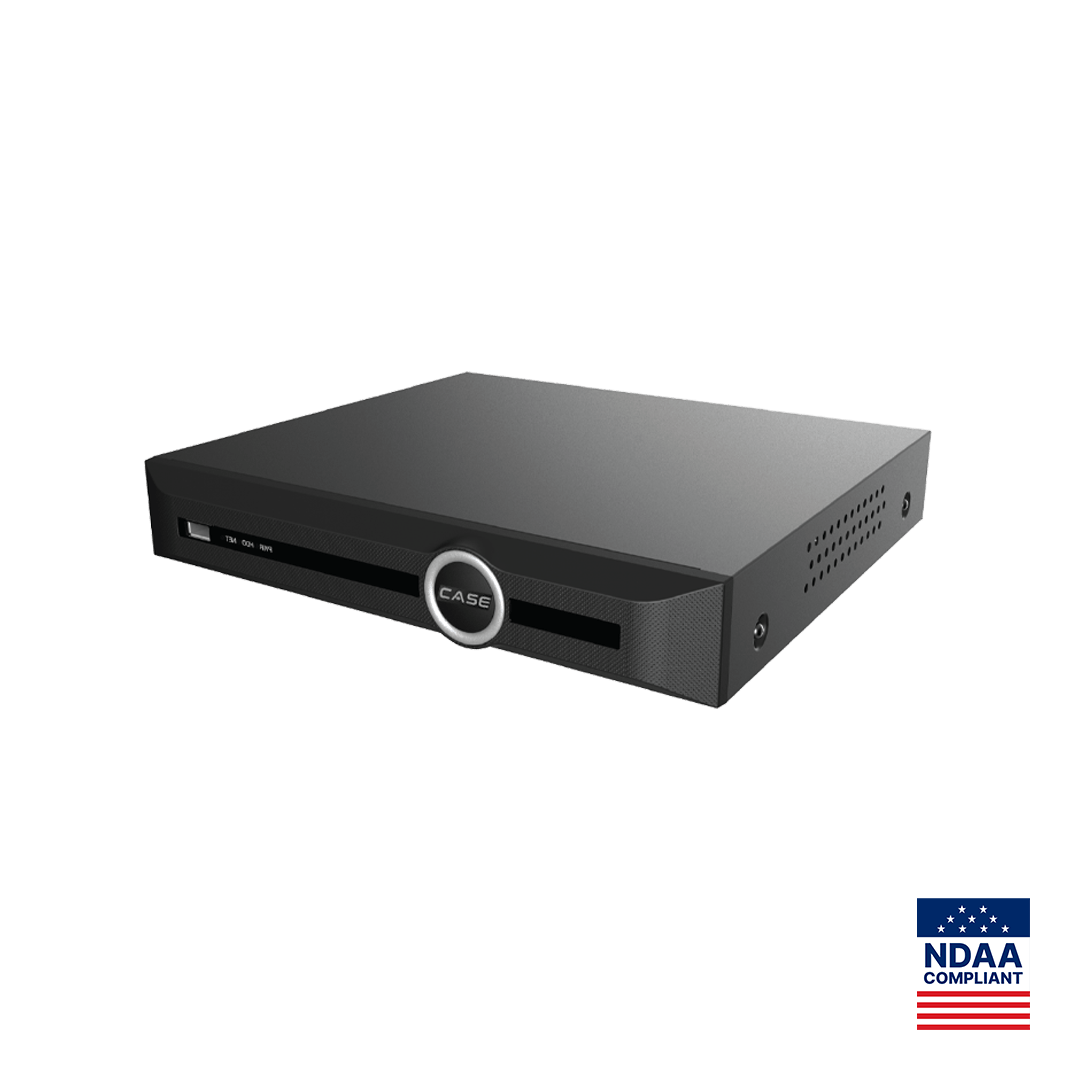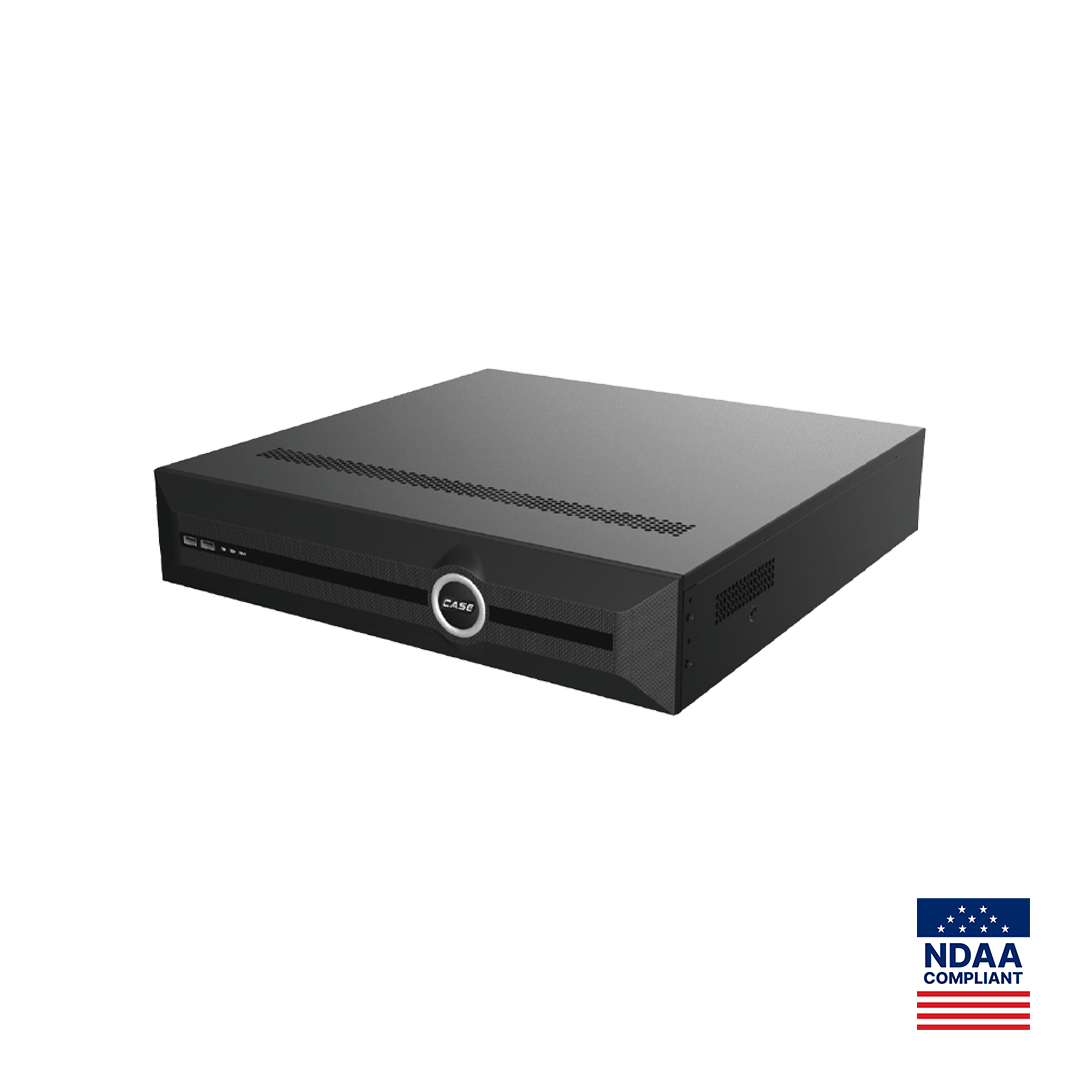



Quick answer: When a security camera is not recording but shows live video, the cause is one of three settings: the record schedule for that channel is motion or alarm only (or has a gap), motion detection on the camera is disabled, too insensitive or drawn over the wrong area, or the hard drive is full with overwrite off, unformatted, or failing. Check them in that order, per channel, and finish with a timed test recording before you leave site.
Is the schedule set to continuous, motion or alarm, and for which hours?
An NVR does not record a channel because a camera is connected; it records because a schedule tells it to. On a CASE NVR such as CS-N220 P16H-AI the schedule is set per channel, per day of the week and per time block, and each block carries a recording type. Menu labels vary by firmware version; the types do not.
| Recording type | What triggers it | Typical use | Failure mode |
|---|---|---|---|
| Continuous (timed) | The clock: every second of the block is written | Entrances, cash areas, evidentiary views | Retention shorter than promised because storage was sized for motion |
| Motion | A motion or smart-motion event from the camera | Storage rooms, corridors, low-activity areas | No event, no clip: a disabled or badly drawn detection area records nothing |
| Alarm (I/O) | A contact on an alarm input, a door contact or a PIR | Gates, panic buttons, after-hours doors | Wiring or input polarity wrong, so the trigger never arrives |
| Motion + alarm / AI event | Either source, or a tripwire or perimeter event | Perimeter lines, AI-driven sites | Rule drawn but not armed, or outside the arming schedule |
The three schedule mistakes we see most often are a template copied to channel 1 only, a block left empty between the end of one period and the start of the next (a 23:00 to 00:00 gap is common), and a holiday schedule that overrides the weekly one. Open the schedule for the exact channel that is not recording and read every day of the week. Then set pre-record and post-record on event types; without pre-record, a motion clip starts after the person is already in the frame.
Is the NVR clock right? Wrong time looks like missing footage
If the schedule looks correct but the customer still “cannot find” footage, check the clock before you go further. A recorder with the wrong time zone, a daylight-saving setting that does not match the state or province, or no NTP server writes video under the wrong timestamp. The footage exists; the search is looking in the wrong hour. Set the time zone, enable NTP against a reachable server, and confirm the camera time matches the NVR time; a camera an hour off produces event clips the NVR files in the wrong place.
Are motion sensitivity and detection zones actually set on the camera?
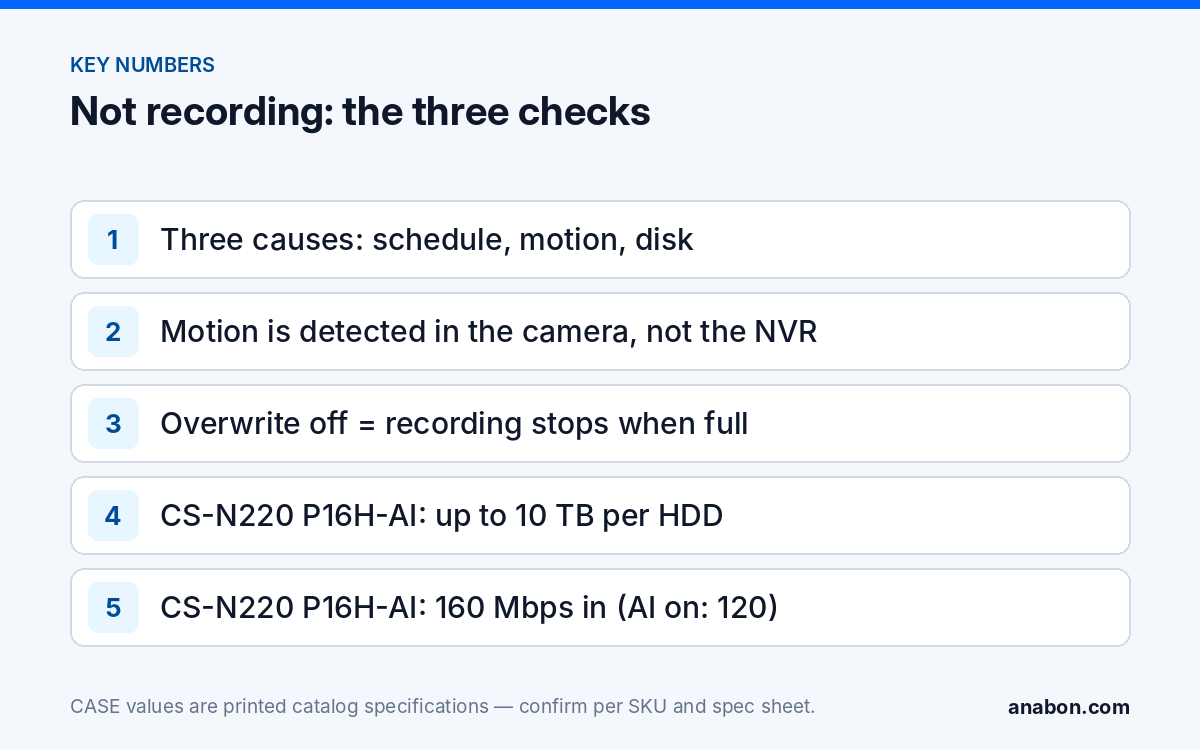
With IP cameras, motion is detected in the camera, not in the recorder: the camera analyzes its own image, decides that motion has occurred and sends an event, and the NVR starts the clip. A motion-only schedule therefore depends on four settings in the camera’s configuration, and any one of them can silently stop recording.
- Motion detection enabled. A camera replaced under warranty or reset to defaults can come back with detection off while the NVR schedule still says “motion”.
- Detection area. The grid or polygon must cover the path people actually take. A zone drawn over the far wall records nothing when the subject walks along the near wall.
- Sensitivity and threshold. Too low and small or distant subjects never trigger; too high and the drive fills with headlights and tree movement, which shortens retention and hides real events.
- Arming schedule for the event itself. Many cameras have a separate schedule for when detection is active. A camera armed 18:00 to 06:00 records nothing during the day even if the NVR schedule says motion all day.
Where the recorder uses AI classification, the behavior changes on purpose. The AI by NVR row printed for CS-N220 P16H-AI includes Smart Motion Detection, which filters plain pixel-change motion (typically to people and vehicles; confirm the behavior per model and firmware). A customer who expects to see a cat or a shadow on the timeline is describing a filter, not a fault; explain it, and offer continuous recording where every change must be captured. For third-party cameras on a CASE NVR, ONVIF profiles supported are S, T, and G, with M on pinhole models, and third-party event behavior is confirmed per platform and project. If a third-party camera’s motion events do not arrive, record that channel continuously.
Disk status, overwrite and retention: is the drive allowed to record?
The third cause produces the angriest calls, because everything looked fine at handover. A recorder can lose its drive months later and keep displaying live video as if nothing happened. Open the HDD management page and read the status of every drive before you touch anything else.
| What you see | What it means | Action |
|---|---|---|
| Status normal, free space zero, overwrite off | The drive filled and the NVR stopped writing by design | Enable overwrite (cycle recording); explain that the oldest footage is replaced automatically |
| Status uninitialized or unformatted | New or replaced drive never formatted by the NVR | Initialize the drive from the NVR, then confirm the schedule still points at it |
| Status abnormal, error, or the drive disappears after a reboot | Drive, cable or power fault; S.M.A.R.T. errors often precede this | Replace the drive; check that the capacity is within the printed limit for the NVR |
| Status normal but one channel has no footage | Disk quota or disk-group assignment excludes the channel (where the firmware offers these modes) | Assign the channel to a disk or group with free space |
| Footage older than N days is missing although space remains | An expiry or retention-days setting (where offered) is deleting video early | Raise the setting to the agreed retention, or document the shorter figure |
Two capacity details matter on CASE NVRs. CS-N220 P16H-AI, CS-N110 P8H-AI and CS-N105 P4H-AI print “Up to 10 TB capacity for each HDD”; CS-N440 M-AI prints 4x10TB HDD and CS-N880 H-AI prints 8x24TB HDD. A drive larger than the printed figure may not be recognized or used in full, so match the drive to the model before you order it, and use surveillance-rated drives built for continuous writing. On warranty, hard drives are supported through back-to-back manufacturer warranty, while CASE NVRs carry a 6-year warranty; both run through you as the installer.
Retention is a sizing question before it is a settings question. If the customer was promised 30 days and the timeline shows 11, the drive may be healthy and simply too small for continuous recording at the configured bitrate. Run the numbers in the NVR storage calculator and quote drives that match the promise.
Per-channel recording check: the eight-step sequence
Work the channel in question in order and write down each result; the list doubles as the fault report for the customer and for Anabon technical support.
- Live view. No live video means the camera is offline, not “not recording”: start with the DHCP checklist for cameras missing on the NVR or, if the camera is dark, the PoE power checklist.
- Recording indicator. Most recorders show a per-channel icon or status while writing. Watch it for a full minute on a motion channel while someone walks through the detection area.
- Schedule for that channel. Every day, every block, correct type. Compare with channel 1 if channel 1 works.
- Camera-side motion settings. Enabled, area covers the real path, sensitivity reasonable, arming schedule all day.
- HDD page. Status normal, free space present, overwrite on, channel assigned to a disk with space.
- Bandwidth. CS-N220 P16H-AI prints an incoming bandwidth of 160Mbps (AI on: 120Mbps). Add up the main-stream bitrates of every camera; above the figure for the mode in use, channels drop frames and the timeline shows gaps that look like schedule holes.
- Playback timeline. Search the last 24 hours. Continuous and event recordings are drawn in different colors; a bar that is solid by day and empty by night is a schedule or arming problem, while a bar that stops on a date is a disk problem.
- Timed test. Walk the scene, wait two minutes, play back the clip, export it to USB and confirm it opens on a laptop. Only then close the ticket.
Supporting the site remotely? CASE Cloud provides remote NVR configuration over a P2P connection, so the schedule and HDD pages can be checked without a truck roll; it is a configuration tool, not cloud recording. Whatever you change, note the firmware version and keep the admin password and port exposure in line with the NVR hardening checklist.
What to tell your customer
“Your camera was online the whole time; the recorder was not being told to record that channel at those hours, so there was no footage to find. We have corrected the schedule, verified the detection zones, confirmed the hard drive is healthy with overwrite enabled, and recorded and played back a test clip. Retention is now X days at the current settings.” If an end user lands on this page: for warranty and service, please contact the installer or company that supplied your system.
FAQ
Why does the camera show live video but nothing on playback?
Live view and recording are separate functions. Live view proves the camera and the network work; recording depends on the channel’s schedule, the camera’s motion settings and a healthy drive with free space. In most cases the schedule is motion-only and the camera’s detection is disabled or drawn over the wrong area, or the drive filled with overwrite off.
Should I set the schedule to continuous or motion?
Set continuous on channels with evidentiary value, such as entrances, cash areas and loading docks, and motion on low-activity areas where storage matters more than completeness. Size the drives for continuous recording where you promise a retention period; motion recording saves space but cannot guarantee a fixed number of days because activity varies.
What does overwrite do, and should it be on?
Overwrite, sometimes called cycle recording, lets the NVR replace the oldest footage when the drive is full. With it on, recording never stops and retention equals the drive’s capacity divided by the daily write volume. With it off, the recorder stops writing the moment the drive fills. For almost every commercial site, overwrite stays on and retention is set by drive size.
Can the wrong NVR time make it look like nothing was recorded?
Yes. If the time zone, daylight-saving setting or NTP server is wrong, footage is written under the wrong timestamp and a search by the customer’s clock returns nothing. Set the correct time zone for the state or province, enable NTP against a reachable server, and confirm camera and NVR clocks agree before you investigate the schedule or the drive.
Which hard drive size can I put in a CASE NVR?
Use the printed figure for the model. CS-N105 P4H-AI, CS-N110 P8H-AI and CS-N220 P16H-AI print up to 10 TB capacity for each HDD; CS-N440 M-AI prints 4x10TB HDD and CS-N880 H-AI prints 8x24TB HDD. Choose surveillance-rated drives. Hard drives are supported through back-to-back manufacturer warranty, separate from the 6-year warranty on CASE NVRs.