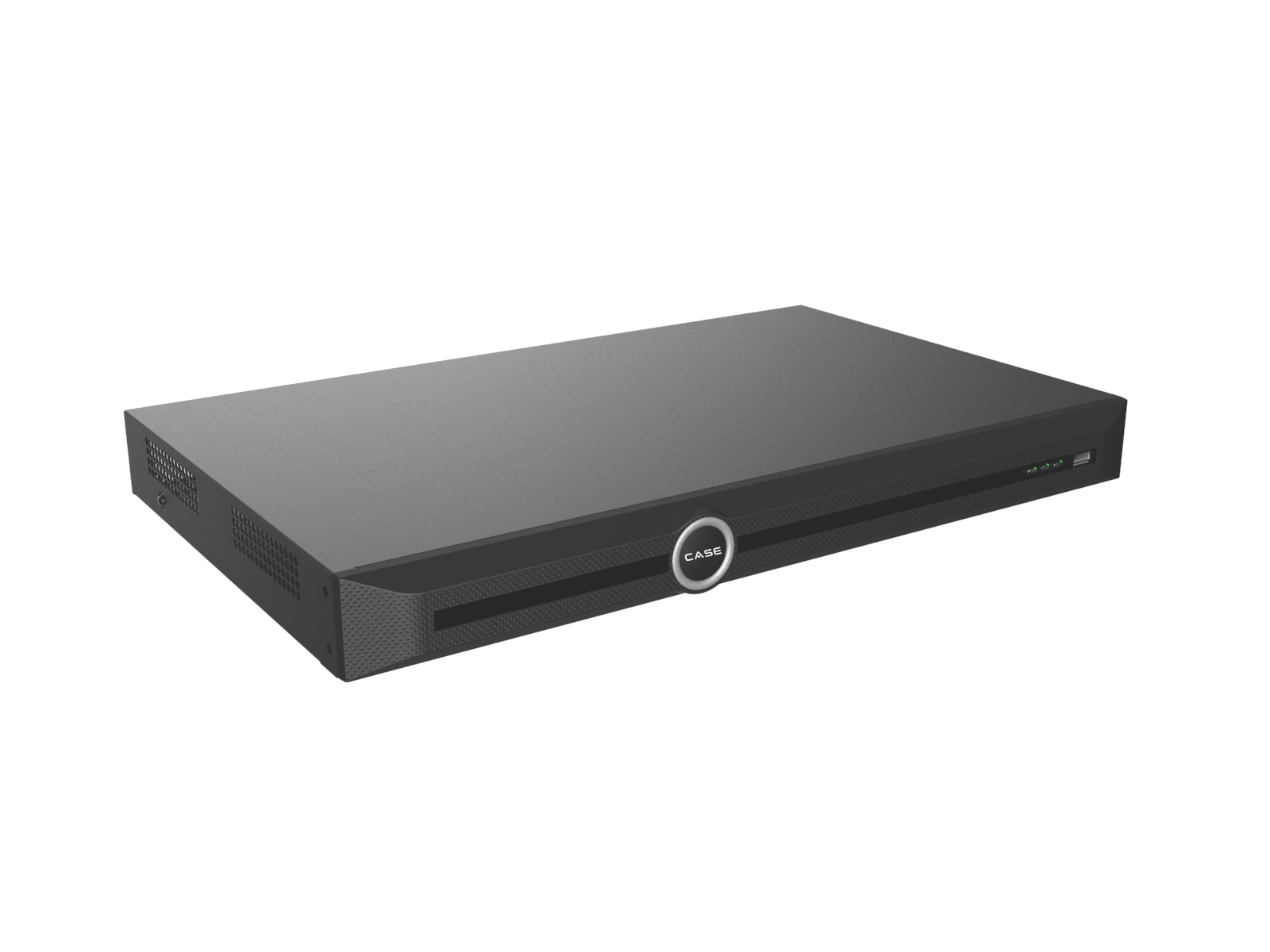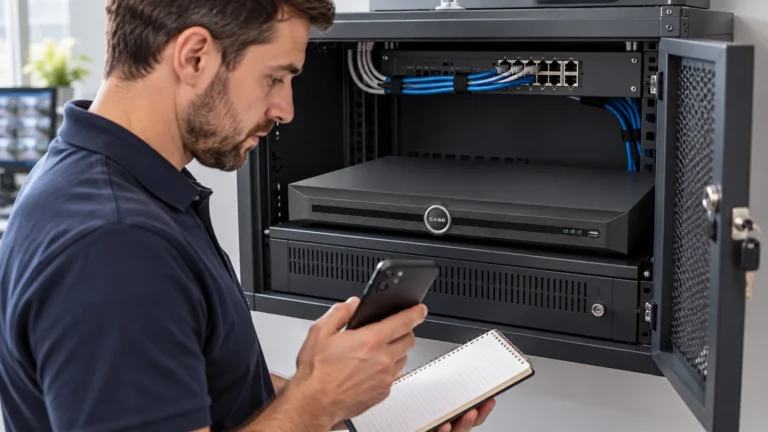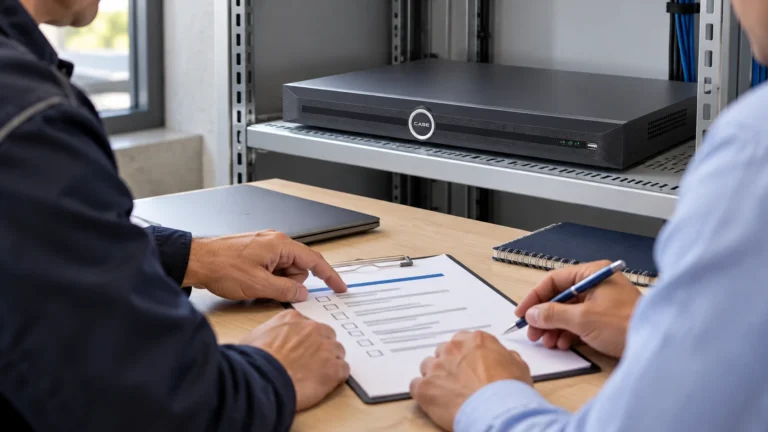



Quick answer: A good CASE Connect handover starts with confirmed device/software support and an agreed customer access arrangement. Demonstrate the functions the customer needs on their intended device, then test permissions and removal of temporary access. Do not assume a company-owned app account or permanent installer administrator control is the correct arrangement for every customer.
On this page
Confirm the release and supported functions first
CASE Connect is Anabon’s primary CASE camera-control software direction. Android is available, iOS is forthcoming and a web version exists without an approved public URL. Confirm current release information through Anabon before promising a phone platform or browser function.
The catalog lists device preview/management/sharing, live view/playback and alarm information. That list does not guarantee every action on every recorder, firmware or interface. Ask which functions the customer actually requires, including export, notifications, multi-site use and account administration.
Get approved software information through the Download Center or Anabon technical support. Do not invent an app-store or web address.
Agree who owns access and who can remove it
Name the customer’s authorized administrator and the approved recovery arrangement. If the installer retains service access, document its purpose and removal process. Use separate identifiable access where supported rather than one shared administrator credential.
Device ownership, account sharing and recorder permissions can be separate controls. Confirm how they interact on the actual version. Do not assume that a local recorder role always limits every app action, or that moving ownership always follows one universal procedure.
The user-permissions guide provides the role/test structure. Keep passwords, recovery codes and live device-pairing tokens out of routine handover sheets and screenshots.
Prepare the recorder and approved network path
Verify recording, device time, supported firmware and the intended user accounts before troubleshooting the phone. Agree the recorder’s addressing and required DNS/time/network services with IT.
Use only the confirmed access method. Do not enable a P2P/platform menu or create inbound forwarding simply because a generic guide says to. CASE Connect’s name does not establish its transport. The remote-access comparison helps frame the required questions.
Plan the actual viewing streams and expected concurrent users. Recorder outgoing bandwidth and site upload capacity are different limits. A phone’s lighter preview does not necessarily represent the quality of the recording being stored.
Give a short, practical walkthrough
- Use the intended customer account and supported installation/add process.
- Name devices and channels so operators can identify locations.
- Open the required live views and playback from an available recording period.
- Demonstrate alarm information and notifications only where confirmed/configured; test the recipient rather than assuming delivery.
- Test required remote functions from outside the site when in scope.
- Show the customer how to request an access change and whom to contact when a function fails.
Record the actual phone operating system, app version, recorder firmware and functions tested. A successful Android test is not proof of iOS or browser parity. A working live view does not prove export or every alarm action works.
Test restrictions and revocation safely
With permission and an agreed window, use temporary test access to check allowed and denied actions. Verify the customer’s administrator retains access. Remove the temporary share/account and check the relevant new logins and existing sessions through supported controls.
Record any path requiring separate removal. Never disable an active customer or service account without authorization. Removing a recorder user may leave a different remote-service membership unless the deployment handles it that way.
Leave a completed record, not a secret-filled screenshot
| Check | Result / notes | Owner / verified date |
|---|---|---|
| Supported device, firmware and app/platform version | ______ | ______ |
| Customer ownership/admin and service access agreed | ______ | ______ |
| Approved access method and network prerequisites tested | ______ | ______ |
| Required live view/playback/alarm functions demonstrated | ______ | ______ |
| Permissions and temporary-access removal tested | ______ | ______ |
| Dependencies, service contact and open actions recorded | ______ | ______ |
Fill the blanks during commissioning and list every open action with an owner/date. Keep this with the cybersecurity handover record. Explain the required internet, power and service dependencies and tested outage behavior without promising that every internet failure leaves recording unaffected.
FAQ
Must the installer own the customer’s device account?
No universal arrangement is established. Agree authorized customer control and any service access, then use the supported ownership process.
Does the app prove there is cloud recording?
No. Confirm actual recording destinations; see cloud versus NVR storage.
Can I promise the same functions on every platform?
No. Confirm release status, device support and tested interface functions for the project.
Send the exact SKUs, firmware, app/platform version and required tasks to Anabon technical support for any unresolved handover requirement.
References
Product descriptions were checked against the current CASE Catalog 2027 Q1. Confirm the exact model/revision and current software scope through the Anabon Download Center or technical support before a project commitment.