


Quick answer: The Search Config Tool is the CASE deployment utility for the service laptop: it discovers CASE devices on the local network segment, adds and configures several of them in one pass, assigns IP addresses, and estimates recording storage. The download is labeled CASE Setup Tool in the catalog’s download table and is available through the Anabon download center. It is a technician’s ip camera discovery tool, not the customer’s software; the customer’s daily experience is CASE Connect. Menu names and the exact function set are confirmed per tool version and device firmware.
What is the Search Config Tool and when do you reach for it?
The CASE Catalog 2027 Q1 lists four pieces of software. CASE Connect, the mobile app and its website, is the main CASE software and the one the customer uses; CASE Station, CASE Cloud and the Search Config Tool are named only when a technical job needs them. The functions the catalog gives the tool are device discovery, adding devices, configuration and a storage calculator; its download table labels the same utility CASE Setup Tool, so expect either name on a download page.
Four moments on a job call for it:
- Bench test before site day. Discover a box of new cameras on the bench, set credentials and addresses, and label them before they go on a ladder; see bench test before site day.
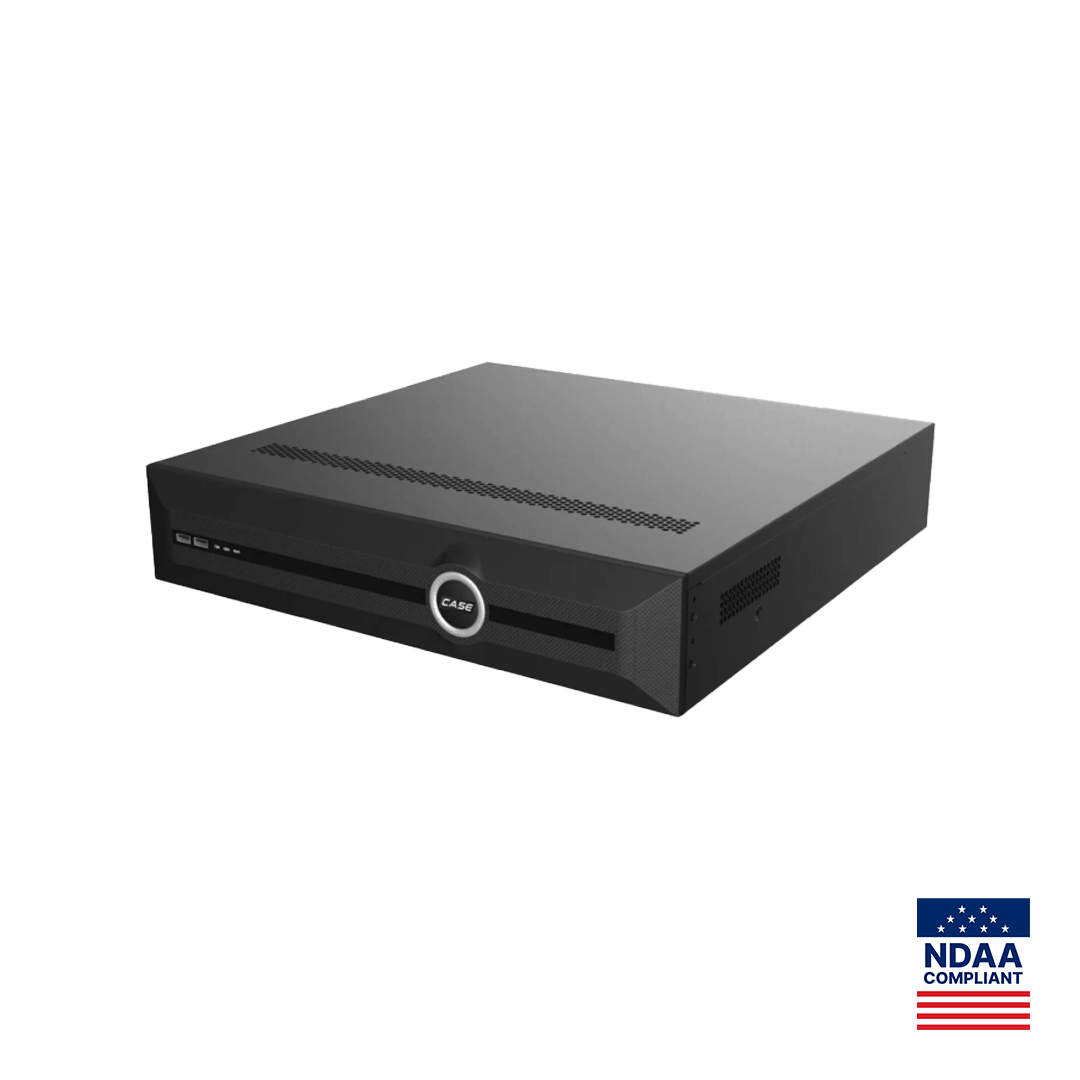
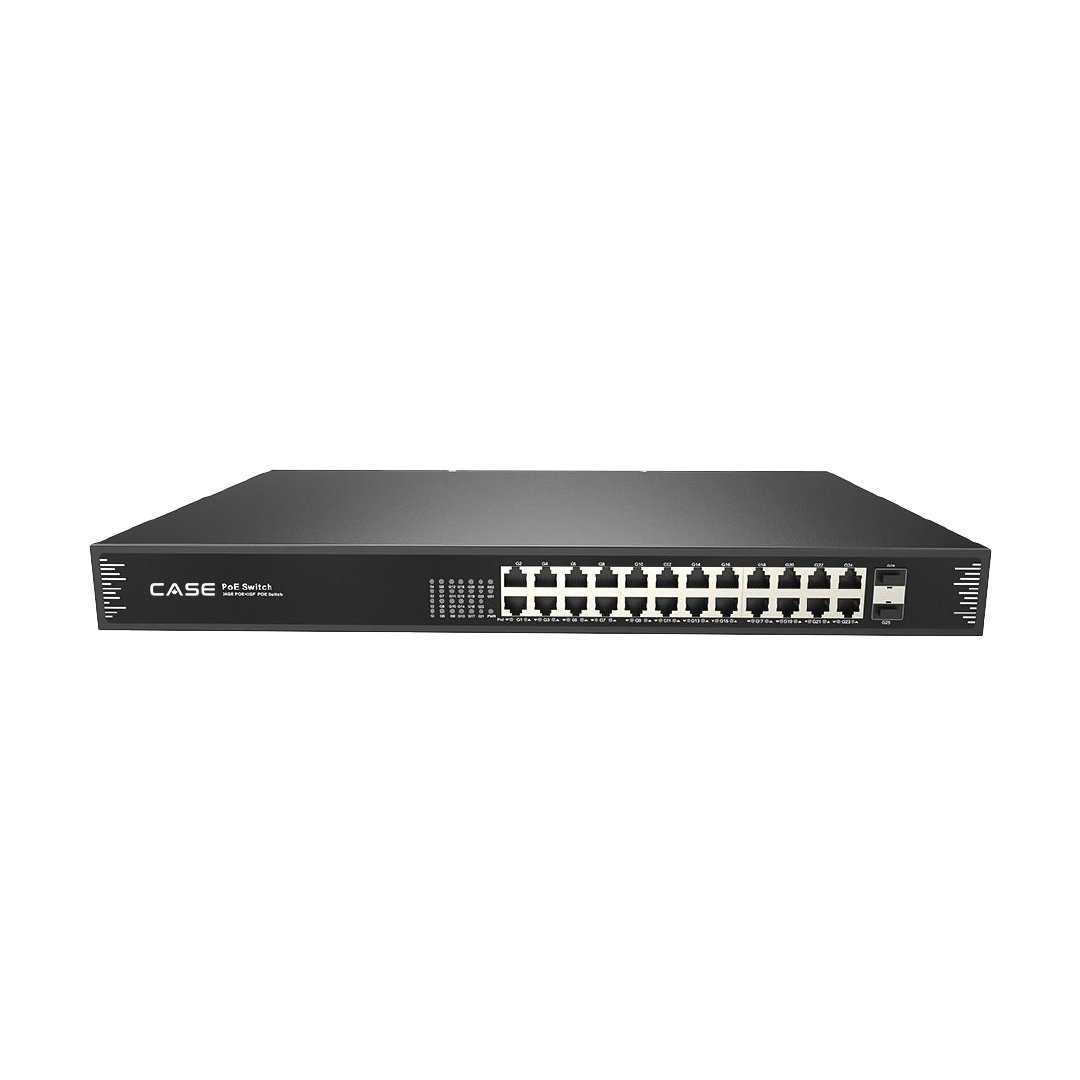
- External-switch sites. On a recorder with no PoE ports, such as the CS-N440 M-AI or CS-N880 H-AI, every camera arrives over a switch like the CS-POE33024PF (24×10/100/1000M RJ45 PoE ports, IEEE 802.3af/at, as printed) and must be found and addressed before the NVR can add it.
- Troubleshooting. A camera the NVR cannot see, two devices on one address, or a unit on a forgotten subnet.
- Quoting. The storage calculator gives a defensible drive estimate.
On a PoE NVR, the recorder itself discovers and addresses the cameras on its own camera ports; the tool is for cameras on the LAN side and for the bench. The NVR-side methods are in how to add an IP camera to an NVR.
How do I get it and prepare the laptop?
- Get the current version from the Anabon download center; look for the label CASE Setup Tool or Search Config Tool. If you do not find it, ask technical support rather than installing a copy from an unknown source.
- Check the supported operating systems on the download page; install on your service laptop, not the customer’s PC.
- Cable the laptop into the same switch or segment as the cameras; a laptop on the office WiFi or behind a router sees nothing.
- Give the laptop an address in the range you plan to use, or leave it on DHCP if the segment has a server; allow the tool in the laptop’s firewall, because discovery replies arrive as unsolicited traffic.
- Have the camera schedule open: names, locations and planned addresses.
How does discovery work, and why does it sometimes show nothing?
Discovery sends a request to every device on the local segment and lists the ones that answer, with details such as model, current address and firmware as the version presents them. Devices answer even when their address is outside the laptop’s subnet, which is what makes the tool useful for finding a camera on a forgotten range. When it seems broken, the cause almost always sits in the network between laptop and camera.
| Symptom | Usual cause | Fix |
|---|---|---|
| Nothing found | Laptop on WiFi or a different VLAN; firewall blocking the tool | Cable into the camera switch; allow the tool in the firewall; disable VPN clients during discovery |
| Camera found but cannot be opened | Camera on a different subnet from the laptop | Assign the camera an address in the plan from the tool, or move the laptop onto the camera’s range temporarily |
| Two entries, same address | Duplicate static address | Readdress one; see IP address conflicts between cameras |
| Cameras behind the PoE NVR missing | They sit on the recorder’s camera network, not the LAN | Manage them from the NVR; use the tool on the LAN side only |
| Found, then disappears | PoE budget or cable fault rebooting the camera | Check the switch budget against night-time draw and the run length |
Reaching a camera across a router or VLAN afterward is routing work, covered in camera network basics; discovery itself stays local.
How do I batch-add and configure several cameras at once?
Batch functions are the reason to use the tool instead of logging into each camera’s web interface. Which settings can be applied to several devices in one pass depends on the tool version and the device firmware, so read the current version’s options; the sequence that works across versions is:
- Discover, then sort the list by model or current address so this job’s cameras sit together.
- Select the new devices and set their credentials first: a strong, unique password for this site, recorded in your company password manager. A camera left on a default password is the most common later audit finding.
- Assign addresses from your plan (next section), one device at a time or as a sequential range where the tool offers it, and confirm each device comes back on its new address.
- Apply the shared settings the version allows, typically time and NTP, and verify them on one device through its web interface, Plugin-Free where the model supports it.
- Label each camera with its name and address as you go; a bench of identical turrets is unforgiving.
- Add the cameras to the recorder or VMS from their new addresses. For third-party platforms: ONVIF profiles supported are S, T, and G, with M on pinhole models. Third-party behavior is confirmed per platform and project.
How should I assign IP addresses?
Decide the plan before you touch the tool and write it in the camera schedule. Cameras behind a PoE NVR take their addresses from the recorder; cameras on an external switch need a static address or a DHCP reservation outside the router’s pool, so a lease renewal never moves a camera the NVR is looking for. A plan that fits most commercial sites:
| Device | Addressing | Example on 192.168.10.0/24 |
|---|---|---|
| Router or gateway | Fixed | 192.168.10.1 |
| NVR LAN uplink | Static, outside the DHCP pool | 192.168.10.10 |
| PoE switches | Static | 192.168.10.11 to .19 |
| Cameras on the external switch | Static, in camera number order | 192.168.10.101 to .199 |
| DHCP pool for laptops and new devices | Dynamic | 192.168.10.200 to .250 |
Set the same gateway and DNS on every camera, keep the subnet mask consistent, and put the cameras on a dedicated VLAN or physical network where the customer’s IT allows it. Document the final list; the tool shows the current state, the document the intended one, and the difference is where the next fault hides.
How does the storage calculator work, and how do I check its answer?
The calculator turns the camera schedule into a drive estimate: the catalog describes it as a storage calculator by number of cameras and resolution, and further inputs such as codec, bitrate, hours per day and retention days depend on the tool version. It is an estimate, because real bitrate moves with scene activity and night noise; use it to choose a drive tier, then confirm bays and capacity on the recorder’s printed row.
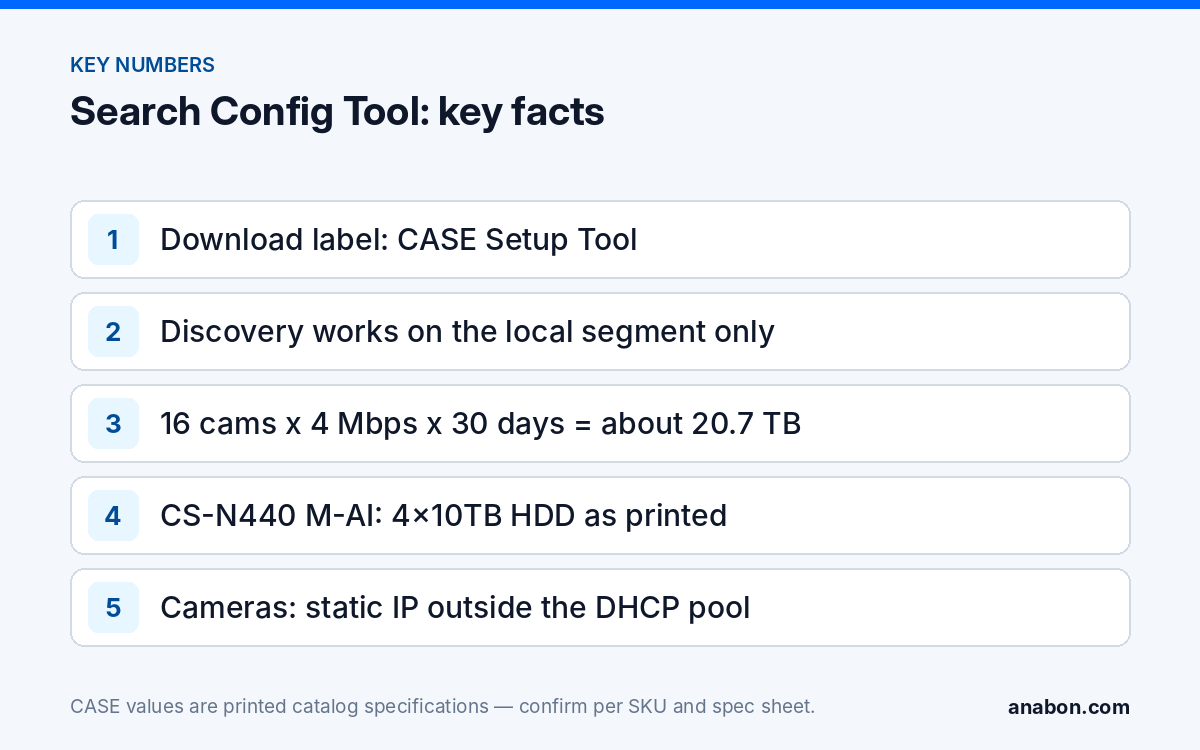
Worked example: 16 cameras at an average 4 Mbps, recording 24 hours a day for 30 days. Total stream 16 × 4 = 64 Mbps, which is 8 MB per second, or 8 × 86,400 = about 691 GB per day, or about 20.7 TB for 30 days. Against the printed rows: the CS-N440 M-AI prints 4x10TB HDD, so 40 TB fits with headroom; the CS-N220 P16H-AI prints Up to 10 TB capacity for each HDD, so the fit depends on the number of bays, which is on the SKU spec sheet rather than in the catalog table. If the figure exceeds what the recorder holds, the choices are a retention conversation with the customer, lower bitrates on low-value channels, or the next recorder size. Codec matters: most CASE camera pages print S+265, H.265 and H.264 (the CS-I8XQ II-2.8mm page prints no compression row), and the result changes with the one you select; quote an S+265 storage saving only with its source, or not at all. The arithmetic and sizing tables are in the NVR storage calculator guide.
Deployment checklist with the Search Config Tool
- Current tool version from the download center; laptop cabled into the camera segment, firewall allowing the tool.
- Camera schedule with names and planned addresses open before discovery.
- Every discovered device matched to a schedule line; unknown devices investigated.
- Unique credentials set and stored; no device left on a default password.
- Addresses assigned per plan and confirmed by re-discovery; time and NTP checked on one device.
- Storage estimate filed with the quote, with the recorder’s printed drive row beside it.
- Final address list and tool version recorded in the handover file.
What to tell your customer
“Before the cameras go up, we set each one up on the bench with its own password and a fixed network address, and we record it in your handover file so a future technician does not have to guess. Your recorder’s storage was sized from your camera count and retention days; the calculation is in the proposal.” For warranty and service, please contact the installer or company that supplied your system.
FAQ
Is the Search Config Tool the same as CASE Setup Tool?
The CASE Catalog 2027 Q1 names the utility Search Config Tool in its text and labels the same download CASE Setup Tool in its download table, so both names refer to the deployment utility for discovery, adding devices, configuration and the storage calculator. Use the current version from the Anabon download center and confirm the function set per version.
Why does the tool find nothing on the customer’s network?
Discovery works on the local network segment. A laptop on WiFi, on another VLAN, behind a router, running a VPN client or with its firewall blocking the tool will see nothing. Cable the laptop into the camera switch, allow the tool through the firewall and repeat. Cameras behind a PoE NVR sit on the recorder’s camera network and are managed from the NVR.
Can I change the IP addresses of many cameras at once?
Assigning addresses from the discovered list, one device at a time or as a range where the version offers it, is the tool’s core job; which settings can be applied to several devices in one pass depends on the tool version and the device firmware. Work from a written address plan, confirm each device returns on its new address, and record the final list.
Is the storage calculator’s result exact?
No. It converts the number of cameras and resolution, plus any further inputs the tool version offers, into a capacity estimate, and real bitrate moves with scene activity and night noise. Use it to choose a drive tier, then check it against the recorder’s printed storage row, such as 4x10TB HDD on the CS-N440 M-AI, and the bay count on the spec sheet.
Does the customer need the Search Config Tool?
No. It is a technician’s deployment utility and is not part of the customer handover. The customer’s software is CASE Connect, the official app experience for CASE systems; app features and remote access options should be confirmed by model, software version, and project configuration. Keep the tool, the address plan and the credentials in your own job file.