


Quick answer: A security installer does not need CRM software to stop losing follow-ups; it needs one Google Sheets workbook with six tabs — Customers, Leads, Quotes, Jobs, Follow-ups and Service agreements — fixed status values in dropdowns, and four follow-up dates (7, 30, 90 and 365 days) calculated from the handover date. The Jobs tab records every installed system down to NVR SKU and firmware, so the next service call starts with facts. Twenty minutes on Monday keeps it alive.
Why do installers abandon CRMs?
Most small security companies have bought a CRM, used it for a quarter, and gone back to the owner’s phone and a whiteboard, for the same reasons every time:
- Nobody defined what “follow-up” meant, so the task list filled with reminders that were snoozed forever.
- It knew the customer’s name but not which recorder, firmware and switch were on the wall, so every service call started with “what do you have there?”
A spreadsheet avoids this only if it is built around the three things an installer must never lose: a quote not chased, a system never checked after handover, and a service agreement that quietly expired.
What are the six tabs and their columns?
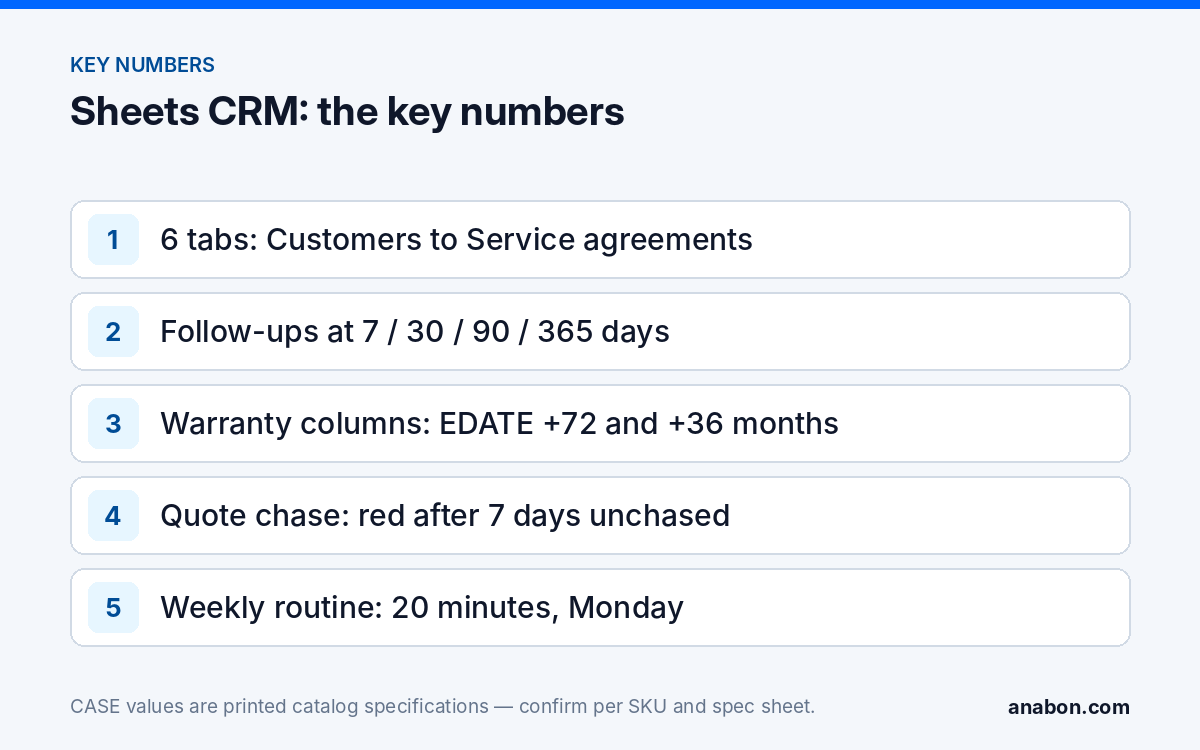
Every tab has one row per thing, a short ID in column A, a Status dropdown, and ISO dates (2026-10-20) so US and Canadian staff read the same value. Never merge cells.
| Tab | Columns (left to right) | Status values |
|---|---|---|
| Customers | Customer ID · Company · Main contact · Phone · Email · Billing address · Site address(es) · Type (office, retail, warehouse, HOA, parking) · Source · Notes | Active · Dormant · Do not contact |
| Leads | Lead ID · Date received · Customer ID · Contact · Site · Request · Channel (call, web form, profile, referral) · Owner · Next action · Next action date · Status | New · Contacted · Survey booked · Quoting · Converted · Lost |
| Quotes | Quote ID · Lead ID · Customer ID · Date sent · Valid until · Scope summary · Camera count · NVR model · Quote value (internal) · Owner · Last chase date · Status · Lost reason | Draft · Sent · Chase due · Won · Lost · Expired |
| Jobs | Job ID · Quote ID · Customer ID · Site · Handover date · NVR SKU · NVR firmware · Camera SKUs and quantities · PoE switch SKU · HDD size and count · Network (DHCP or static, NVR IP) · CASE Connect account holder · Warranty end: cameras and NVR · Warranty end: PTZ · Lead technician · Status | Scheduled · In progress · Installed · Handed over · Closed |
| Follow-ups | Job ID · Customer ID · Type (7-day, 30-day, 90-day, 365-day, quote chase, renewal) · Due date · Owner · Status · Outcome · Next step | Due · Done · Skipped |
| Service agreements | Agreement ID · Customer ID · Site · Start date · End date · Visits per year · Last visit · Next visit due · Scope · Owner · Status | Active · Renewal due · Expired · Canceled |
Quote value is your internal number. CASE pricing you receive through your approved business account stays in the sheet and in your quote, never on a website or a social post.
Status rules that keep the sheet honest
- Converted needs a Quote ID; Won needs a Job ID.
- A Job may be Handed over only when NVR SKU, NVR firmware and the CASE Connect account holder are filled in.
- Lost always needs a reason: price, timing, another installer, no decision, scope changed. Those five words are your win/loss report at year end.
How do you log every system you install (SKU, firmware, date)?
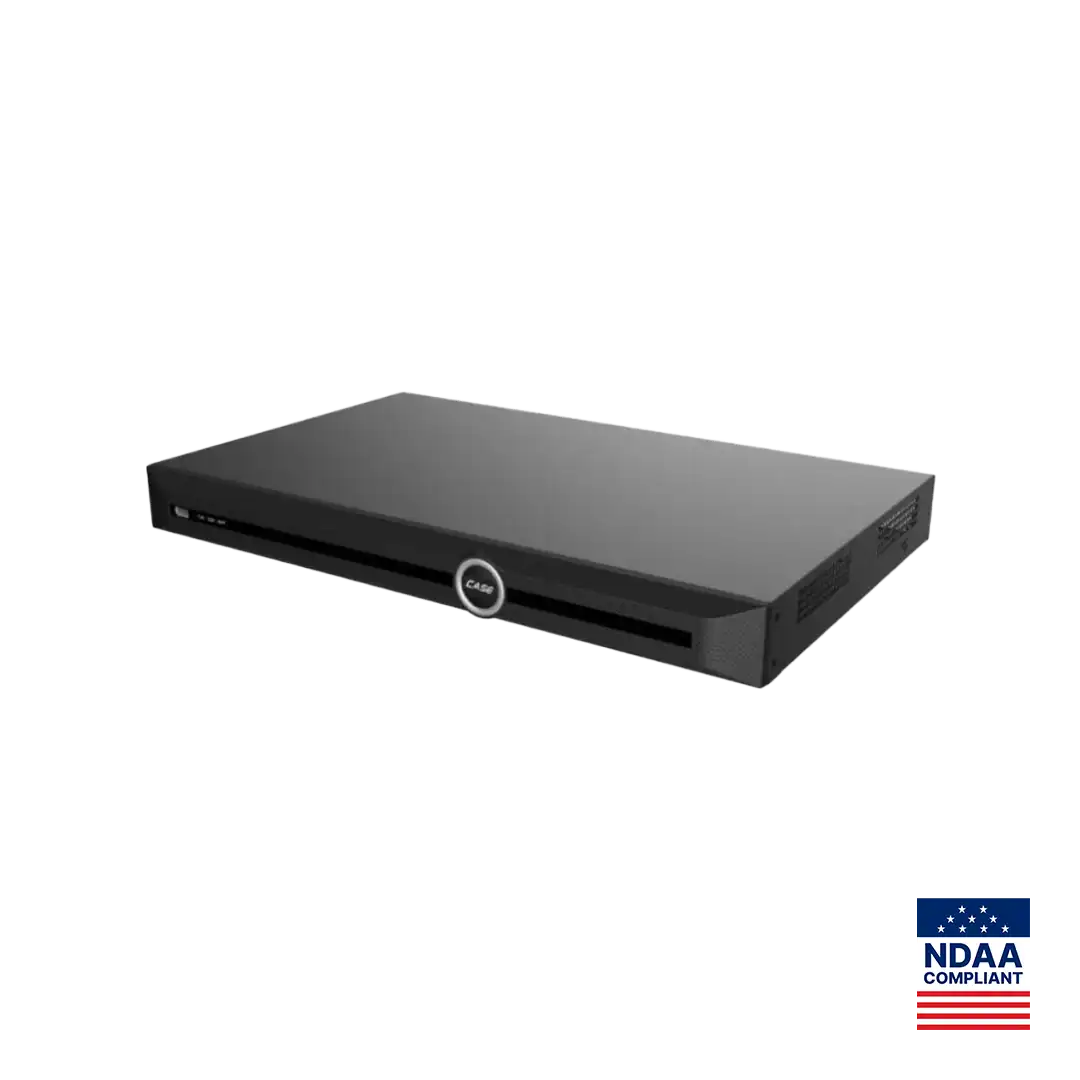
The Jobs tab pays for itself first. When a customer calls eleven months after handover to say “the cameras stopped recording”, a complete row lets you answer from the office: you know whether the recorder is a CS-N220 P16H-AI or a 10-channel unit, which firmware it left with, its IP address, and who holds the CASE Connect login. Many such calls close without a truck roll; the rest arrive with the right hard drive in the van.
Write SKUs in full as printed on the spec sheet, because one letter changes the series and the specs. A typical small-office row:
- NVR SKU: CS-N220 P16H-AI — 20 channels and 16 PoE ports as printed, so a row showing 14 cameras tells you two PoE ports remain when the “can we add three more?” call comes.
- NVR firmware: the version string at handover, and the date you last checked the download area.
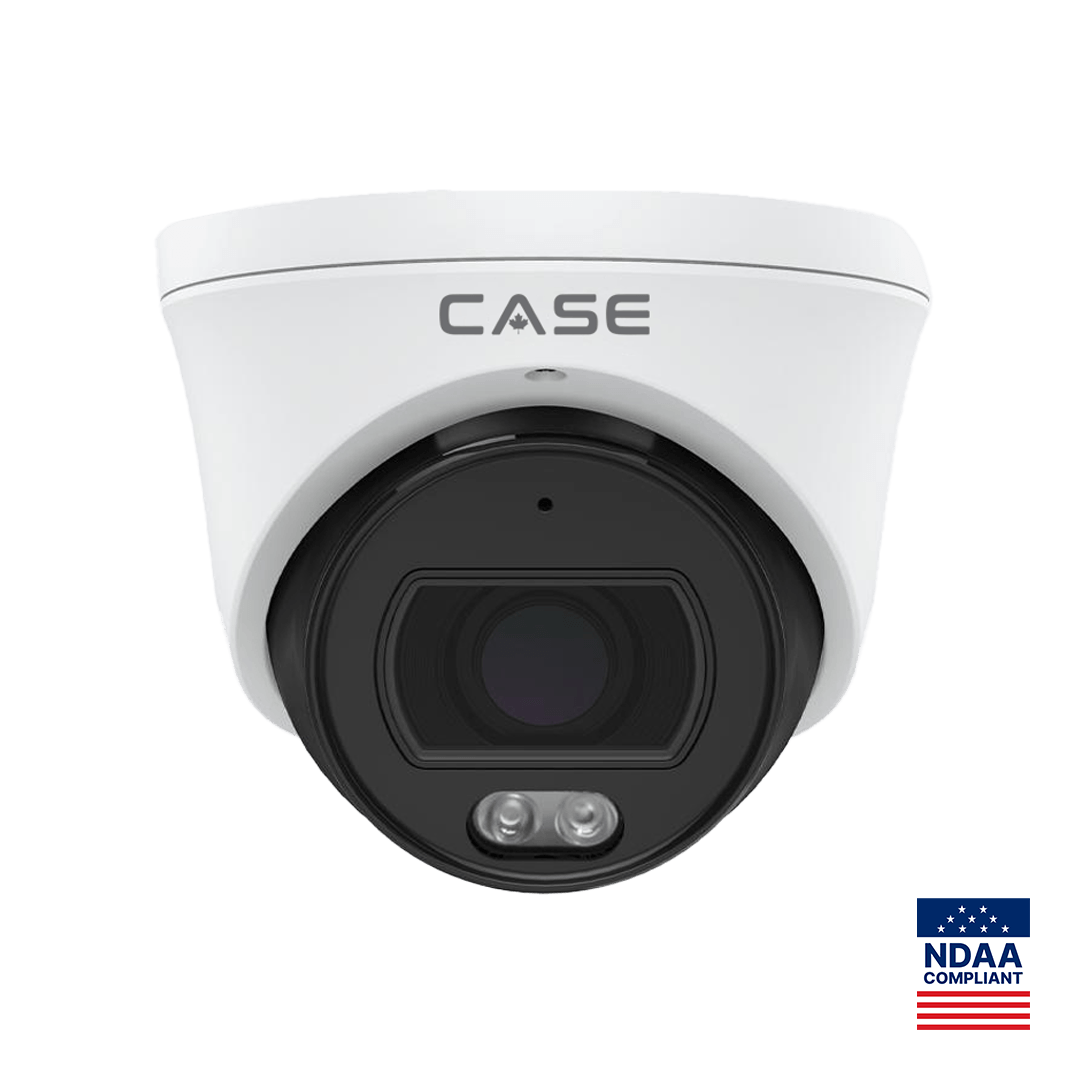
- Camera SKUs and quantities: “CS-I4SV S-2.8mm ×6; CS-I8XQ II-2.8mm ×2”.
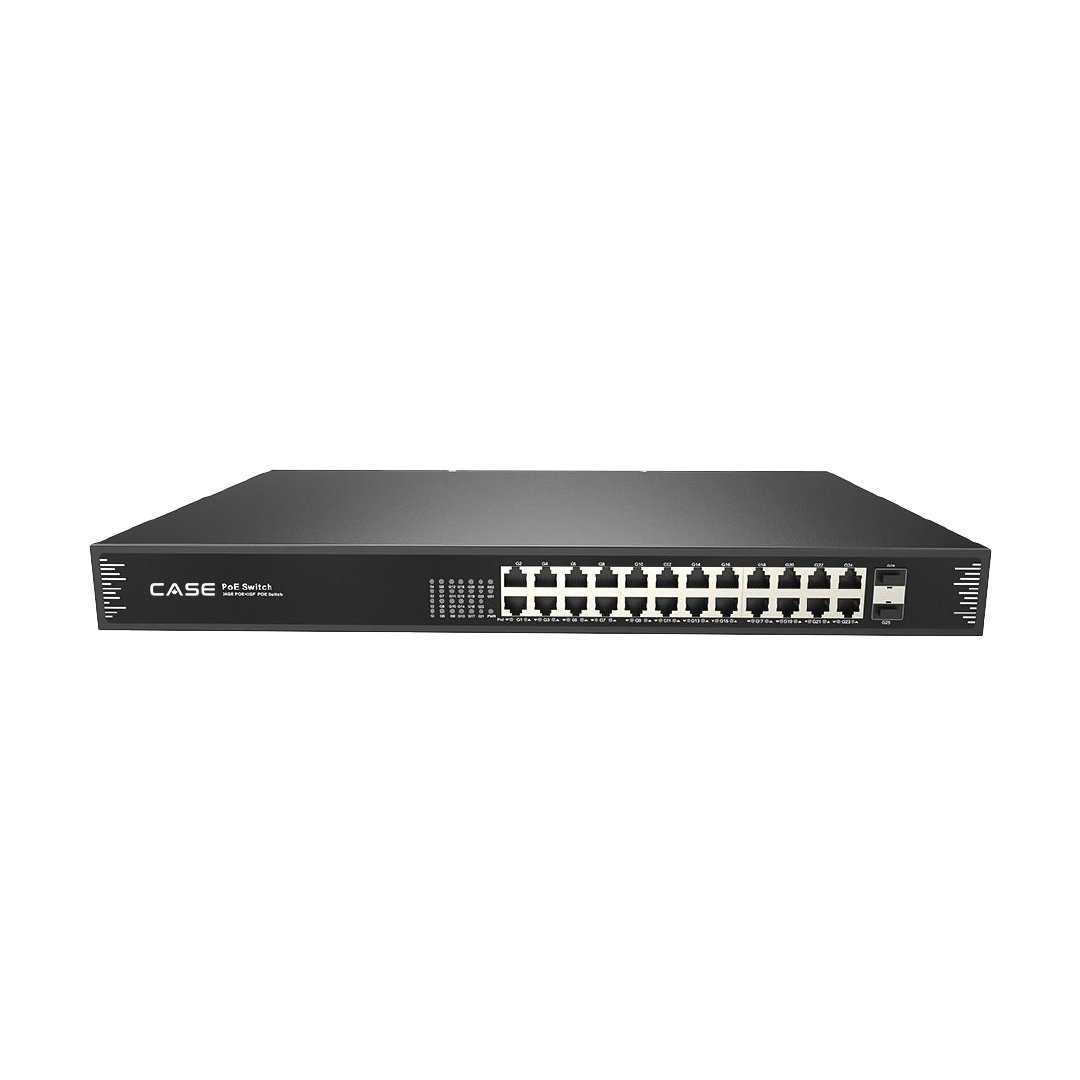
- PoE switch SKU: “CS-POE33024PF” if the recorder’s ports ran out, or “NVR PoE only”.
- HDD: size, count, maker and serial — hard drives are supported through back-to-back manufacturer warranty.
- Warranty end dates by category, counted from the warranty start date Anabon confirms for the order (record it in the row): cameras and NVR + 6 years; PTZ cameras + 3 years; CASE accessories carry unlimited warranty, so no date. Warranty service goes through you, so this row is also your RMA record.
With the warranty start date Anabon confirms for the order in column E: =IF(E2=””,””,EDATE(E2,72)) for cameras and NVR, =IF(E2=””,””,EDATE(E2,36)) for PTZ cameras. Project Series (CSP-) items carry no warranty term until Anabon confirms it in writing per project, so record what was confirmed instead of a formula.
How does the 7/30/90-day follow-up schedule work?
Follow-ups are generated, not remembered. The day a Job reaches Handed over, add four rows to Follow-ups with due dates pulled from Jobs: with Job ID in column A and Handover date in column E, the 7-day cell is =VLOOKUP(A2,Jobs!A:E,5,FALSE)+7; the others use +30, +90 and +365.
| Follow-up | Purpose | What you check or ask | Outcome recorded |
|---|---|---|---|
| 7-day | Catch early faults | Recording on every channel, CASE Connect login works, no missed alerts, week-one snags. Then ask for the review (see the Google Business Profile checklist). | OK / fault fixed / return visit booked |
| 30-day | Match the system to real use | Retention days achieved vs promised, accounts for new staff, blind spots noticed, add-on cameras. | OK / add-on quote created |
| 90-day | Turn a job into a relationship | Health check: firmware, storage health, time sync, lenses clean. Propose a service agreement with the first visit already done. | Agreement signed / declined / revisit at 365 |
| 365-day | Annual inspection and renewal | Full inspection, warranty record updated, upgrade conversation, renewal. | Renewed / upgrade quote / closed |
Conditional formatting that does the nagging
On Follow-ups, Format > Conditional formatting, custom formula. Red: =AND($D2<TODAY(),$F2=”Due”). Amber: =AND($D2<=TODAY()+7,$F2=”Due”). Repeat on Quotes using Last chase date (a quote Sent 7 days ago without a chase turns red) and on Service agreements using Next visit due. Save a filter view “This week” showing Status = Due within 7 days.
What is the weekly routine?
Twenty minutes every Monday, one person responsible, before trucks leave:
- Open “This week” on Follow-ups and assign each Due row to a person and a day.
- Open Quotes filtered to Sent and Chase due. A quote older than 7 days without a chase gets a call today; one past Valid until becomes Expired or is re-issued.
- Open Leads filtered to New and Contacted; every row gets a Next action date this week or moves to Lost with a reason.
- Sort Service agreements by Next visit due and book the next two weeks of visits.
- Check that last week’s handovers have four Follow-ups rows and a complete Jobs row, then note three numbers: open quotes, follow-ups overdue, agreements due within 60 days. When overdue follow-ups stop being zero, the routine broke.
Customer contact data is personal information. In the US, follow your state’s privacy and data-breach rules; in Canada, PIPEDA applies and Quebec’s Law 25 adds its own requirements. Share with named company accounts only, never a public link, and remove access the day someone leaves.
When should you graduate to a dedicated CRM?
The spreadsheet is right until one of these holds for a full quarter:
- More than three people edit it daily and overwrite rows.
- Open leads pass roughly 200 and the weekly review no longer fits in 20 minutes.
- You need automated email, e-signature on quotes or a technician app that fills the Jobs row from the field.
- Overdue follow-ups stay above 10 percent of due rows two Mondays in a row despite the routine.
When you move, export the six tabs as CSV; they correspond to Contacts, Deals, Projects, Tasks and Contracts in most systems, and Jobs becomes the asset register most CRMs lack. Keep the status values: the discipline is what you are migrating, not the file.
How do you set up the template in 20 minutes?
- Create a workbook in the company Google account with the six tabs named as above; paste the column headers into row 1 and freeze it.
- Give each Status column a dropdown with that tab’s values (Data > Data validation); format date columns as Date.
- Add the two warranty formulas on Jobs and the VLOOKUP due-date formula on Follow-ups; drag each down 200 rows. Add the red and amber rules and save the “This week” view.
- Enter your last ten jobs, with SKUs and firmware, before any lead. A CRM with an empty Jobs tab is a to-do list.
- Put the Google Sheets app on every technician’s phone; share with company accounts, Editor on Jobs, Viewer elsewhere.
What to tell your customer
“We keep a record of every component we installed for you — recorder model, firmware, cameras, switch and hard drives — with the warranty dates by category, so when you call we can usually diagnose before sending anyone. We’ll check in at one week, one month and three months, and propose an annual service agreement once the system has settled in. Warranty and service go through us.”
FAQ
Why six tabs instead of one big sheet?
One sheet forces every row to carry every column, so technicians skip fields and filters stop working. Six tabs let each row describe one thing — a customer, a lead, a quote, a job, a follow-up, an agreement — joined by short IDs, so the weekly review is a filter and the Jobs tab is a clean asset register.
What should the Jobs tab record for each installed system?
Handover date, NVR SKU in full as printed, NVR firmware version, camera SKUs with quantities, PoE switch SKU, hard drive size and count, network addressing, who holds the CASE Connect account, and warranty end dates by category — cameras and NVR at six years, PTZ cameras at three. That row is your service-call starting point and RMA record.
How are the 7/30/90-day follow-ups created?
When a job reaches Handed over, add four rows to the Follow-ups tab whose due dates are calculated from the handover date with a VLOOKUP plus 7, 30, 90 and 365 days. Each row has a fixed purpose — fault check, usage check, health check and service agreement, annual inspection — and a recorded outcome, so nothing stays a vague reminder.
Can we store CASE pricing in the workbook?
Yes, internally. The Quote value column holds your own number, and pricing from your approved business account can sit in a private tab for building quotes. The rule is where it never goes: no CASE price on a website, listing, social post or public document. Share the workbook with named company accounts only.